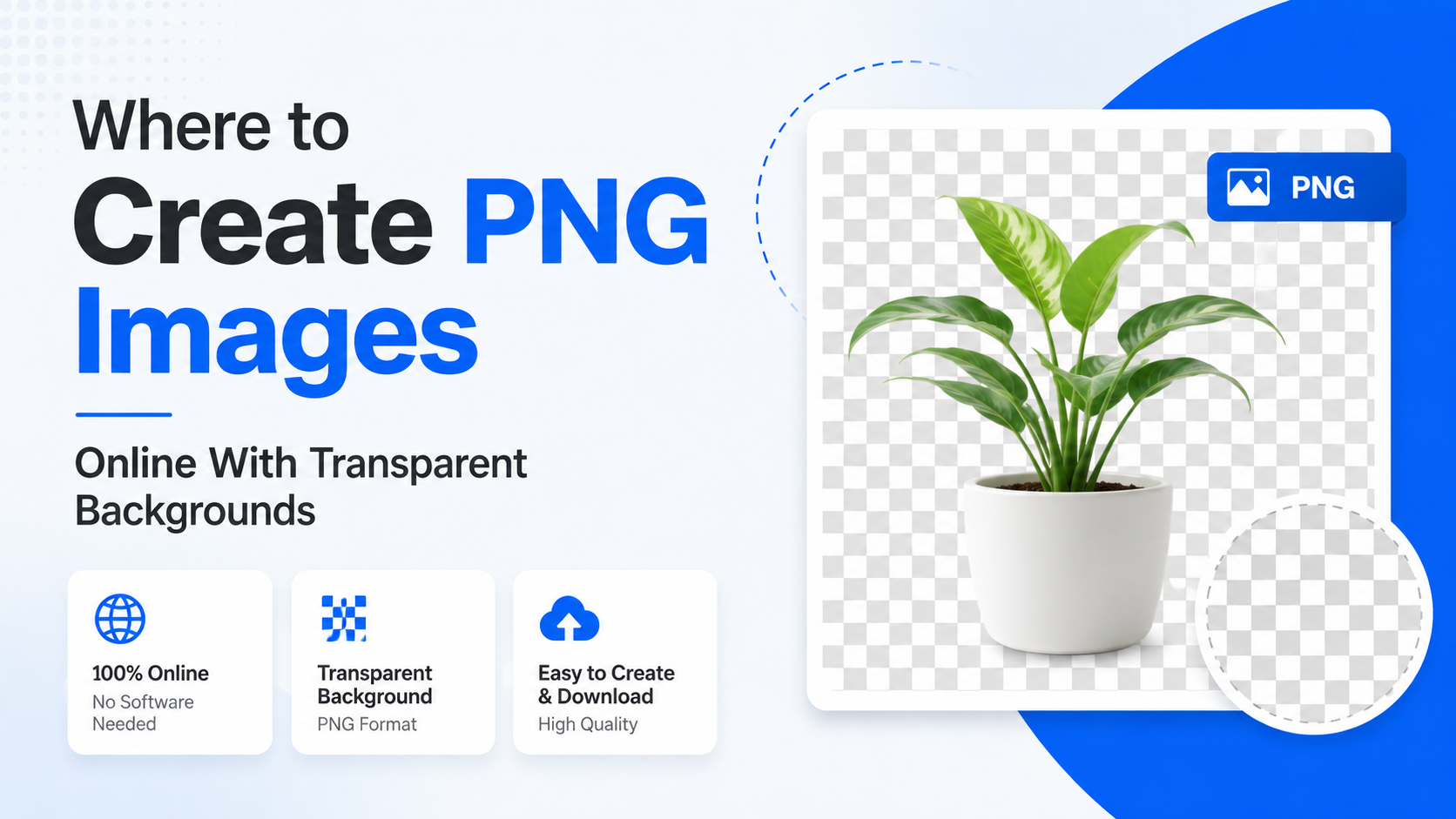
If you need a logo without a white box, a product cut-out for an online shop, or a graphic that can sit neatly on any colour, PNG is usually the right format. The key feature is transparency: PNG files can store partially or fully transparent pixels through an alpha channel, while JPEG files cannot. Figma's export documentation explains that PNG supports lossless compression and transparency.
So, where to create PNG images online? You can use an all-in-one design editor such as Canva or Adobe Express, a specialist background remover such as remove.bg, or a browser-based editor such as Photopea. The best choice depends on whether you are designing from scratch, removing a background, or making precise edits.
Key Takeaways
- Use Canva or Adobe Express for templates, text, logos and social-media graphics.
- Choose remove.bg when your main goal is automatic background removal.
- Use Photopea for Photoshop-style control, layers and manual edge refinement.
- Export as PNG and confirm that transparency is enabled before downloading.
- Check the result on both light and dark backgrounds to spot white halos or missed areas.
- For Indian businesses, prepare different sizes for marketplaces, WhatsApp, Instagram and print.
What Makes a PNG Background Transparent?
A transparent PNG does not contain a solid white background. Instead, the image includes transparent pixels around the visible subject. When placed over a coloured webpage, presentation slide or design, the underlying colour shows through.
PNG is particularly useful for:
- Logos and brand marks
- Product photographs
- YouTube or podcast overlays
- Stickers and digital illustrations
- E-commerce catalogue images
- Festival greetings and promotional graphics
- Signature, stamp and watermark files
- App icons and website elements
Transparency is different from a white background. An image may appear to have a chequered pattern in an editor, but that pattern is only a preview. To confirm the file is genuinely transparent, place it over a coloured layer or open it in another editor.
Remember that JPEG does not support transparent pixels. If you export a cut-out as JPG, the empty area will normally be filled with a colour, often white.
Best Online Places to Create Transparent PNG Images
The following tools cover different needs. Features and account requirements can change, so review the export screen before completing a project.
| Tool | Best for | Main workflow | Useful limitation to consider |
|---|---|---|---|
| Canva | Templates, social posts and simple branding | Design, remove background, download PNG | Some export or background-removal options may depend on your plan |
| Adobe Express | Quick editing and background removal | Upload, remove background, select "No fill", download Transparent PNG | Fine adjustments may be less extensive than in a full editor |
| remove.bg | Fast automatic cut-outs | Upload an image and download the result | Complex hair, glass or low-contrast edges may need checking |
| Photopea | Detailed manual editing | Use Magic Cut or selections, then export as PNG | More powerful interface requires practice |
| Figma | Interface assets and collaborative design | Create a frame or selection, set PNG export | Better suited to design systems than one-click photo editing |
Canva: Best for Designs and Marketing Graphics
Canva's transparent-image tool is designed for making a photo background transparent and downloading the result as a PNG. Canva describes using its transparent image maker to remove a photo background and create a transparent PNG.
A practical Canva workflow is:
- Open a new design or upload your image.
- Select the image and use the background-removal feature.
- Inspect the edges, especially around hair, jewellery, clothing and thin objects.
- Add text, shapes or other elements if required.
- Choose Share or Download.
- Select PNG and enable the transparent-background option when it appears.
- Download and test the file on a contrasting background.
Canva is convenient for an Indian retailer creating WhatsApp catalogue visuals, a local restaurant making festival offers, or a freelancer preparing a logo kit. If the transparent export control is unavailable, check whether the feature requires a different plan or account permission.
Adobe Express: A Straightforward Transparent PNG Workflow
Adobe Express provides an online background remover and lets you download an image with no background. Its official instructions say to select Background color, choose No fill, and download in the Transparent PNG format. Adobe's help page lists these steps.
Use this process:
- Open Adobe Express's background-removal tool.
- Upload a supported image.
- Let the tool remove the background automatically.
- Review the cut-out at a larger zoom.
- Set the background colour to No fill.
- Choose Transparent PNG as the download format.
- Save the file and verify transparency elsewhere.
Adobe Express is useful when you want to continue editing after removing the background—for example, placing a product on a branded banner or adding a Hindi headline for a seasonal campaign.
remove.bg: Best for One-Click Background Removal
remove.bg says that it automatically separates the foreground from the background, so users do not have to manually select layers. This makes it suitable when you have many product or profile images and want a quick first result.
Typical steps:
- Visit remove.bg.
- Upload a photo from your computer or phone.
- Wait for automatic processing.
- Review the preview for missing parts or unwanted fragments.
- Download the transparent PNG option offered for your image.
- Open the file in your design tool and place it over a new background.
Automatic tools can struggle with translucent fabric, smoke, reflective packaging, bicycle spokes, fine hair and objects that closely match the background. Always inspect the cut-out before using it in an advertisement or product listing.
Photopea: Detailed Control in a Browser
Photopea works like a browser-based image editor and supports layers, selections and masks. Its tutorials explain that you can use Magic Cut or selection tools, delete the unwanted area, and export through File → Export As → PNG. Photopea's background-removal tutorial also notes that PNG is necessary for transparent pixels.
A controlled Photopea workflow is:
- Open your image with File → Open.
- Duplicate the original layer so you can recover it if needed.
- Use Select → Remove BG, Magic Cut, Magic Wand or another selection method.
- Refine the edge with a layer mask or additional selections.
- Hide or delete the background layer.
- Confirm that the empty area shows the editor's transparency pattern.
- Select File → Export As → PNG and save.
Photopea is a strong choice for designers who need to correct an automatic cut-out, preserve shadows, or prepare several layers for later editing.

Figma: Useful for Interface and Brand Assets
Figma supports PNG exports with transparent backgrounds. Its documentation states that PNG supports transparency and that the export panel can produce 32-bit RGBA images, where the alpha channel controls opacity. See Figma's export guidance.
To export:
- Place your artwork inside a frame or select the object.
- Add an export setting in the right-hand panel.
- Choose PNG.
- Ensure the frame or background is not filled with a solid colour.
- Export the selection.
Figma is practical for app icons, website illustrations, design-system components and collaborative brand work. It is not usually the fastest choice for removing a photograph's background.
How to Create a Transparent PNG From Scratch
You do not always need to remove an existing background. To create a new transparent graphic:
- Start with a blank canvas in Canva, Adobe Express, Photopea or Figma.
- Leave the canvas background empty or set it to no fill.
- Add text, shapes, illustrations or a cut-out photo.
- Keep decorative background rectangles on separate layers so they can be hidden.
- Export as PNG with transparency enabled.
- Open the downloaded file against a dark and light background.
For example, a home baker in Pune could create a transparent logo containing a business name and whisk icon, then place that same PNG on packaging, Instagram posts and a delivery menu.
Practical Quality Checks Before You Publish
A transparent file can still look unprofessional if the edges are poorly processed. Use this checklist:
- Inspect at 100% zoom: Look for jagged edges, leftover sky, or holes inside the subject.
- Test contrasting colours: White halos are obvious on black or dark blue.
- Check small details: Earrings, fingers, wires and hair are commonly removed accidentally.
- Keep the original: Save the untouched photo or editable project separately.
- Use suitable dimensions: Export large enough for the final placement, but avoid unnecessarily huge files.
- Name files clearly: For example,
brand-logo-transparent.pngorproduct-blue-shirt-cutout.png. - Confirm the format: The filename should end in
.png, not.jpgor.webp, when transparency is required. - Respect usage rights: Use photographs, fonts and illustrations that you own, licensed or are permitted to publish.
For e-commerce, compare the cut-out with the platform's image rules before uploading. Marketplaces may impose their own dimensions, background or product-photography requirements.
Common Problems and Their Fixes
The downloaded PNG has a white background
Return to the export settings and look for Transparent background, No fill or a similar control. A transparent canvas in the editor does not always mean the export will be transparent.
The checkerboard appears in the final image
The checkerboard should normally be visible only inside an editor. If it appears in the saved image, you may have exported a preview or screenshot instead of the actual PNG.
Edges look white or grey
This is often caused by anti-aliased pixels from the old background. Refine the mask, use a smaller edge, or process the image against a similar background colour before export.
The image looks soft
You may have downloaded a smaller preview or enlarged a low-resolution source. Start with the highest-quality original available and export at the required dimensions.
Transparency disappears after uploading
Some apps convert PNG files to JPEG or add a background during upload. Check the platform's file-conversion settings and download the uploaded asset to test it.
Frequently Asked Questions
Where can I create PNG images with a transparent background for free?
Photopea offers browser-based editing and PNG export, while remove.bg and Adobe Express provide online background-removal workflows. Canva also provides a transparent-image tool, but the exact export and removal options can depend on the account plan. Check each tool's current download screen.
Which tool is easiest for beginners?
For a one-off photo cut-out, remove.bg is usually the simplest because the process is upload, automatic removal and download. Adobe Express and Canva are better when you also need text, layouts or marketing templates.
Can I make a logo with a transparent background online?
Yes. Create the logo on an empty canvas, avoid adding a solid background layer, and export as PNG with transparency enabled. Keep an editable copy so you can change the colour or wording later.
Is PNG better than JPG for product images?
PNG is better when the product must sit over different backgrounds or when the image includes transparency, sharp text or line art. JPG may be more efficient for ordinary photographs that do not need transparent areas.
How do I know whether a PNG is truly transparent?
Open it in an editor with a contrasting background, or place it over a coloured shape. If the underlying colour shows through around the subject, the file contains transparency.
Conclusion
The best answer to "where to create PNG images" depends on your workflow. Canva and Adobe Express combine design tools with background removal; remove.bg is built for fast automatic cut-outs; Photopea gives you detailed manual control; and Figma is well suited to interface and brand assets.
Whichever tool you choose, export in PNG, enable the transparent or no-fill setting, inspect the edges and test the file on contrasting backgrounds. That small quality check helps ensure your logo, product photo or promotional graphic is ready for Indian websites, marketplaces, social media and print materials.