Creating an original visual no longer requires drawing skills, costly software, or a design team. A beginner can describe a scene in plain English—such as a festive product banner, a classroom illustration, or a travel thumbnail—and refine the result in minutes.
The best AI apps to create images are not necessarily the ones with the most controls. For most beginners in India, the right choice is a tool that is easy to access, produces usable results on its free tier, and lets you correct mistakes without learning complex editing software. This guide compares five strong starting points, explains their current free-access limitations, and shows how to write prompts that produce better images.
Key Takeaways
- ChatGPT and Gemini are ideal if you prefer creating and refining images through a conversation.
- Canva and Microsoft Designer are practical when the image must become a social post, invitation, presentation graphic, or marketing design.
- Adobe Firefly is a useful option for people who want AI generation alongside familiar creative editing workflows.
- "Free" usually means limited usage, daily allowances, or changing capacity limits—not unlimited image generation.
- Clear prompts with a subject, setting, style, composition, and exclusions produce more reliable images.
- Review AI-generated visuals before publishing, especially when they include people, logos, prices, text, or factual claims.
What Beginners Should Look for in an AI Image Generator
A text-to-image generator converts a written instruction, called a prompt, into an image. The best beginner tool depends less on technical model names and more on what you want to make.
Choose a tool using these five questions:
- Can you start without design experience? A simple chat interface or template-based editor reduces the learning curve.
- Can you edit the first result? Image generation is iterative. The ability to upload an image, change a section, or ask for a revision matters more than getting a perfect first attempt.
- Does its free access suit your workload? Providers can apply daily, monthly, feature-specific, or capacity-based limits.
- Can you download an appropriate image size? A social-media post, A4 flyer, and YouTube thumbnail need different formats.
- Are the usage terms suitable for your purpose? Do not assume an image can be used commercially simply because the generator is free.
For occasional content creation, start with one chat-based tool and one design-oriented tool. This gives you both fast experimentation and an easy way to turn a chosen image into a finished post or presentation.
Best Free AI Image Tools for Beginners
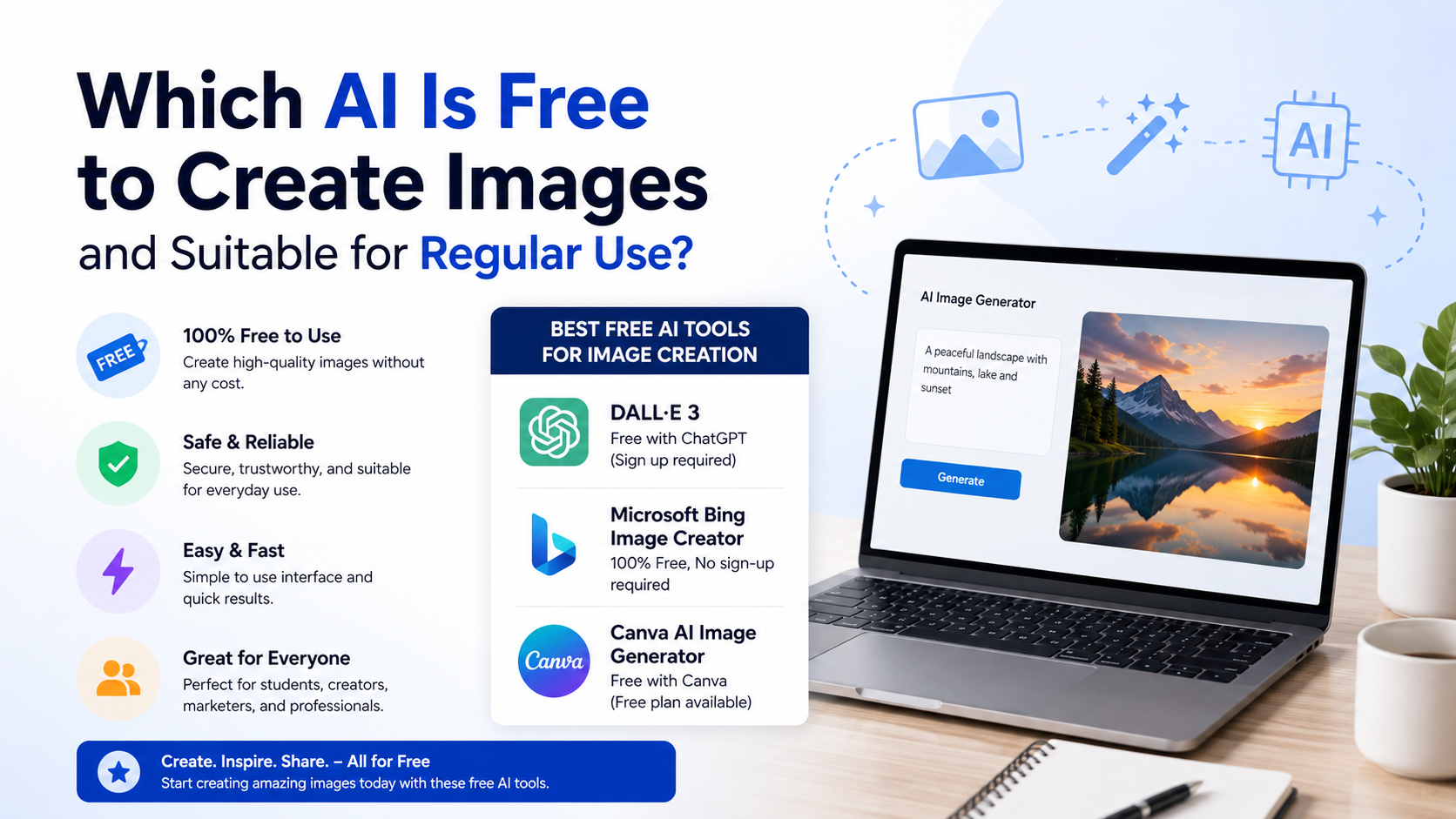
The tools below are selected for accessible beginner workflows and officially documented image-generation or editing capabilities. Free access and limits can change, so check the account screen before planning a high-volume project.
| Tool | Best for | What beginners can do | Important free-access note |
|---|---|---|---|
| ChatGPT Images | Conversational creation and revisions | Generate, upload, edit, choose an aspect ratio | Free users can create images, subject to separate usage limits |
| Gemini Apps | Image editing and prompt-led creation | Generate images, edit uploads, combine image ideas | Users without a Google AI plan have standard usage limits |
| Canva Magic Media | Social posts, flyers, and simple designs | Generate images inside a design canvas, select style and size | AI usage is allowance-based and may vary by plan |
| Adobe Firefly | Creative experiments and AI-assisted edits | Generate images and use generative editing tools | Firefly Free has limited daily generations |
| Microsoft Designer | Ready-to-use visual designs | Create an image, refine it, then add it to a layout | Free use is available, but higher-frequency creation may require a subscription |
ChatGPT Images: Best for conversational editing
ChatGPT is a natural starting point for anyone who can explain what they want in words. You can ask it to create an image in a chat, open the image editor, select an area, and describe the change. It also supports uploads, direct edit instructions, and aspect-ratio selection. OpenAI's Images help guide confirms that ChatGPT Images is available on web, iOS, and Android.
For example, rather than starting over, you can say: "Keep the same composition, replace the background with a bright Indian street market at sunrise, and remove all text."
ChatGPT's free tier includes image creation, but image generation has its own usage limits. The service shows a notice when a limit is reached, so it is better suited to thoughtful iterations than bulk production. OpenAI's Free Tier FAQ describes these limits as separate from normal chat limits.
Best use: blog featured images, concepts, product-scene mock-ups, illustrated explainers, and revisions based on feedback.
Gemini Apps: Best for image variations and uploaded references
Gemini Apps provides an image-generation and editing workflow through Gemini. Google's current help documentation says users can generate images, upload an image for editing, and use multiple reference images to create a new result. It also notes that downloads are available at up to 1K resolution without a Google AI plan, while a Google AI plan enables 2K downloads. Google's Gemini image guide provides the current feature details.
This is particularly useful when you already have a rough product photo, sketch, or mood reference. For example: upload a photograph of handmade jewellery and ask for "a premium square product backdrop in warm beige, soft studio shadow, no words, leave empty space at the top."
Google documents that image-generation access for users without an AI plan is available with standard limits. Limits can change with demand, and Gemini displays limit information in the product. Gemini Apps limits and upgrades explains that these are compute-based rather than a permanently fixed number of images.
Best use: image-to-image changes, personalised concepts, social visuals, and illustrations that need a clear text prompt.
Canva Magic Media: Best for turning an image into a finished post
Canva is valuable when the end result is not just an image file but a ready-to-share design. Its Magic Media feature lets users describe an image, select an image style such as photography, digital art, or fine art, and choose a size within Canva's editor. You can also upload a reference image. Canva's Magic Media instructions outline the current desktop and mobile workflow.
A practical workflow is to generate a background image, place it in an Instagram post or presentation template, then add your headline and logo using Canva's normal tools. This is often more efficient than asking an image generator to render perfect branding text inside the image.
Canva tracks AI use against an allowance, so check the account's current AI usage information before relying on it for a campaign. Avoid treating generated in-image text as final copy; add important Hindi, English, or regional-language wording with Canva's text tools instead.
Best use: Instagram posts, event invitations, educational slides, thumbnails, festival creatives, and small-business social content.
Adobe Firefly: Best for creative generation with editing options
Adobe Firefly combines text-to-image generation with features such as Generative Fill and Generative Expand. Adobe currently offers Firefly Free with limited daily generations across selected image, video, and audio capabilities. Adobe's Firefly plans page states that the free plan has limited daily generations, while paid access changes the available credits and features.
For beginners, Firefly is especially useful when you want to improve an existing image rather than generate every detail from scratch. You might upload a wide product photo, expand the sides for a banner, then add a simple text prompt to create a suitable background.
Adobe says its Firefly models are trained on licensed and public-domain content, and its plans page describes Firefly-model outputs as safe for commercial use. Still, that does not remove your responsibility to review the final image, avoid misleading claims, and respect third-party rights. Adobe Firefly plans
Best use: campaign backgrounds, product-image cleanup, concept art, and creatives that need further editing.
Microsoft Designer: Best for quick design-led graphics
Microsoft Designer is aimed at people who want a finished visual rather than a standalone generated image. Its "Create with AI" experience can generate image options from a written description, then lets you download, copy, or edit a result. Microsoft's Designer guide also describes built-in tools for restyling images, removing or blurring backgrounds, and adding layout elements.
Microsoft describes Designer as free for personal use, while noting that a subscription may be needed for more frequent creation. Microsoft's Designer FAQ also states that generated AI images include provenance metadata. Availability and account requirements can vary, so review the sign-in and feature prompts in your region.
Best use: invitation cards, greeting designs, presentation graphics, social banners, and quick personal projects.
How to Choose the Right Tool for Your First Project

Use this simple match-up rather than trying every app at once:
- Need an image and want to refine it through chat: Start with ChatGPT Images or Gemini Apps.
- Need a finished social post or flyer: Start with Canva Magic Media or Microsoft Designer.
- Need to extend, remove, or alter part of an existing visual: Try Adobe Firefly, ChatGPT Images, or Gemini.
- Need reliable wording on a poster: Generate the visual background first, then add the wording in Canva, Designer, PowerPoint, or another text editor.
- Need many images: Compare the current limits in each account before committing to a tool; free allowances are not stable production capacity.
Do not choose solely on a single impressive sample. Generate the same prompt in two tools, compare composition, spelling, hands, faces, and ease of editing, then keep the tool that fits your workflow.
A Simple First-Image Workflow
Follow this repeatable process for better results:
- Define the output. Decide whether you need a square Instagram post, vertical Story, landscape blog header, or presentation illustration.
- Write one detailed prompt. Describe the main subject, setting, style, lighting, viewpoint, colours, and empty space for text.
- Generate a small set of options. Pick the strongest composition rather than trying to fix a weak one.
- Make one change at a time. Ask for "remove the crowd" or "make the lighting warmer," not five unrelated changes at once.
- Move to a design editor. Add actual copy, prices, calls to action, and logos as editable text layers.
- Review before publishing. Zoom in and inspect faces, hands, product labels, dates, brand marks, and claims.
A useful first prompt for an Indian small business could be:
Create a clean, premium product-photo background for handmade natural soap, warm cream and muted green palette, soft window light, leaf shadows, square composition, empty space at the top for a headline, no words, no logo.
The final phrase—"no words, no logo"—reduces two common problems: unreadable AI text and accidental brand-like marks.
How to Write Prompts That Produce Better Images
A good prompt is specific without becoming a long, conflicting brief. Use this formula:
Subject + action or purpose + setting + visual style + composition + lighting/colour + exclusions
For example:
A young Indian entrepreneur packing eco-friendly stationery orders at a tidy home studio desk, realistic editorial photography, vertical composition, soft morning light, teal and warm wood colours, space at the top for text, no visible logos, no readable text.
Improve a weak result with targeted revisions
Instead of saying "make it better," name the visual change:
- "Use a wider shot and show more of the desk."
- "Keep the character, but change the background to a modern classroom."
- "Make it flat vector illustration, not a photograph."
- "Remove the extra fingers and keep both hands below the table."
- "Leave the upper third empty for a title."
If the tool supports image uploads, a rough sketch, reference photo, or previous generation can help establish the composition. Only upload material you have the right to use.
Practical Considerations for Indian Creators and Businesses
AI image tools can support regional campaigns, but localisation deserves human review. Ask for contextual details—such as local clothing, architecture, food, weather, or a festival colour palette—without relying on stereotypes. If the image includes a person or community, check that the result is respectful and accurate.
For multilingual content, generate a clean visual first and add copy separately. AI-generated text can contain spelling errors, invented characters, or incorrect script. This matters especially for prices, offer dates, medical claims, educational information, and legal notices.
For client work, retain the original prompt, downloaded file, and final edited design. This creates a clear working record and makes it easier to reproduce or revise a campaign later.
Copyright, Privacy, and Accuracy Warnings
AI-generated images are creative aids, not proof of reality. Do not use them to imply a real event, endorsement, product feature, medical outcome, or news photograph unless that claim is independently true and clearly supported.
Keep these safeguards in place:
- Do not upload confidential client files, identity documents, private family photos, or sensitive business data unless you understand the provider's terms and your permission basis.
- Do not ask a tool to imitate a living artist's work or create deceptive images of real people.
- Do not use an AI-generated product image if it inaccurately shows what a buyer will receive.
- Check tool-specific licensing and commercial-use terms before using an output in ads, packaging, or paid client work.
- Label or disclose AI use when your platform, client, audience, or applicable policy requires it.
Frequently Asked Questions
Which is the easiest AI image generator for a complete beginner?
ChatGPT Images and Gemini Apps are easiest if you are comfortable describing what you want conversationally. Canva and Microsoft Designer are often easier when you need a finished social-media graphic because they combine image generation with templates and text editing.
Are free AI image generators truly free?
They can be used without payment, but their image-generation access is typically limited. For example, ChatGPT applies separate image-generation limits to free users, Adobe Firefly Free has limited daily generations, and Gemini uses standard limits for people without a Google AI plan. Always check the current in-product limit before starting a large project.
Can I create images in Hindi or other Indian languages?
You can prompt in a supported language, but do not assume that generated text inside an image will be accurate. For posters or advertisements, generate the artwork without wording and add verified Hindi, English, or other language text afterward in a design editor.
Can I use AI-generated images for my business?
Possibly, but the answer depends on the tool's current terms and the way you use the image. Adobe provides specific commercial-use information for Firefly-model outputs, while other services have their own policies. Review the current terms, avoid third-party logos or copyrighted characters, and make sure the final visual does not mislead customers.
Why do AI images sometimes look wrong?
Image models can misinterpret a vague prompt or make visual mistakes with text, anatomy, objects, and cultural details. Improve results by specifying the subject, setting, style, and composition; then edit one issue at a time. Human review remains essential before publication.
Conclusion
The best AI apps to create images for beginners are the ones that match the task: ChatGPT Images and Gemini for conversational creation, Canva and Microsoft Designer for quick finished designs, and Adobe Firefly for generation plus editing. Their free options are useful for learning and occasional projects, but limits and capabilities can change.
Start with one simple prompt, create several versions, refine the strongest result, and add important text manually. With that workflow, AI image tools can become a practical part of content creation without replacing careful design, factual review, or responsible publishing.