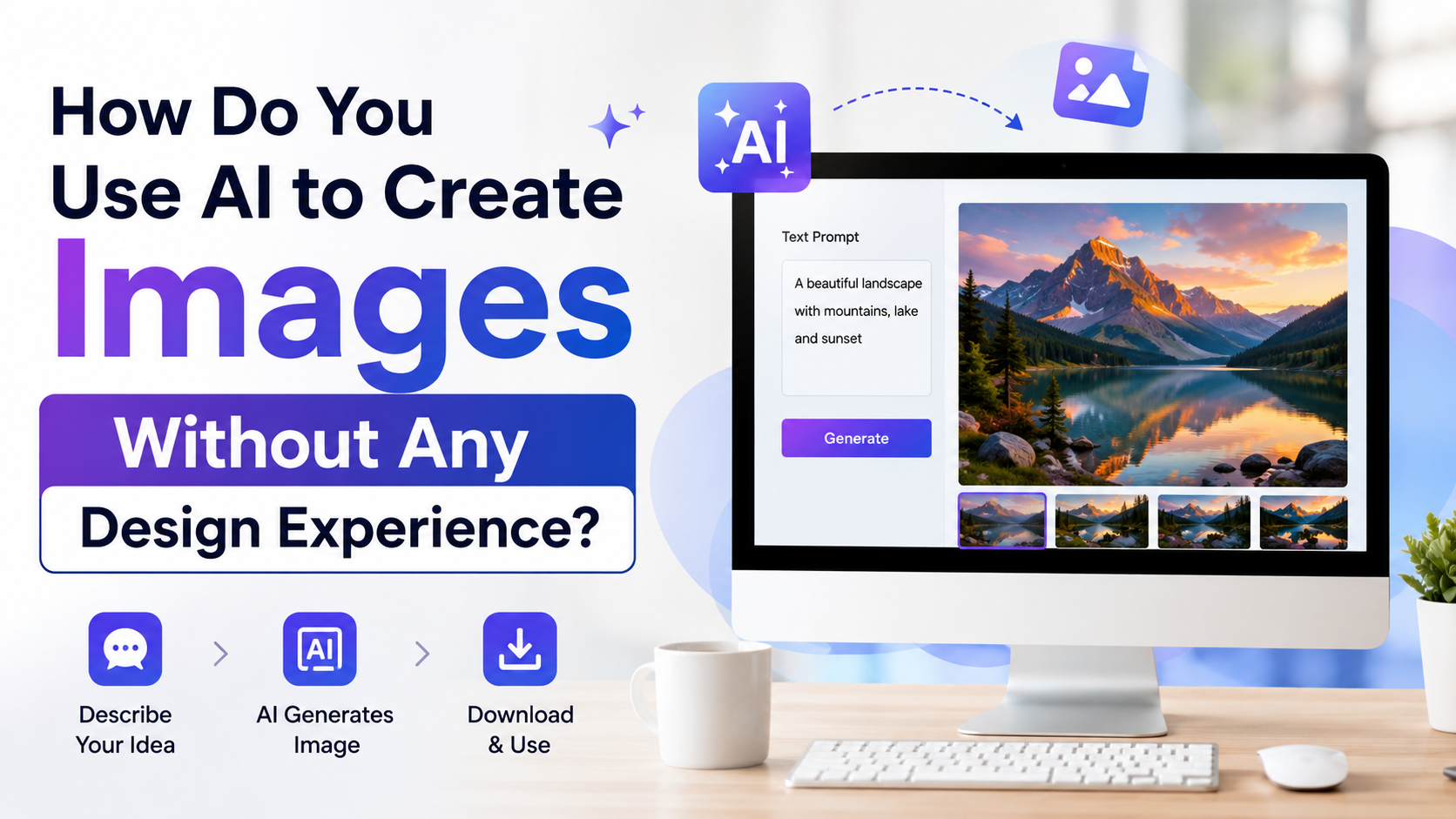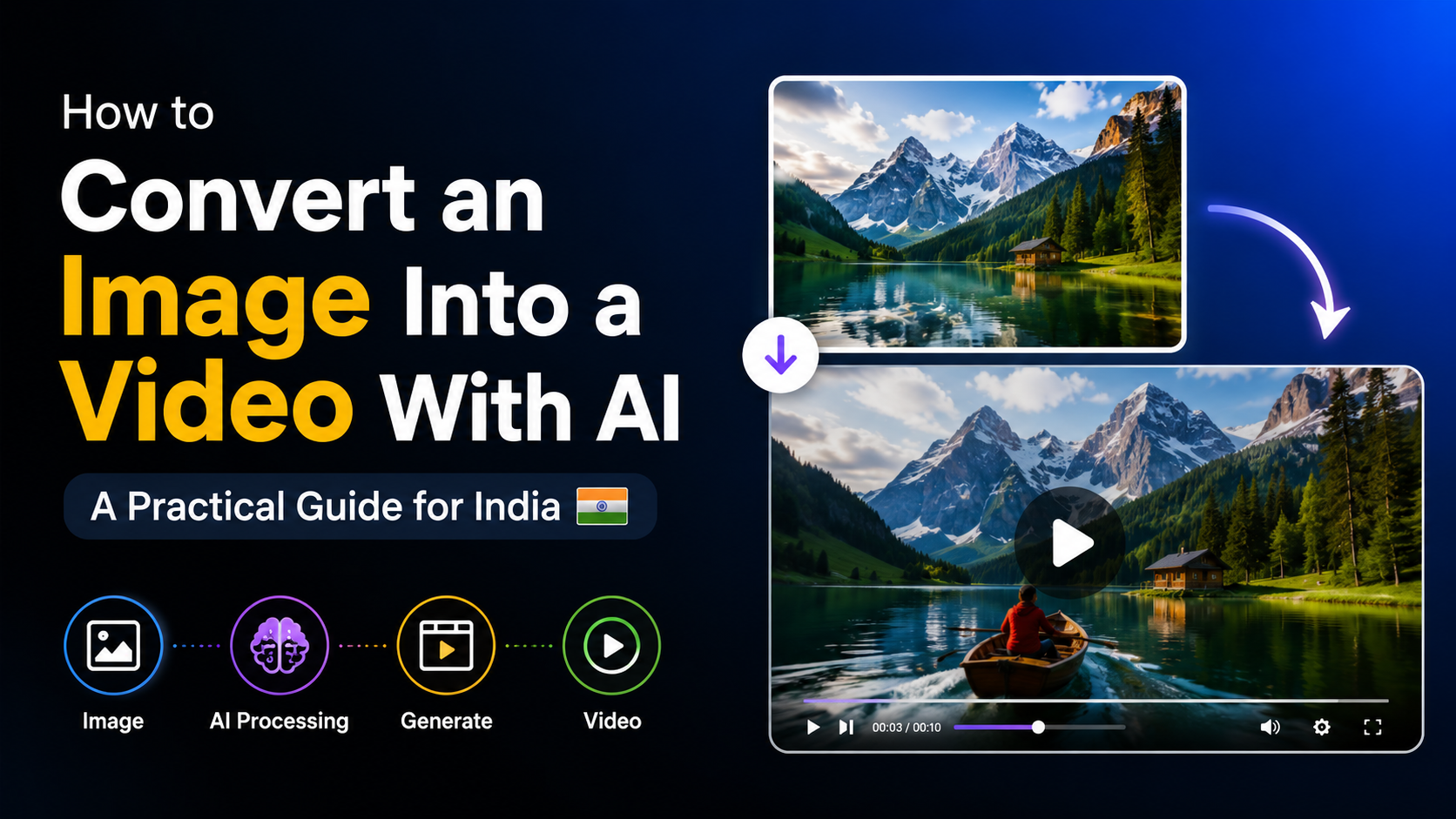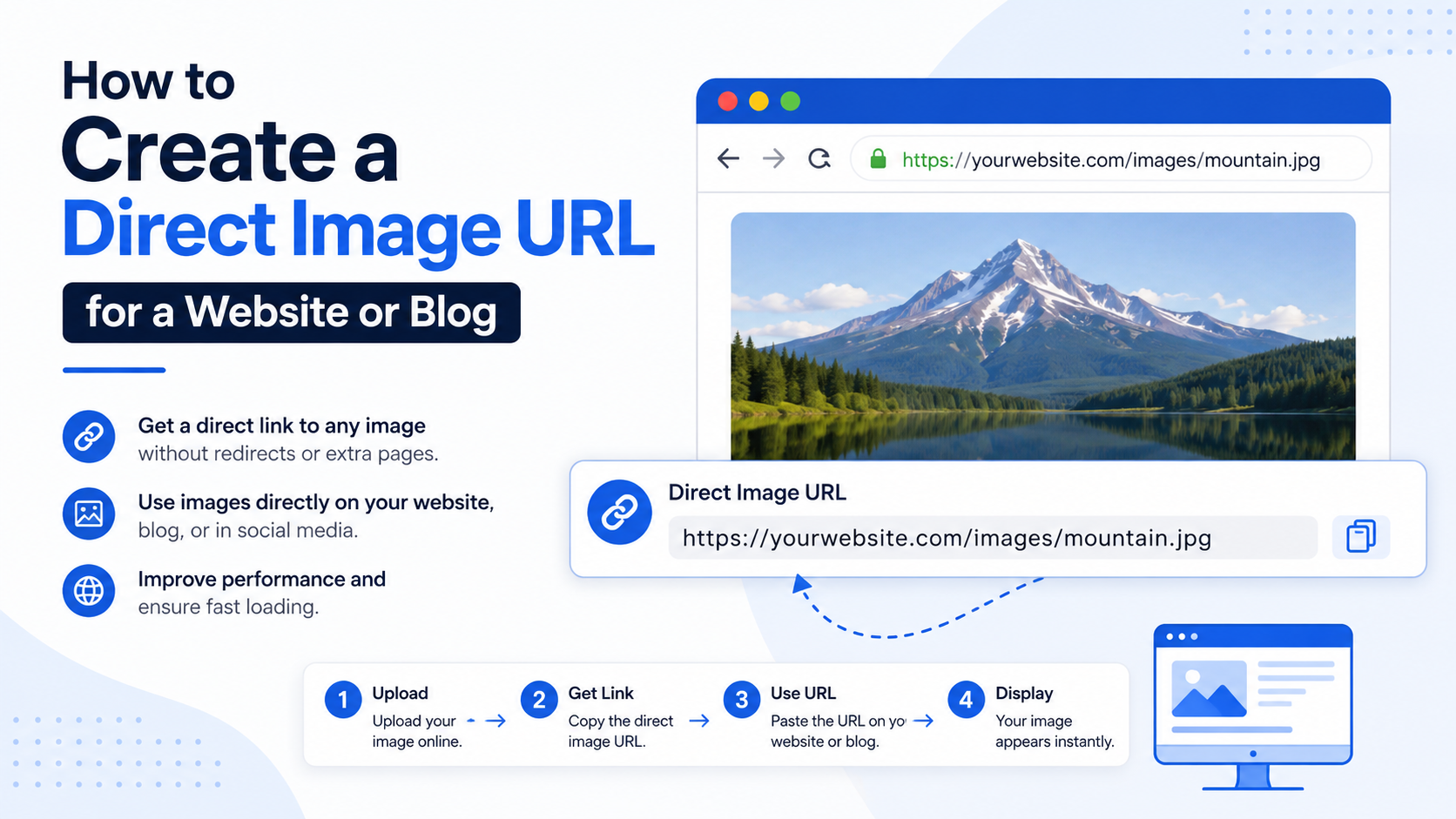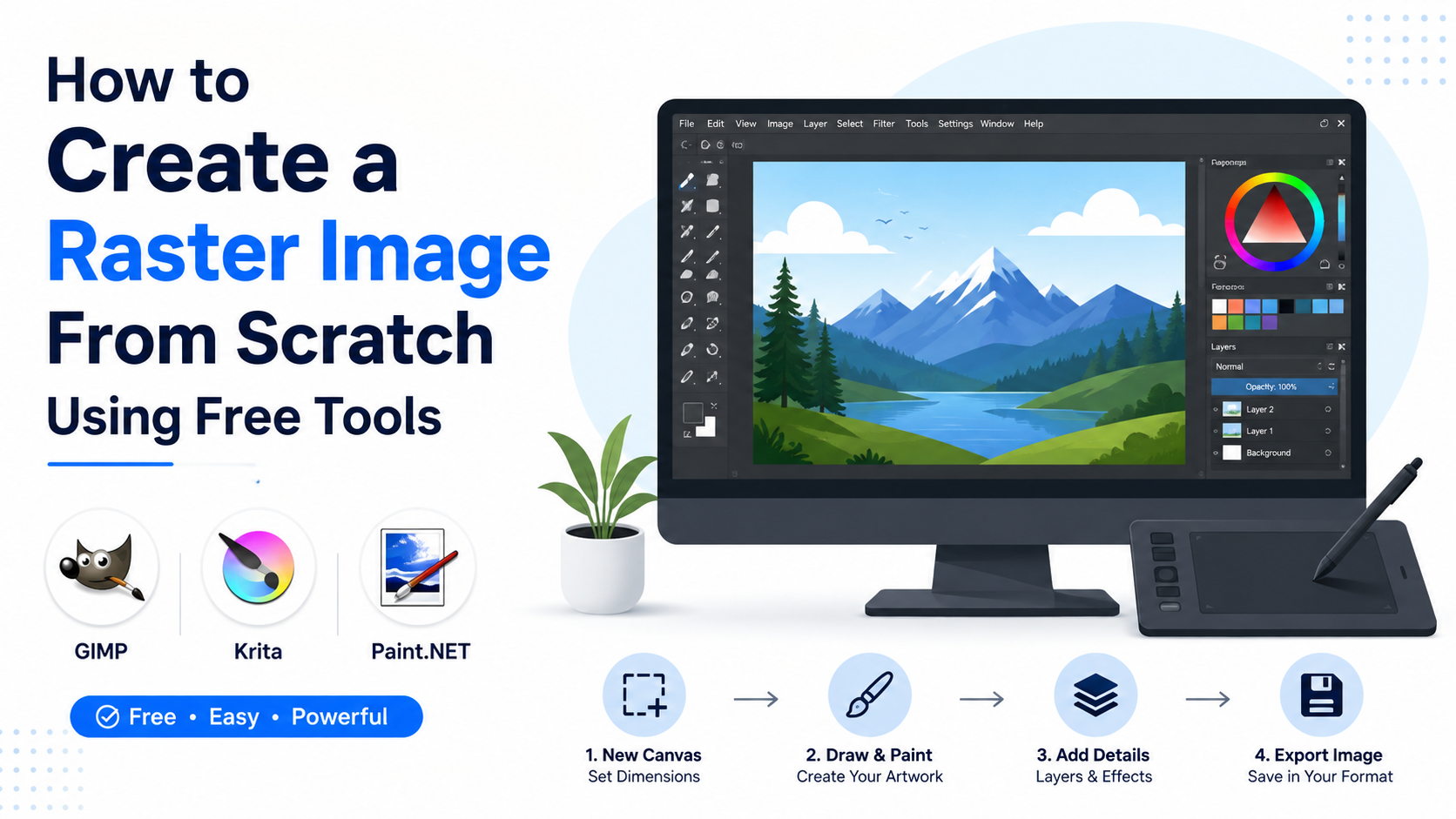

A transparent PNG lets you place a product, logo, portrait, or illustration over any colour, photograph, website section, or presentation slide without a visible rectangular background. An AI PNG image generator can create a new visual from a text prompt or remove the existing background from an uploaded image—then export the result with transparency intact.
For Indian small businesses, creators, teachers, marketers, and online sellers, this is especially useful for catalogue images, social posts, festival creatives, presentations, and branded materials. The important part is not simply removing a background: it is checking the edges, preserving the correct canvas size, and exporting a true transparent PNG rather than a white-background image.
Key Takeaways
- PNG supports an alpha channel, which stores fully transparent and partially transparent pixels.
- Use text-to-image AI when you need a new asset; use AI background removal when you already have the image.
- Clear subject separation and good lighting produce better cut-outs.
- Inspect hair, jewellery, glass, shadows, and fine product edges before exporting.
- Download as PNG with transparency enabled; JPEG cannot retain transparent areas.
- Test the exported file over both light and dark backgrounds before publishing.
What Makes a PNG Background Transparent?
A PNG can contain an alpha channel: pixel-level opacity information. A pixel can be fully visible, fully transparent, or partially transparent. That is why a PNG cut-out can retain soft hair edges, semi-transparent fabric, or a subtle shadow instead of looking like a hard-edged sticker. The PNG specification defines this transparency capability.
A transparent background is often shown as a grey-and-white checkerboard inside an editor. That checkerboard is only a workspace indicator; it is not part of the downloaded file.
| File format | Can retain transparency? | Best use |
|---|---|---|
| PNG | Yes | Logos, cut-outs, product images, graphics |
| JPEG/JPG | No | Photographs with a fixed background |
| WebP | Often yes | Web delivery where the destination supports it |
| SVG | Yes, where applicable | Vector logos and simple scalable artwork |
If a file looks transparent in the editor but displays with a white box after download, it was probably exported without transparency enabled or in JPEG format.
Choose the Right AI PNG Image Generator Workflow
There are two practical ways to make a transparent PNG with AI.
Generate a New Image From a Prompt
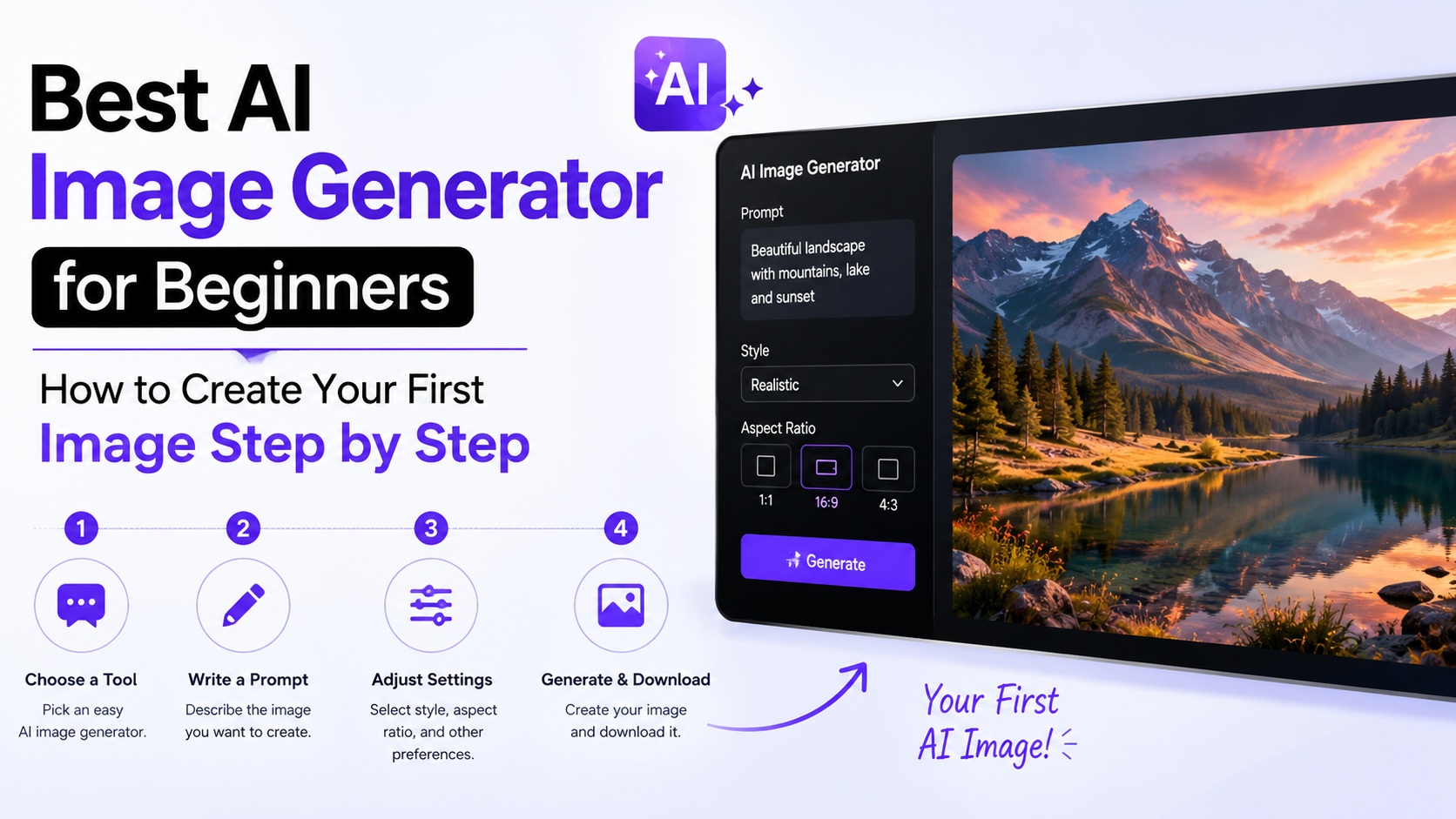
Use this route when you need an original visual: for example, "a flat illustration of a delivery scooter, isolated, transparent background" or "a studio product photo of a stainless-steel water bottle, isolated on transparent background."
Include these details in the prompt:
- The exact subject and visual style
- A simple camera angle or composition
- "Isolated" or "single subject"
- "Transparent background" or "no background"
- Whether you need a shadow
Example prompt:
Minimal 3D illustration of a reusable steel tiffin box, front three-quarter view, clean edges, isolated on a transparent background, no text, no watermark.
Even when an AI tool offers transparent-background generation, inspect the downloaded result. Some outputs may appear isolated but still include a solid-colour layer, unwanted props, or uneven edge treatment.
Remove the Background From an Existing Image
Use background removal when you already have a product photograph, team portrait, signature, or logo. AI identifies the foreground subject and creates a mask around it.
This is usually faster than recreating the image, especially when the original product details, person, or branding must remain accurate. Adobe Express, for example, documents a workflow that removes a background and exports a transparent PNG when "No fill" and the transparent PNG format are selected. Adobe's guidance is a useful example of the export setting to look for.
Prepare the Original Image for Better Results
AI background removal works best when the subject is easy to distinguish from its surroundings. A strong source image reduces editing time and prevents missing edges.
Before uploading, aim for:
- A sharp image with the main subject in focus
- Good contrast between subject and background
- Even lighting without strong colour casts
- The full object visible inside the frame
- Minimal overlap between the subject and surrounding objects
For a product image, place the item against a plain, contrasting backdrop. For a portrait, avoid backgrounds with colours similar to hair, clothing, or skin tone. A black handbag photographed against a dark sofa, for example, is likely to need more manual refinement.
Do not crop too tightly before processing. Leave a small margin around the subject so the AI has enough visual context to identify its outline accurately.
Step-by-Step: Create a Transparent PNG With AI
The exact buttons vary by tool, but the workflow is broadly the same.
1. Start With the Correct Canvas Size
Decide where the image will be used before creating it. A transparent asset cannot gain real detail when enlarged later.
For example:
- Website banner element: use a larger landscape canvas.
- Product listing image: use the platform's required dimensions.
- Instagram creative: begin with the intended post or story dimensions.
- Logo: retain a high-resolution master version.
Keep the subject comfortably inside the canvas so it does not look cramped after placement in a design.
2. Upload or Generate the Image
For an existing image, upload the best available original—not a screenshot or a heavily compressed social-media copy.
For a generated image, write a prompt that avoids unnecessary scene details. A cluttered prompt produces a cluttered background-removal task.
3. Run Background Removal or Generate With Transparency
Select the tool's background-removal, cut-out, or transparent-background option. If the tool creates a background-free image directly, review whether it has actually produced transparency rather than a plain white background.
A white background and a transparent background can look identical in some previews. Turn on the editor's checkerboard view if available, or place a bright coloured rectangle behind the image temporarily.
4. Refine the Mask
This is the quality-control step that separates a usable PNG from an amateur-looking one.
Use erase, restore, brush, or mask controls to correct:
- Missing strands of hair
- Gaps within eyeglass frames or jewellery
- Product handles, straps, and wires
- Transparent or reflective objects
- Edges removed from shoes, hands, or fabric
- Fringing from the previous background colour
Zoom in before editing. At normal viewing size, a poor edge may be invisible; it becomes obvious once the image is placed on a dark website banner or printed creative.
5. Decide Whether to Keep a Shadow
A soft, natural shadow can make a product feel grounded when placed on a white or pale background. However, it may look odd when reused over a dark or textured background.
Create two versions when possible:
- A clean cut-out with no shadow for maximum flexibility.
- A version with a controlled shadow for a specific design or product page.
Avoid retaining random fragments of the old background as a "shadow." That usually creates a grey halo.
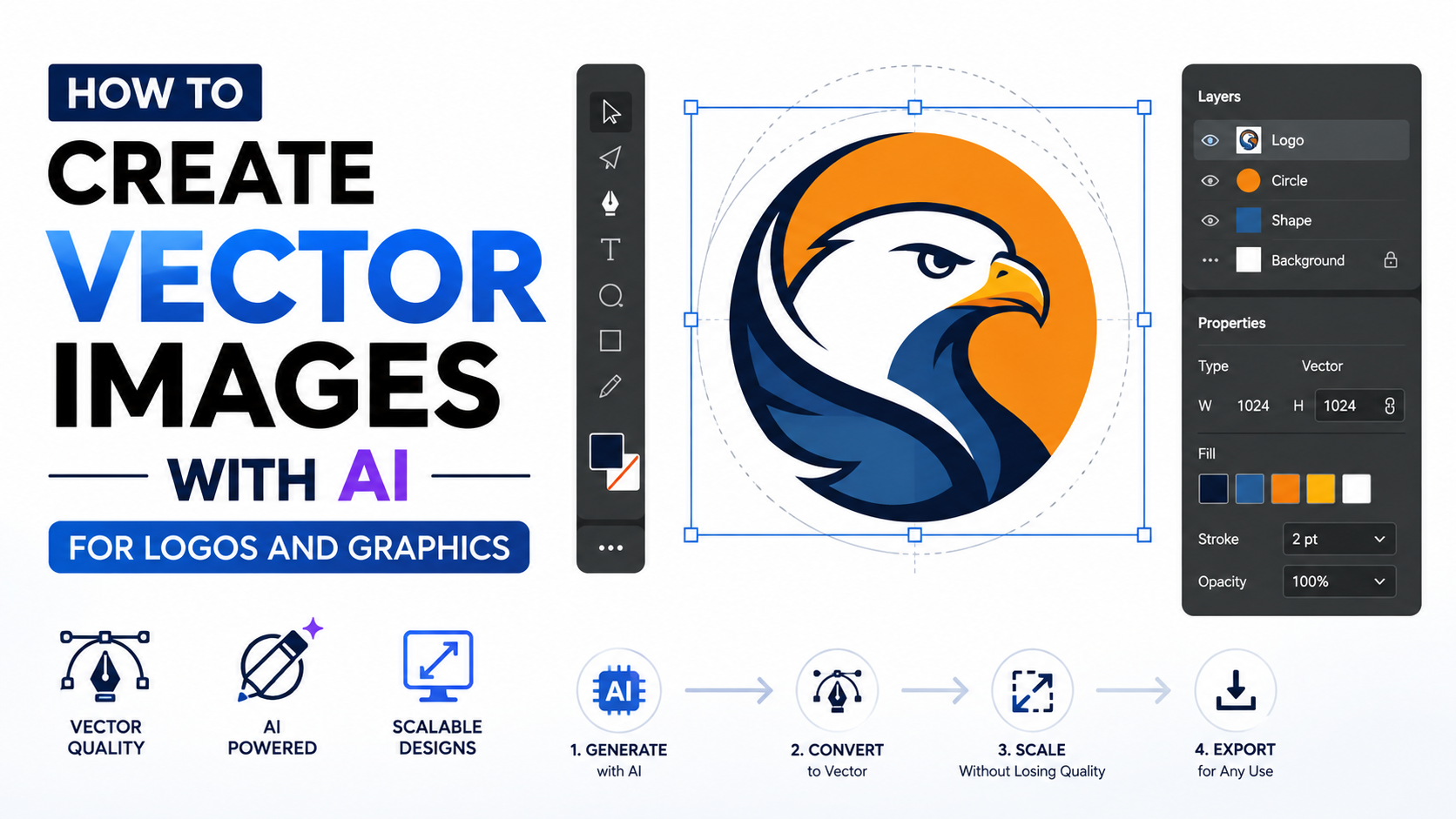
6. Export as a Transparent PNG
Choose PNG, then confirm that transparency, transparent background, or "no fill" is selected. Avoid JPEG for this purpose because it does not preserve transparent areas.
Before naming the file, use a consistent structure such as:
steel-tiffin-box-transparent.png
brand-logo-white-transparent.png
teacher-portrait-cutout.png
Descriptive filenames make asset libraries easier to manage and can help teams avoid using the wrong version.
How to Check Whether Transparency Actually Works
Do not rely only on the editor preview. Test the downloaded PNG in at least two ways:
- Place it over a black or dark-coloured background.
- Place it over a bright or patterned background.
This reveals white outlines, dark halos, stray pixels, and missing details. It also shows whether the subject remains readable against different colours.
If the PNG has a white rectangle, check these common causes:
| Problem | Likely cause | Fix |
|---|---|---|
| White background remains | Export setting was not transparent | Export again as PNG with transparency enabled |
| White or dark edge halo | Original background colour remains in edge pixels | Refine the mask or use edge decontamination controls |
| Subject looks clipped | AI removed fine details | Restore the missing area with a mask brush |
| Image looks blurry | Original was too small or compressed | Start with a larger, sharper source |
| File is too large | High-resolution PNG contains many pixels | Resize to the required display dimensions |
Prompting Tips for AI-Generated Transparent Assets
Prompt wording can reduce the amount of cleanup needed. Be specific about isolation and composition, but avoid contradictory instructions.
Effective Prompt Structure
Use this pattern:
[Subject], [style], [view], isolated, transparent background, clean outline, no text, no extra objects.
Examples:
- "Hand-drawn vector-style mango illustration, front view, isolated, transparent background, clean outline, no text."
- "Premium brown leather office bag, studio product photography, three-quarter view, isolated on transparent background, subtle natural shadow."
- "Friendly female customer-support avatar, modern flat illustration, waist-up, transparent background, no words or logos."
Prompt Problems to Avoid
Avoid prompts that ask for a complex scene and then demand no background. For instance, "a busy Diwali market with lamps and families, transparent background" gives the model conflicting instructions.
Also avoid using generated images for situations where exact identity, official documents, branded packaging, or factual visual evidence matters. AI output can introduce inaccuracies, altered text, and unrealistic details.
Practical Uses in India
Transparent PNGs are versatile because the same asset can be reused across regional campaigns, festive designs, product listings, and presentations.
Common use cases include:
- Product cut-outs for D2C websites and catalogues
- Transparent logos for invoices, slide decks, and social creatives
- Festival campaign elements for Diwali, Holi, Eid, Onam, Pongal, or Raksha Bandhan
- Tutor, coach, or creator portraits for course thumbnails
- Restaurant dish images for menus and promotional banners
- WhatsApp Business catalogue visuals and promotional creatives
- Real-estate icons, floor-plan labels, and presentation graphics
For multilingual campaigns, keep the visual asset free of embedded text whenever possible. Add Hindi, English, Tamil, Bengali, Marathi, or other language copy separately in the final design. This makes the same PNG reusable and avoids AI-generated spelling errors inside the image.
Important Quality, Privacy, and Rights Considerations
AI makes cut-outs faster, but it does not remove responsibility for the image you use.
Only upload photographs you own or have permission to process. Be especially careful with client product photos, employee portraits, school images, IDs, medical images, and confidential business materials. Review the selected tool's terms, privacy controls, and data-handling information before uploading sensitive content.
For commercial use, confirm that you have rights to the original image, logo, product design, and any recognisable person depicted. Do not present an AI-generated product image as a precise representation if colour, dimensions, materials, labels, or packaging must be exact.
Keep an original backup. A transparent PNG is a derived asset, not a replacement for the high-resolution source photograph or original design file.
Frequently Asked Questions
Can an AI PNG image generator create a transparent background automatically?
Yes. Many AI tools can either generate an isolated image from a text prompt or identify a subject in an uploaded image and remove its background. Always inspect the result before using it, particularly around fine edges and transparent objects.
Why does my transparent PNG look white after uploading?
The platform may show the PNG against a white page, or the file may have been exported with a white background. Download the file and test it over a dark-coloured layer. If a white rectangle remains, export it again as PNG with transparency selected.
Is PNG better than JPEG for product cut-outs?
Yes, when you need the product without a fixed background. PNG can preserve transparency; JPEG cannot. JPEG may still be appropriate for a full-frame photograph with a permanent background.
How can I remove a white outline around the subject?
Zoom in and refine the mask around the edges. If your tool has options for edge cleanup, feathering, or colour decontamination, use them carefully. A small amount of edge softening can help, but too much makes the subject look blurry.
Can I use transparent AI images for logos?
You can create concept visuals and supporting graphics, but avoid relying on a raster AI image as the only version of a final logo. A professional logo should generally also exist as a clean vector file for reliable scaling, printing, and editing.
Conclusion
An AI PNG image generator can turn a new prompt or an existing photograph into a reusable transparent asset in minutes. The strongest results come from a clear source image, careful mask refinement, and a proper PNG export with transparency enabled.
Create one clean master PNG, test it on light and dark backgrounds, and keep the original source file. That simple workflow gives you flexible, professional visuals ready for websites, catalogues, social campaigns, and presentations.