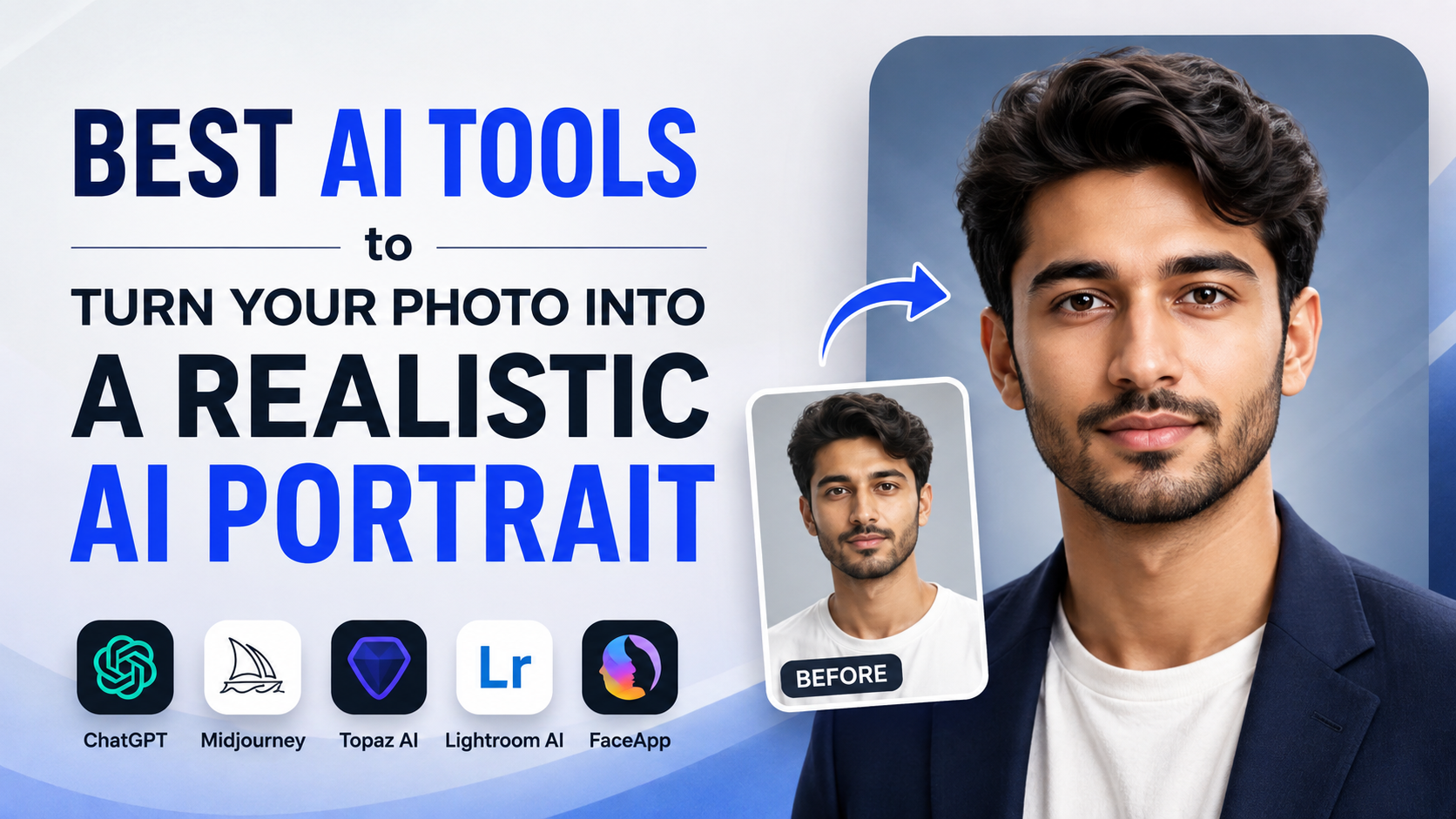
A realistic AI portrait can turn a clear selfie into a polished professional headshot, a creative social-media image, or a branded profile picture—without arranging a studio shoot. The best photo to ai portrait tool depends on whether you need precise editing, a quick template-led headshot, or a portrait that fits into a larger design.
For Indian users, the practical priorities are simple: choose a tool that preserves your likeness, upload only images you are comfortable sharing, avoid misleading uses, and export a high-quality portrait that works on LinkedIn, a portfolio, or social platforms.
Key Takeaways
- A clear, front-facing photo with natural lighting gives AI portrait tools the strongest reference.
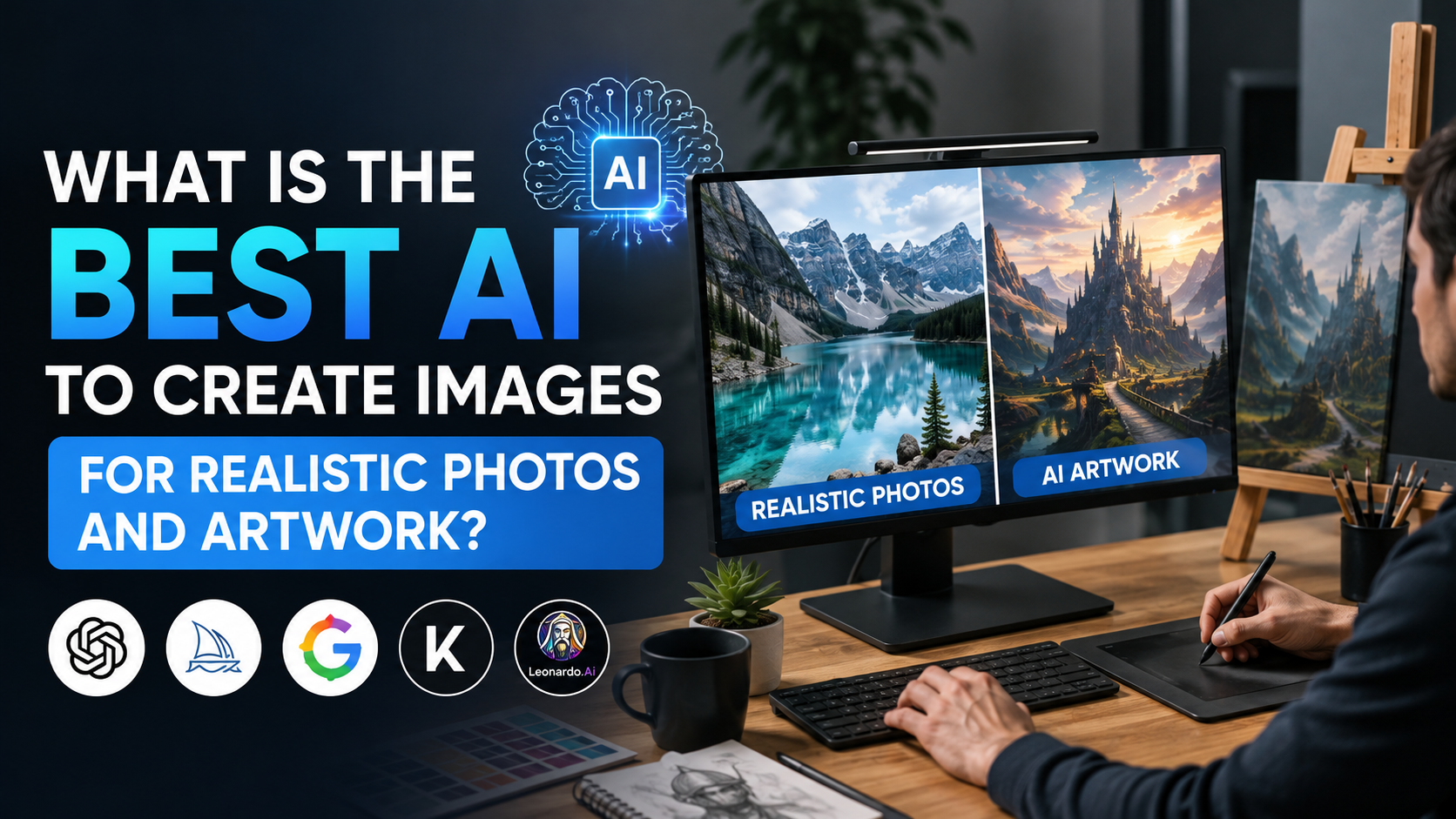
- ChatGPT, Adobe Firefly, Gemini, Canva, and Remaker serve different needs; no single tool is ideal for every portrait.
- Detailed prompts improve realism by specifying framing, light, expression, clothing, and background.
- Review hands, jewellery, eyewear, text, and facial details before using an AI-generated image publicly.
- Use an AI portrait for personal branding only when it still looks recognisably like you.
- Do not use AI-generated portraits as official identity or passport photographs.
What Is a Photo-to-AI-Portrait Tool?
A photo-to-AI-portrait tool uses an uploaded image as visual reference, then creates or edits a portrait based on your instructions. Depending on the platform, it may preserve the face while changing the clothing, lighting, background, crop, pose, or overall style.
This is different from a basic photo filter. A filter generally applies a visual effect to the same pixels; an AI portrait generator can create a new image guided by your photo and prompt. That flexibility is useful, but it also means the output may alter details such as skin texture, facial symmetry, hair, or accessories.
A strong result should look like a refined version of the person in the original photo—not a different person.
How to Choose the Best Tool for Your Needs
"Best" depends on your intended use. Start with the outcome, not the app.
| Need | Suitable tool type | What to prioritise |
|---|---|---|
| LinkedIn or CV headshot | Dedicated headshot generator or precise image editor | Natural face, restrained retouching, clean background |
| Creative Instagram or creator portrait | Generative image tool | Styling controls, varied scenes, easy iterations |
| Portrait within a poster or resume design | Design platform with AI generation | Templates, layout tools, export options |
| Change one element in an existing photo | Conversational image editor | Clear local-edit instructions and revision capability |
| Multiple styled variations from one reference | Reference-image generator | Prompt control, facial consistency, batch variations |
Avoid making a choice solely on "free" claims. Availability, generation limits, subscriptions, trial credits, export resolution, and privacy terms can change. Check the tool's own pricing and privacy pages before uploading personal images or paying.
Best AI Tools for a Realistic AI Portrait
1. ChatGPT Images: Best for conversational edits
ChatGPT Images can create images and edit an uploaded image through a plain-language conversation. This is useful when you want iterative feedback, such as: "Keep my facial features unchanged, replace the background with a softly lit office, and change the shirt to a navy blazer."
You can upload an existing photo, describe the changes, and refine the result in follow-up prompts. The editor also allows a selected area to be changed, although OpenAI notes that selections and edits may not always be perfectly precise.
Use it when:
- You need several small revisions rather than a fixed template.
- You want to explain the intended portrait in detail.
- You want help improving the prompt as you work.
For best results, upload a JPG or PNG that is sharp and well-lit. OpenAI's image-input guidance lists a 20 MB size limit per image and notes that unclear or ambiguous images can be interpreted less accurately.
2. Adobe Firefly: Best for structured creative control
Adobe Firefly's AI portrait generator lets you upload a reference photo and combine it with a detailed prompt. Its controls include reference intensity and strength, along with options for effects, lighting, camera angle, and colour and tone.
That makes Firefly particularly useful for a more art-directed result: a founder portrait for a website, a speaker image for an event page, or a refined social profile visual.
A practical Firefly prompt might be:
Create a realistic chest-up professional portrait using the reference photo. Soft window light, neutral warm-grey background, navy formal shirt, natural skin texture, relaxed expression, 85mm portrait photography, shallow depth of field.
Keep the reference strength high enough to retain your identity, but test a few settings if the output looks overly rigid or artificial.
3. Google Gemini: Best for quick photo-based refinements
Gemini Apps supports uploading an image and asking for edits, as well as using multiple uploaded images to make a new image based on them. Google's official guidance recommends describing the desired style and visual details clearly.
Gemini is a good fit when you want a straightforward transformation, for example:
- Convert a casual photo into a clean professional profile image.
- Replace a distracting background.
- Create a more polished, well-composed portrait from an existing reference.
Its availability is limited by supported countries, languages, account type, and age requirements, so check the feature status in your own Gemini account.
4. Canva Magic Media: Best for portraits used in designs
Canva Magic Media can generate images from a description, offers photography-style generation, supports reference-image uploads, and lets users choose portrait, square, or landscape layouts.
Canva is most useful when the portrait is only one part of the finished asset. You can create a portrait, place it in a resume header, presentation, YouTube thumbnail, business card, or social post, then adjust the layout in the same workspace.
For a professional profile image, choose the portrait layout and keep the visual direction simple. Overdesigned backgrounds, exaggerated blur, or overly stylised lighting can make a corporate profile look less credible.
5. Remaker AI: Best for template-led headshots
Remaker AI Headshot Generator is designed around headshots and asks users to upload one to four photos of the same person. It offers adjustable options such as clothing, background, expression, and generation mode.
This route can suit job seekers, freelancers, and small business owners who want a fast starting point without learning detailed prompting. Its own guidance recommends clear selfies, good lighting, and neutral backgrounds.
A template-based tool is convenient, but inspect the final portrait carefully. Choose the version that looks like you on a normal, well-presented day—not one that changes your face, age, body proportions, or professional appearance.
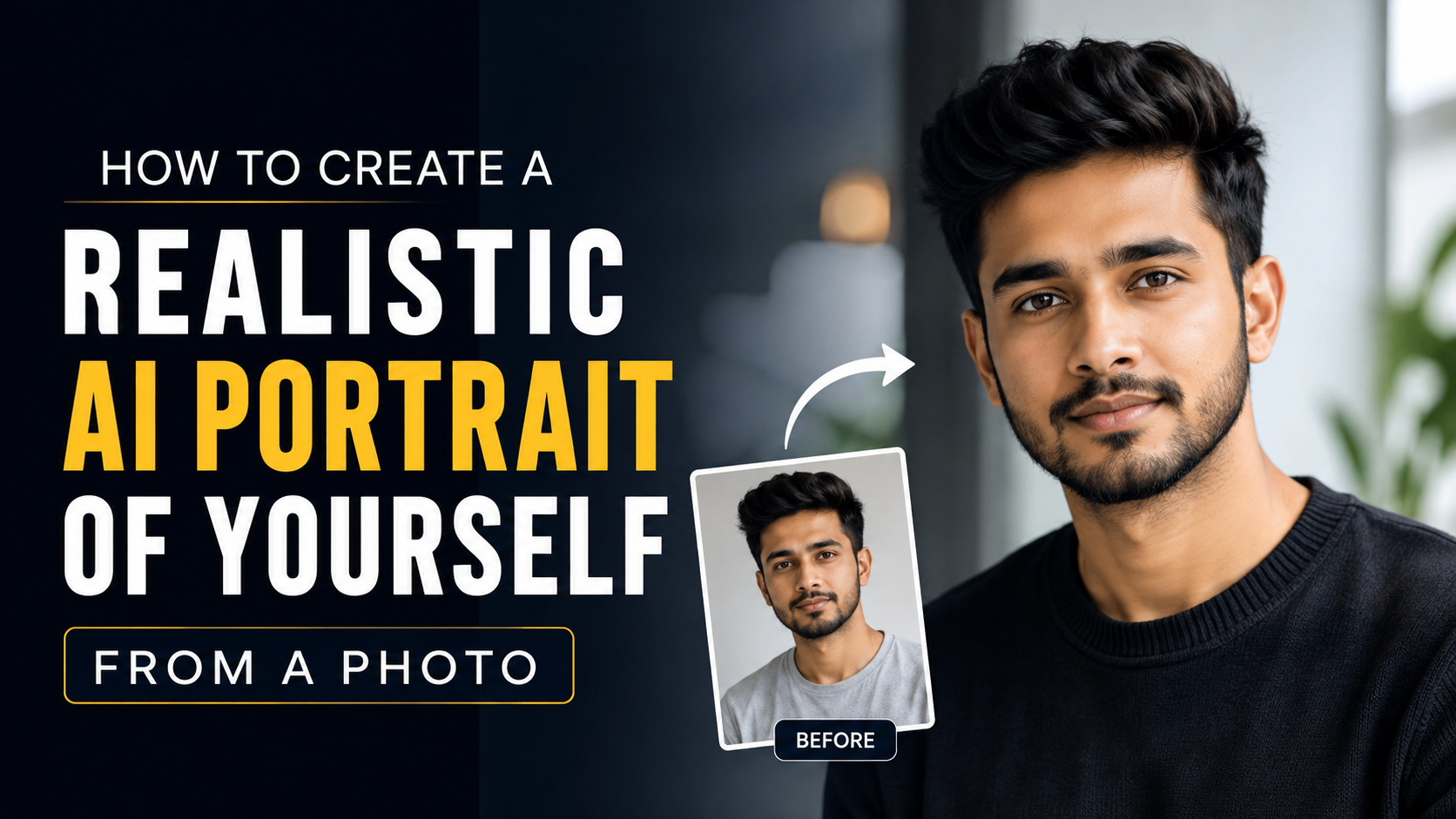
How to Create a Better AI Portrait Step by Step
1. Start with the right photo
Choose a single-person image where:
- Your face is fully visible and in focus.
- Lighting is even, preferably daylight near a window.
- Your eyes are open and not hidden by glare.
- The camera is roughly at eye level.
- The face is not heavily filtered, blurred, or cropped.
- The background is uncluttered.
If a tool accepts several source images, use a small set showing the same current appearance. Do not mix old photos with current ones if your hairstyle, facial hair, glasses, or overall look has changed.
2. Decide the portrait's purpose
A portrait for a startup website should not look like an extravagant fashion campaign. Match the image to its context.
For a job search, use simple professional clothing, a calm background, and a natural expression. For a creator profile, you can use bolder colours or a location that suits your content. For a wedding invitation, festival greeting, or personal post, creative styling can be more appropriate.
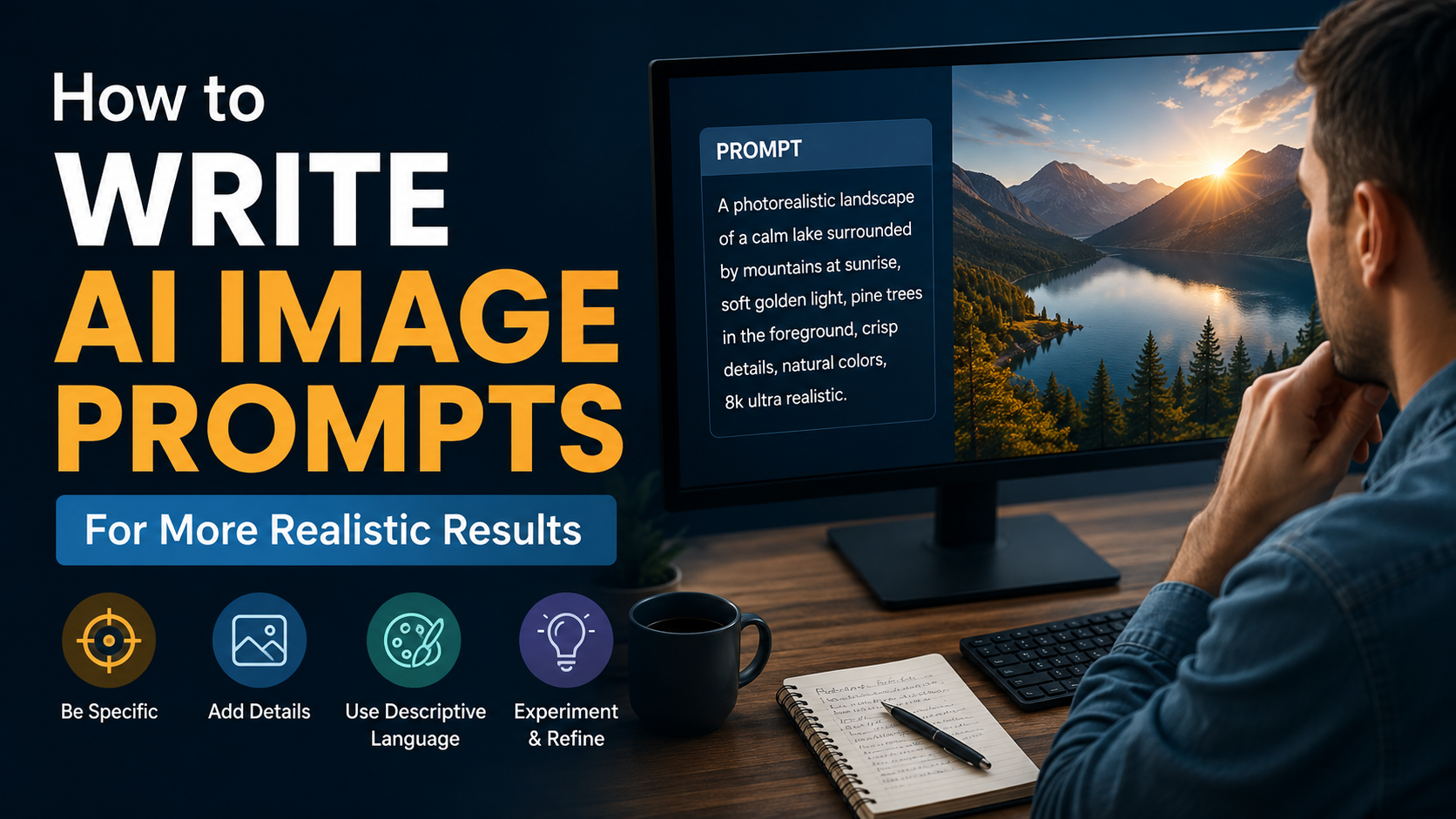
3. Write a specific prompt
A reliable portrait prompt includes:
- Identity instruction: preserve facial features and likeness.
- Framing: head-and-shoulders, chest-up, or full-length.
- Expression: warm, confident, neutral, or relaxed.
- Clothing: formal shirt, blazer, kurta, saree, or smart casual outfit.
- Background: studio grey, office, outdoor greenery, or a minimal solid colour.
- Lighting and camera look: soft daylight, natural skin texture, portrait lens look.
- Restrictions: no text, no watermark, no altered facial identity.
Example prompt:
Use this photo as the identity reference. Create a realistic chest-up professional portrait with my facial features preserved. Natural skin texture, soft daylight, subtle smile, charcoal blazer over a plain shirt, clean light-grey background, realistic photography, no text or logos.
4. Generate variations, then compare
Do not settle for the first result. Generate a few variations and compare them at full size. The most photorealistic option is often not the most heavily retouched one.
Reject images with:
- Uneven eyes or distorted spectacles.
- Unnatural teeth, ears, hands, or jewellery.
- Excessive skin smoothing.
- Clothing seams or collars that look implausible.
- A face that no longer resembles you.
- Text, logos, or brand marks that are misspelled or malformed.
5. Crop and export for the destination
For LinkedIn, use a square or near-square head-and-shoulders crop. LinkedIn currently accepts JPG and PNG profile photos, with a maximum file size of 8 MB; its stated supported pixel range begins at 400 × 400 pixels. It also requires that a profile photo reflect your likeness.
Save an original high-resolution copy and create separate crops for different uses rather than stretching the same file everywhere.
India-Specific Uses and Important Limits
A realistic AI portrait can be helpful for a LinkedIn profile, freelancer marketplace profile, company "About" page, speaker bio, portfolio, or social account. It can be especially practical when you need a clean, current photo but cannot schedule a professional shoot immediately.
However, it is not a substitute for every type of photograph.
Do not use an AI-generated or materially altered portrait for Aadhaar, PAN, passport, visa, exam registration, KYC, employee verification, or other identity-sensitive applications unless the relevant authority explicitly allows it. Passport Seva publishes ICAO-compliant photograph guidelines; follow the applicable official requirements rather than assuming an AI-created image will be accepted.
Similarly, do not create portraits of someone else without permission, impersonate another person, or use an AI image to misrepresent your qualifications or identity.
Privacy, Consent, and Authenticity
Your photo is personal data. Before uploading it, review the platform's current privacy policy, account controls, retention terms, and data-deletion options. For sensitive or client-related portraits, obtain consent first and avoid uploading source photos that contain confidential backgrounds, ID documents, children, or other identifiable people.
For professional platforms, authenticity matters. LinkedIn says profile photos must reflect your likeness and may remove images that do not comply with its policies. An AI-enhanced headshot can still be appropriate when it remains recognisably you and does not create a false impression.
A good rule is simple: if a colleague meeting you in person would feel misled, choose a more faithful version.
Frequently Asked Questions
Which photo is best for a photo to ai portrait?
Use a recent, sharp, front-facing photo with natural lighting and minimal filters. A clear face, visible eyes, and a simple background give the AI the strongest reference.
Can I use an AI portrait on LinkedIn?
Yes, provided it genuinely reflects your likeness and follows LinkedIn's profile-photo rules. LinkedIn permits artistic representations, but the image must still be recognisably you.
Why does my AI portrait not look like me?
This usually happens when the source photo is blurry, heavily filtered, poorly lit, angled sharply, or too small. Use a clearer reference image and add explicit instructions such as "preserve facial features, skin tone, hairstyle, and likeness."
Are AI portraits suitable for official documents in India?
Treat them as unsuitable unless the specific authority expressly permits them. For passports and other identity-sensitive applications, follow the official photo requirements and use a genuine compliant photograph.
How can I make an AI headshot look more realistic?
Ask for natural skin texture, soft light, realistic photography, and a simple background. Avoid prompts that request excessive beauty retouching, dramatic fantasy styling, or too many visual changes at once.
Conclusion
The best photo to ai portrait tool is the one that fits your purpose while keeping your identity believable. ChatGPT Images and Gemini are useful for conversational image edits, Adobe Firefly offers deeper creative control, Canva works well inside complete designs, and Remaker AI provides a template-led route to headshots.
Begin with a clear, current reference photo, use a precise prompt, generate several versions, and select the result that looks polished without looking artificial. Before publishing, check that it represents you honestly, respects privacy, and is appropriate for the platform or document where you plan to use it.