Creating an image with artificial intelligence no longer requires drawing skills, expensive software, or advanced technical knowledge. An ai image generator for beginners turns a written description into an image you can use for a presentation, Instagram post, YouTube thumbnail, school project, small-business advertisement, or personal experiment.
For most first-time users, ChatGPT Images is a strong starting point because you can describe an idea conversationally, request revisions, upload an image for editing, choose an aspect ratio, and download the result. ChatGPT's official help documentation says Images is available on web, iOS, and Android, although features and limits can vary by account and region. OpenAI Images Help
This guide explains how to choose a tool, write your first prompt, generate an image step by step, fix common problems, and use AI-generated visuals responsibly in India.
Key Takeaways
- ChatGPT Images is a convenient beginner option for conversational prompting and revisions.
- Canva Magic Media is useful when you want to place an AI image directly into a poster, presentation, or social-media design.
- A good prompt identifies the subject, setting, style, composition, lighting, and aspect ratio.
- Generate several variations before deciding which image to keep.
- AI images can contain inaccurate text, hands, faces, logos, or factual details.
- Check copyright, privacy, platform terms, and permissions before using an image commercially.
What Is an AI Image Generator?
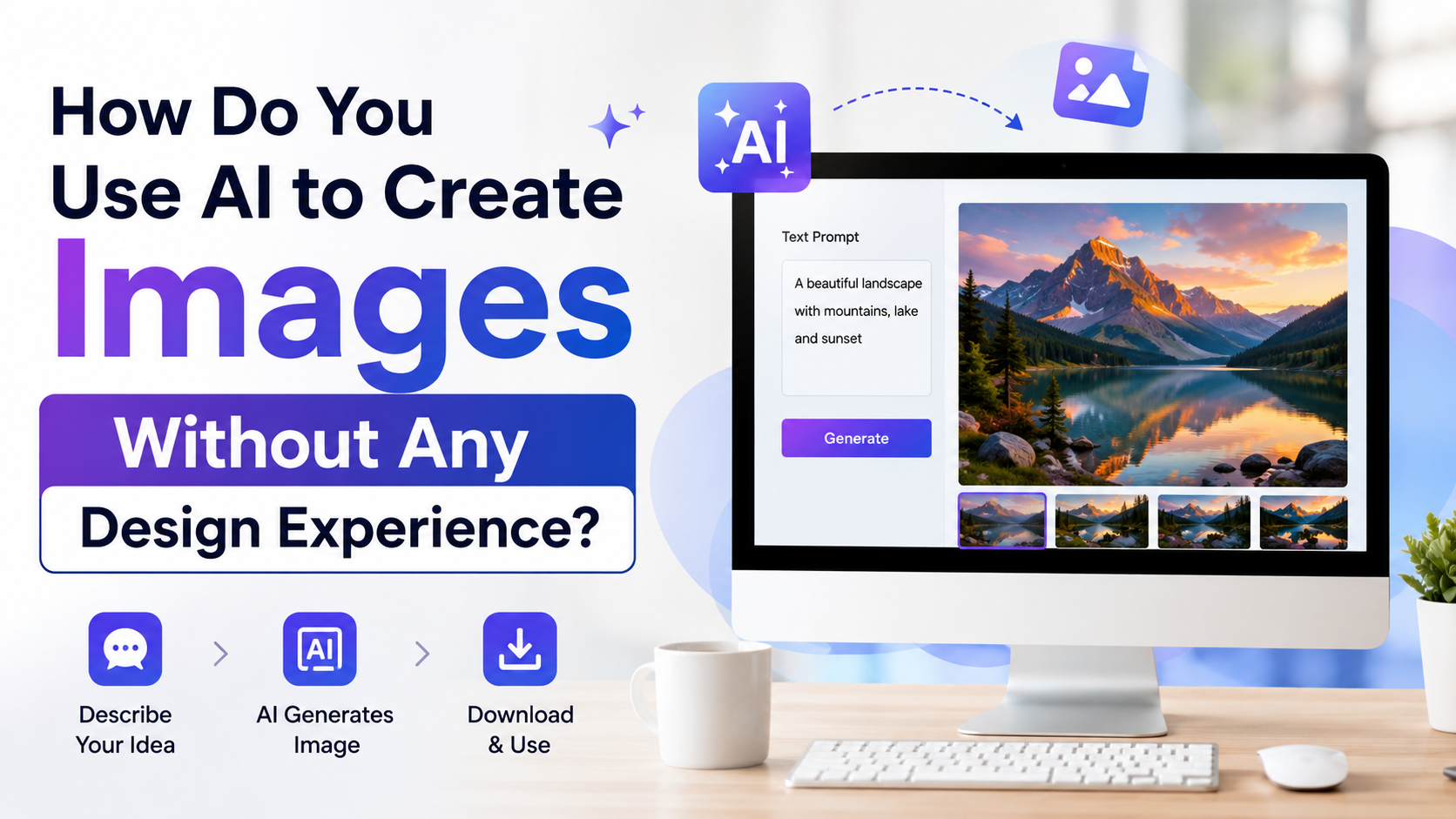
An AI image generator is software that creates or modifies images from instructions called prompts. You type something such as:
"Create a realistic sunrise over the Ganga in Varanasi, with boats in the foreground, warm golden light, documentary photography style, vertical composition."
The system interprets the description and produces one or more visual results. Depending on the tool, you may also be able to:
- Edit an uploaded photograph
- Remove or replace an object
- Change the background
- Create a transparent background
- Generate square, portrait, or landscape images
- Produce variations of an existing result
- Add text or design elements
Modern tools are better at following detailed instructions than earlier systems, but they are not perfectly reliable. OpenAI notes that image generation can still produce imperfect results, including scientific inaccuracies and limitations with complex scenes. OpenAI's image-generation system-card addendum
Which AI Image Generator Is Best for Beginners?
There is no single best tool for every use case. Choose according to the type of work you want to do.
| Tool | Best for | Beginner advantage | Important limitation |
|---|---|---|---|
| ChatGPT Images | Conversational creation and editing | You can refine an image by chatting naturally | Availability and usage limits depend on your account |
| Canva Magic Media | Posters, presentations, thumbnails, and social posts | Generated images go directly into a design editor | AI usage and premium assets may be subject to Canva plan limits |
| Google Gemini | Quick experiments and image editing | You can generate and revise images in a familiar chat interface | Feature availability varies by country, language, age, and account |
| Adobe Firefly | Controlled creative workflows | Offers content type, aspect-ratio, and style controls | The interface may feel more advanced to a complete beginner |
ChatGPT Images lets you create an image by describing it in a conversation or selecting Images in the interface. You can also upload an image and describe changes, select an area to edit, choose an aspect ratio, and save the result. OpenAI Images Help
Canva's Magic Media workflow lets you enter a description, choose a style and layout, generate variations, and add the selected image to a design. Canva documents square, landscape, and portrait layout choices, along with photography, digital-art, and fine-art styles. Canva Magic Media Help
Gemini supports image generation and editing, including using uploaded images as references. Google warns users to respect copyright and privacy rights and to review generated content before relying on or publishing it. Google Gemini Help
Adobe Firefly provides controls such as Photo, Art, Auto, aspect ratio, composition, and style settings. Adobe Firefly Help
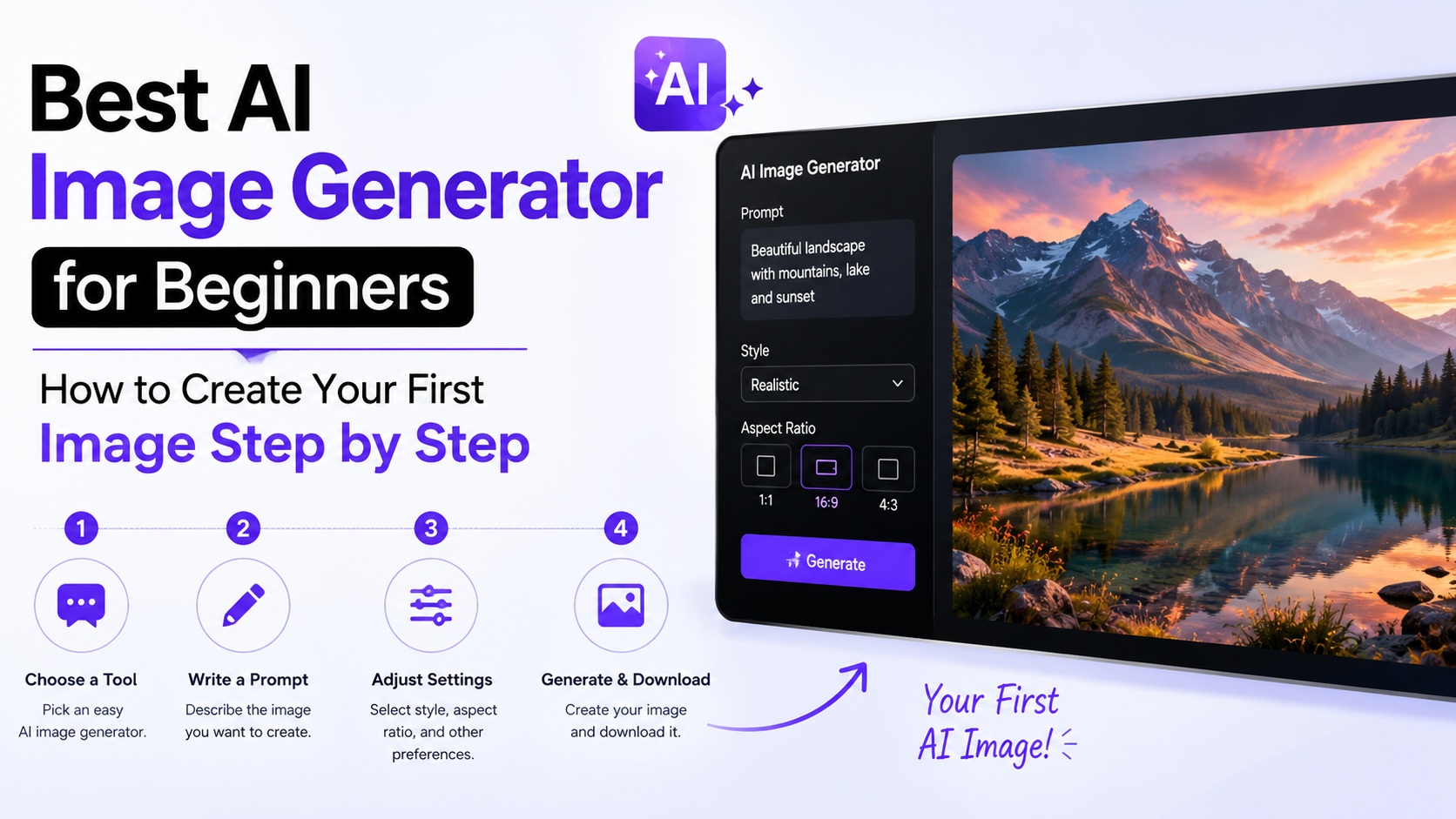
How to Create Your First AI Image Step by Step
The following workflow works well whether you use ChatGPT, Canva, Gemini, or Firefly.
Step 1: Decide the image's purpose
Start with the outcome, not the visual effects. Ask yourself:
- Is this for an Instagram post, blog header, or WhatsApp flyer?
- Will it be viewed on a phone or printed?
- Does it need to leave space for a headline?
- Should it look realistic, illustrated, traditional, or modern?
- Do you need a person, product, location, or abstract background?
For example, a café owner in Bengaluru may need a square image for social media, while a coaching centre may need a landscape banner with empty space for course details.
Step 2: Open a beginner-friendly tool
For ChatGPT, open the service and describe the image in the conversation, or select the Images option if it appears in your interface. After generation, you can ask for changes directly.
For Canva, open a design, search for Magic Media, select the Images tab, enter a prompt, choose a style and layout, and select Generate images. Canva's official instructions
For Gemini, sign in at gemini.google.com, enter a prompt, review the result, and request edits if necessary. Google states that feature availability can depend on supported countries and languages.
Step 3: Write a clear first prompt
A useful prompt usually contains six elements:
- Subject - What should appear?
- Action or arrangement - What is happening?
- Setting - Where is it?
- Style - Photograph, watercolour, 3D illustration, or another look
- Lighting and mood - Bright, dramatic, calm, festive, or professional
- Format - Square, portrait, landscape, or a specific aspect ratio
Use this structure:
Create a [style] image of [subject] [action] in [setting], with [lighting and mood], [composition], [colour palette], [aspect ratio]. Avoid [unwanted elements].
Example:
Create a realistic editorial photograph of a young Indian entrepreneur working at a laptop in a bright home office, indoor plants and notebooks on the desk, natural morning light, clean professional mood, subject positioned on the right with empty space on the left for headline text, landscape format.
Specificity helps, but adding too many unrelated instructions can make the result inconsistent.
Step 4: Generate several variations
Your first result is a draft. Compare the variations for:
- Correct subject and number of people
- Natural hands and facial features
- Appropriate clothing and setting
- Balanced composition
- Sufficient empty space for text
- Realistic lighting and shadows
- Correct cultural or geographic details
If the image is close, do not rewrite everything. Ask for one focused change, such as:
Keep the people, lighting, and camera angle unchanged. Replace the busy background with a simple cream wall.
Small, targeted edits usually make it easier to understand what changed.
Step 5: Correct text separately
AI-generated text can contain spelling mistakes, strange characters, or inaccurate words. This is especially important for:
- Hindi or regional-language headlines
- Prices and phone numbers
- Product names
- School or business logos
- Dates and event details
A safer workflow is to generate the visual without important wording, then add the final text in Canva, PowerPoint, Photoshop, or another editor. Always proofread names, numbers, addresses, and Hindi spellings manually.
Step 6: Select the correct size and download
Choose the format according to the destination:
| Use case | Practical starting format |
|---|---|
| Instagram post | Square |
| Instagram Story or Reels cover | Portrait |
| YouTube thumbnail | Landscape |
| Website banner | Landscape or custom wide format |
| WhatsApp status | Portrait |
| Presentation slide | Landscape |
| Product cut-out | Image with transparent background, if supported |
Before downloading, check whether the file is PNG or JPG, whether the resolution is sufficient, and whether the design contains premium elements. Keep the original prompt and downloaded file in a clearly named folder so you can reproduce or revise the image later.
Prompt Examples for Indian Beginners
Social-media post
Create a colourful square illustration of a masala chai cup beside a plate of samosas on a small Indian café table, warm evening lighting, inviting mood, modern food photography, space at the top for a headline.
Educational project
Create a clean educational illustration showing the water cycle over the Indian subcontinent, labelled areas left blank for adding text later, blue and green colour palette, simple flat-vector style, landscape format.
Small-business product image
Create a premium product photograph of a handmade blue cotton tote bag on a neutral beige background, soft studio lighting, realistic fabric texture, front-facing composition, no words or logos, square format.
Travel concept
Create a realistic sunrise photograph of the backwaters of Kerala, calm water, traditional houseboat in the middle distance, coconut palms, soft mist, natural colours, wide landscape composition.
If you want a local-language result, specify the language clearly. However, verify every visible word yourself before publishing.
Common Problems and How to Fix Them
The image looks generic
Add details about materials, camera angle, colour palette, time of day, and composition. Replace "beautiful Indian street" with a precise description such as "a narrow lane in Jaipur with pink façades, shopfronts, marigold garlands, and late-afternoon light."
Faces or hands look unnatural
Reduce the number of people, request a medium or wide shot, and avoid overly complex actions. Generate individual portraits separately when identity and facial detail matter.
The composition is wrong
State where the subject should appear:
"Place the product on the left third of the frame and leave clean negative space on the right."
The image includes unwanted objects
Use direct exclusions:
"No watermark, no extra fingers, no readable text, no brand logos, no cropped head."
These instructions reduce errors but cannot guarantee a perfect result.
The output is culturally inaccurate
Name the specific location, clothing, architecture, food, or festival you want. Review the result against real references, especially for religious sites, historical monuments, uniforms, maps, and regional traditions.
Safety, Copyright, and Privacy Considerations
Do not upload another person's private photograph without permission. Avoid generating deceptive images of real people, fake news scenes, forged documents, or misleading political content.
Do not assume that every AI-generated image is automatically free of copyright concerns. Canva states that ownership and exclusive rights can vary by country and that recognizable people, characters, and brands may require permission. Canva Magic Media Help
Before using an image for a paid advertisement, book cover, product listing, or client project:
- Read the tool's current commercial-use terms.
- Check whether the image includes recognizable trademarks or individuals.
- Remove accidental logos and watermarks.
- Confirm that the result does not imitate a living artist's distinctive style in a misleading way.
- Keep records of the prompt, source image, edits, and licence terms.
For Indian businesses, also check platform rules for advertising, consumer disclosures, and claims about products. An AI-generated image must not make a product appear larger, safer, or more effective than it really is.
Frequently Asked Questions
Is ChatGPT Images free for beginners?
Access depends on the ChatGPT plan, account, and current availability. OpenAI's help page lists Images as available across ChatGPT tiers, but limits and advanced features can differ. Check the Images interface and your account's current usage information before planning a large project. OpenAI Images Help
Can I create AI images in Hindi?
Many image tools accept prompts in multiple languages, but performance can vary. For accurate text inside an image, generate the artwork first and add the Hindi wording in a design editor. Proofread matras, names, and numbers before publishing.
Which tool is best for making posters?
Canva is often the most practical choice because Magic Media places the generated image directly into a design editor with layouts, text, and other elements. The best option still depends on your account features and the final design requirements.
Can AI-generated images be used commercially in India?
Possibly, but the answer depends on the tool's terms, the content in the image, and applicable copyright and publicity rules. Review the current licence, obtain permissions where necessary, and avoid using protected logos, celebrity likenesses, or copied artwork without authorization.
Why does the same prompt create different images?
Generative systems can produce different variations because the model explores multiple visual possibilities. Save a successful prompt, describe the details you want preserved, and make one change at a time when refining.
Conclusion
The best ai image generator for beginners is the one that matches your immediate goal. Start with ChatGPT Images for conversational creation and editing, Canva Magic Media for ready-to-use designs, Gemini for quick experiments, or Firefly when you want more visual controls.
Your first image does not need a perfect prompt. Define the purpose, describe the subject and setting, choose a format, generate a few variations, and improve the strongest result with focused edits. Finally, proofread all text and review copyright, privacy, and commercial-use requirements before sharing the image publicly or using it for business.