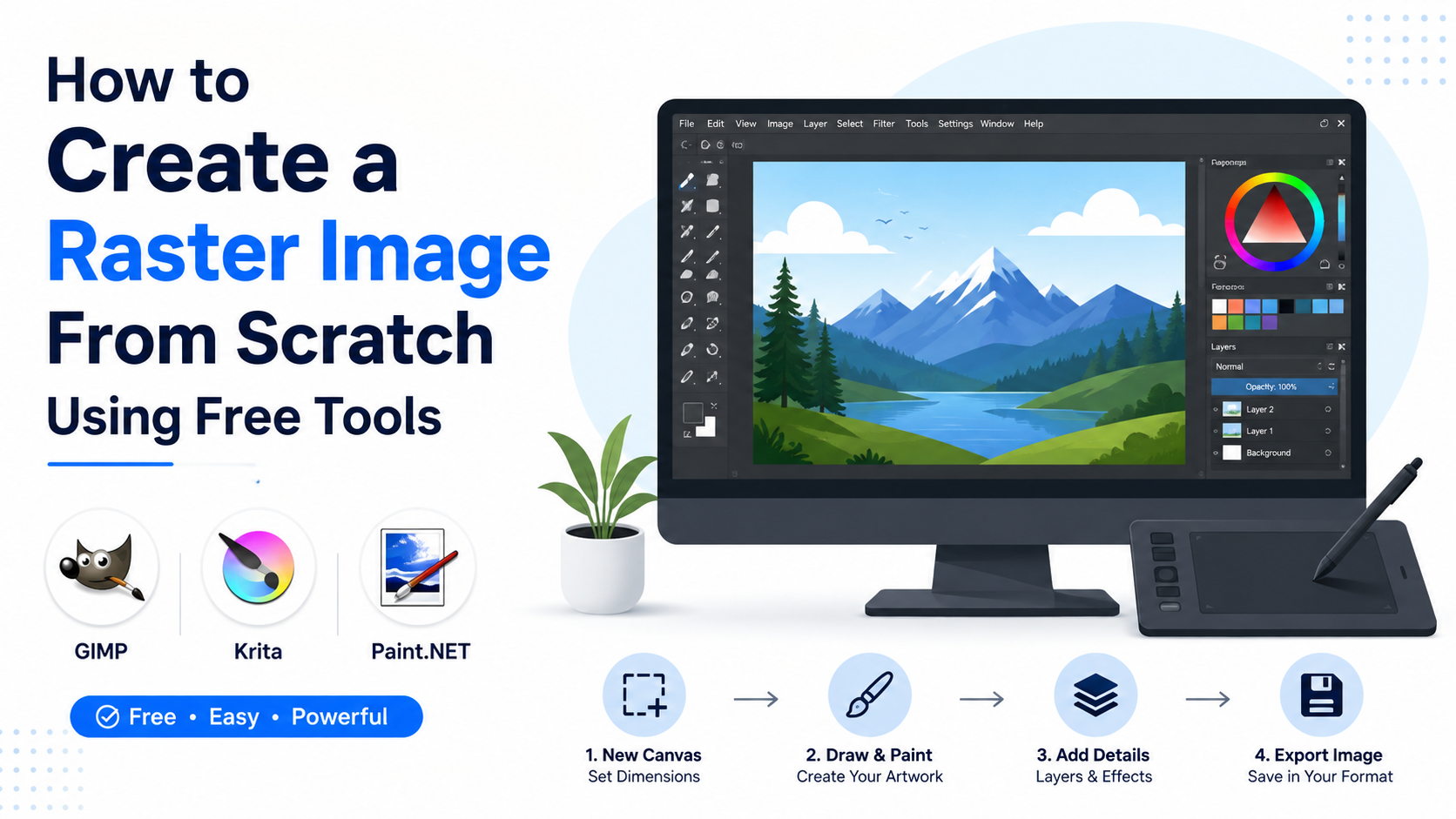
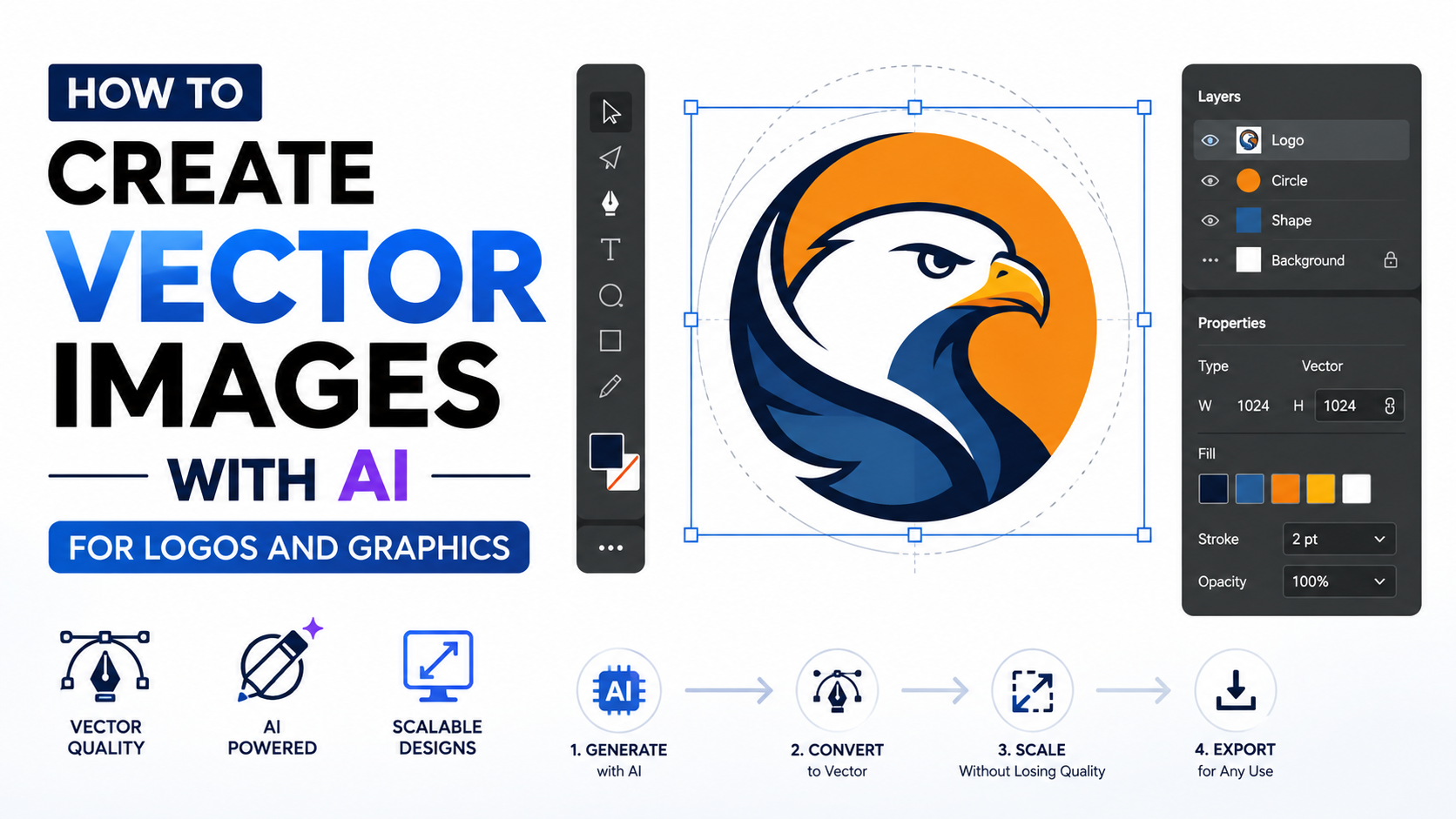
An ai vector image generator can turn a written concept—or an existing sketch—into scalable artwork for logos, icons, packaging, social media, websites and print. Unlike a raster image made from pixels, a vector graphic is built from paths, shapes, text and curves. The result can be enlarged for a billboard or reduced for a favicon without becoming pixelated. SVG, the most common web vector format, is an XML-based W3C standard that supports scalable shapes, text and styling.W3C SVG overview
The most reliable workflow is not "type one prompt and accept the first result." Use AI for ideation and structure, then inspect, simplify and brand the artwork manually. This guide explains how to generate a vector image, convert a raster concept into editable paths, prepare files for Indian businesses, and check quality, licensing and trademark risks.
Key Takeaways
- Describe the subject, visual style, geometry, colour palette and intended use in your prompt.
- Generate several variations, then select the concept with the cleanest silhouette and simplest shapes.
- Use a tool that exports editable SVG or another genuine vector format—not merely a high-resolution PNG.
- Replace AI-generated lettering with correctly typed text using a licensed, readable font.
- Test the logo in black and white, at small sizes, and on light and dark backgrounds.
- Check the AI tool's current licence terms and search India's official trademark database before adopting a logo commercially.
What Makes a Graphic a True Vector?
Vector artwork uses mathematical paths—such as lines, Bézier curves, fills and strokes—to describe an image. Because the artwork is resolution-independent, the same file can serve a mobile icon, visiting card, shop sign or large outdoor hoarding.
Raster formats such as JPG and PNG store pixels. They are excellent for photographs but can show jagged edges when enlarged. A vector file may still contain embedded raster elements, so opening an image in a design application does not automatically make it fully vector.
Common deliverables include:
| Format | Best use | Important note |
|---|---|---|
| SVG | Websites, apps, digital design systems | Inspect for unnecessary paths and embedded images |
| AI | Adobe Illustrator editing | Keep a packaged editable master |
| EPS | Older print and sign workflows | Confirm compatibility with the printer |
| Sharing and commercial printing | Verify that artwork remains vector | |
| PNG | Social posts, previews and favicons | Export from the approved vector master |
Choose the Right AI Vector Workflow
There are three practical approaches.
1. Text-to-vector generation
Illustrator's Text to Vector Graphic feature can generate editable scenes, subjects, icons and patterns from prompts. Adobe's current instructions describe generating vectors on a blank artboard or inside a selected shape, then refining variations in Illustrator.Adobe Learn Adobe also documents controls for generating scenes, subjects and icons in context.Illustrator help
Canva's AI vector creator similarly accepts a text prompt, offers style and colour choices, and advertises high-quality SVG download.Canva AI vector creator
2. Raster-to-vector conversion
If you already have a pencil sketch, scanned emblem or PNG concept, use a vectorizer. Canva's Vectorify workflow accepts JPG and PNG uploads, converts them into editable colour shapes, and allows SVG download.Canva vectorizer Illustrator's Concept to Vector feature is designed to turn raster images into editable vector artwork; Adobe notes that its Live Editable Text option can preserve words as editable text rather than flattening them into outlines.Adobe Concept to Vector
3. AI-assisted manual construction
For a trademark-sensitive logo, build the mark from basic shapes and use AI only for mood boards, composition ideas or reference variations. This usually produces fewer nodes, cleaner geometry and easier future editing than an elaborate one-click generation.
Step-by-Step: Create a Logo With an AI Vector Image Generator
Step 1: Define the brand brief
Before opening a generator, write down:
- Business name and industry
- Primary audience and location
- Brand personality: trustworthy, energetic, premium, friendly or traditional
- Preferred symbols and prohibited symbols
- Colour requirements and accessibility needs
- Where the mark will appear: signboard, app icon, packaging, uniform or social profile
- Required scripts, such as Latin, Devanagari, Tamil, Bengali or another Indian language
A short brief prevents vague prompts and helps you judge results consistently.
Step 2: Write a structured prompt
A useful prompt contains five parts:
[subject] + [design style] + [composition] + [colour] + [technical constraints]
For example:
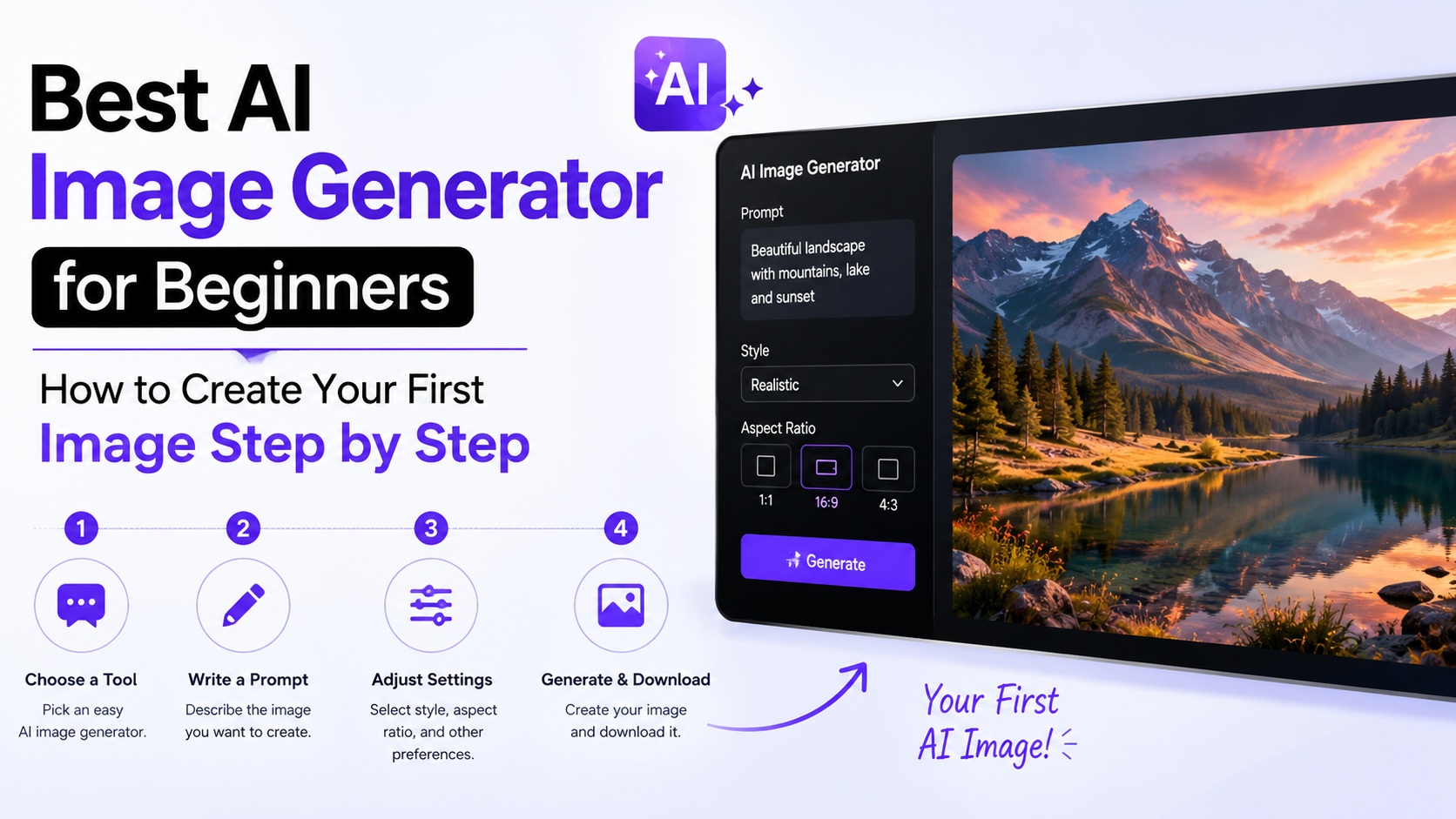
"Minimal lotus-and-leaf emblem for an Indian organic tea brand, flat geometric vector style, symmetrical icon, two-colour palette of deep green and saffron, solid fills, smooth curves, no gradients, no mock-up, no text."
For a technology service:
"Abstract letter 'N' formed from two connected paths, modern Indian fintech brand, bold geometric icon, navy and teal, balanced negative space, flat vector artwork, white background, no extra symbols."
Use "no text" when you plan to add the name yourself. AI systems often produce misspelled or inconsistent lettering.
Step 3: Generate multiple variations
Create several outputs while changing one variable at a time: icon shape, colour, angle or level of detail. Select the concept that remains recognisable at a small size—not necessarily the most decorative version.
Look for:
- A clear silhouette
- Balanced positive and negative space
- Consistent stroke widths
- A limited colour count
- No accidental faces, extra limbs or hidden symbols
- A shape that can be reproduced in one colour
Step 4: Generate in a defined area
When using Illustrator, select a shape to control the approximate size and orientation of the generated artwork. Adobe's workflow explains that a selected placeholder shape can guide where the vector is placed.Illustrator help For a logo, a square area helps maintain a compact icon, while a wide rectangle is better for a horizontal lock-up.

Step 5: Export the genuine vector file
Download SVG, AI, EPS or a vector PDF where available. Open the file in Illustrator, Inkscape or another vector editor and confirm that you can select individual paths. If the entire design selects as one bitmap rectangle, you have a raster image, not a finished vector.
Clean and Refine the Generated Artwork
AI output is a starting point. Use your vector editor to:
- Delete redundant nodes. Excess anchor points make curves difficult to edit and can increase file size.
- Correct joins and curves. Smooth awkward corners and align repeated elements.
- Unify strokes. Standardise cap, join and stroke-width settings.
- Simplify colours. Convert decorative gradients into a controlled brand palette when the mark must work in embroidery, stamps or one-colour printing.
- Rebuild symmetry. Duplicate, reflect and align elements instead of trusting approximate AI placement.
- Separate layers. Keep icon, wordmark, background and guides on clearly named layers.
- Convert effects carefully. Expand appearances only after saving an editable master; expanded effects can be harder to modify.
- Replace generated text. Type the business name using a properly licensed font, check every character and test Indian-language rendering.
For open-source editing, Inkscape includes the Potrace tracing engine. Its documented workflow imports a bitmap, uses Path > Trace Bitmap, previews the result and creates grouped vector shapes.Inkscape Potrace Automatic tracing is fastest for high-contrast line art; complex photographs and soft gradients generally need substantial cleanup.
Prepare Logos for Indian Print and Digital Use
India's businesses often need one identity across WhatsApp catalogues, UPI-linked storefronts, marketplaces, packaging, vehicle graphics and regional-language advertising. Create a small identity kit rather than one isolated file.
Recommended logo versions
- Primary horizontal logo
- Stacked or vertical version
- Symbol-only mark
- One-colour black version
- Reversed white version
- Light-background and dark-background variants
- Regional-language or bilingual lock-up
- Minimum-size guidance and clear-space rule
Ask your printer whether the job requires CMYK, spot colours or a specific PDF/EPS standard. Keep the master artwork in RGB or CMYK as appropriate for the workflow, and export a separate web SVG or PNG. Do not rely on a screenshot for production.
For websites, remove unnecessary metadata and test the SVG in the browsers and content-management system you actually use. Since SVG can include XML, text, styling and scripting, sanitise files supplied to a website and avoid embedding scripts unless they are deliberately required.W3C SVG specification
Quality-Control Checklist
Before publishing or sending files to a client, check:
- Does the mark remain identifiable at favicon or small-profile size?
- Does it work without colour?
- Are counters and gaps large enough for vinyl cutting and embroidery?
- Are all words spelled correctly, including diacritics and Indian scripts?
- Are fonts embedded, outlined or supplied according to the printer's instructions?
- Are there hidden clipping masks, off-canvas objects or embedded PNGs?
- Do fills and strokes overlap cleanly at high zoom?
- Does the design look distinct from well-known brands?
- Is the filename versioned, for example
brand-logo-master-v03.ai? - Have you saved both an editable master and delivery exports?
Print a physical proof. Thin lines that look elegant on a monitor may disappear on a small label or low-cost signboard.
Copyright, Licensing and Trademark Risks
AI generation does not automatically make a logo safe to use. Tool providers may update commercial-use terms, attribution requirements, training disclosures and restrictions. Read the licence for the specific product and plan you are using, and retain the prompt, source sketch, generated variations and editing history.
Avoid prompts that request a near-copy of a living designer's work, a competitor's logo or a protected character. AI can produce familiar-looking symbols, but similarity checks are your responsibility. A design that is technically original may still be confusingly similar to an existing mark.
For India-specific clearance, search the official Intellectual Property India public-search portal before investing in packaging, signage or registration.IP India Public Search A trademark professional can advise on classification, distinctiveness and filing strategy. Keep dated evidence of your design process and obtain written permission for any third-party illustration, font, photograph or reference image.
Common Mistakes to Avoid
Treating a PNG as a vector
A large PNG is still pixel-based. Confirm that the delivered file contains editable paths.
Letting AI design the wordmark
AI-generated lettering frequently contains misspellings and inconsistent letterforms. Recreate the name manually.
Overcomplicating the icon
Tiny details vanish in embroidery, favicons and low-resolution displays. Start with a simple mark and add detail only when it survives testing.
Ignoring language and cultural context
A symbol, colour or hand gesture may carry different meanings across Indian regions. Ask local users to review culturally sensitive concepts, especially for healthcare, finance and public-facing services.
Skipping human review
AI does not understand your legal obligations, production process or long-term brand strategy. A designer should make the final decisions.
Frequently Asked Questions
Can AI create a logo that is ready for trademark registration?
It can produce a starting concept, but registration depends on distinctiveness, conflicts with earlier marks and correct filing. Rebuild questionable details, conduct an India-specific search and seek professional advice before filing.
Which is better for logos: SVG, AI or PNG?
Keep AI or another editable source as your master, deliver SVG for web and digital use, and provide PDF or EPS when a printer requests it. PNG is an export for fixed-size applications, not the master logo.
Can I turn a hand-drawn sketch into a vector with AI?
Yes. Upload a clear, high-contrast scan to a vectorizer or use a raster-to-vector feature. Expect to redraw complex curves, remove noise and correct the geometry afterward.
How do I write prompts for clean AI vector graphics?
Specify the subject, flat or geometric style, composition, limited colours and constraints such as "solid fills," "simple silhouette" and "no text." Generate variations and refine one change at a time.
Are AI-generated vectors automatically copyright-free?
No. Ownership and permitted use depend on the tool's terms, your source material and applicable law. Check the current licence and avoid incorporating protected third-party content.
Conclusion
An ai vector image generator can shorten the path from idea to usable logo, but professional results come from a complete workflow: write a precise brief, generate controlled variations, export real vector paths, rebuild typography, simplify geometry and test the mark in Indian digital and print contexts. Save an editable master, review the tool's current licence, and search the IP India database before launch. Used this way, AI becomes a practical design assistant while human judgment protects clarity, consistency and brand distinctiveness.