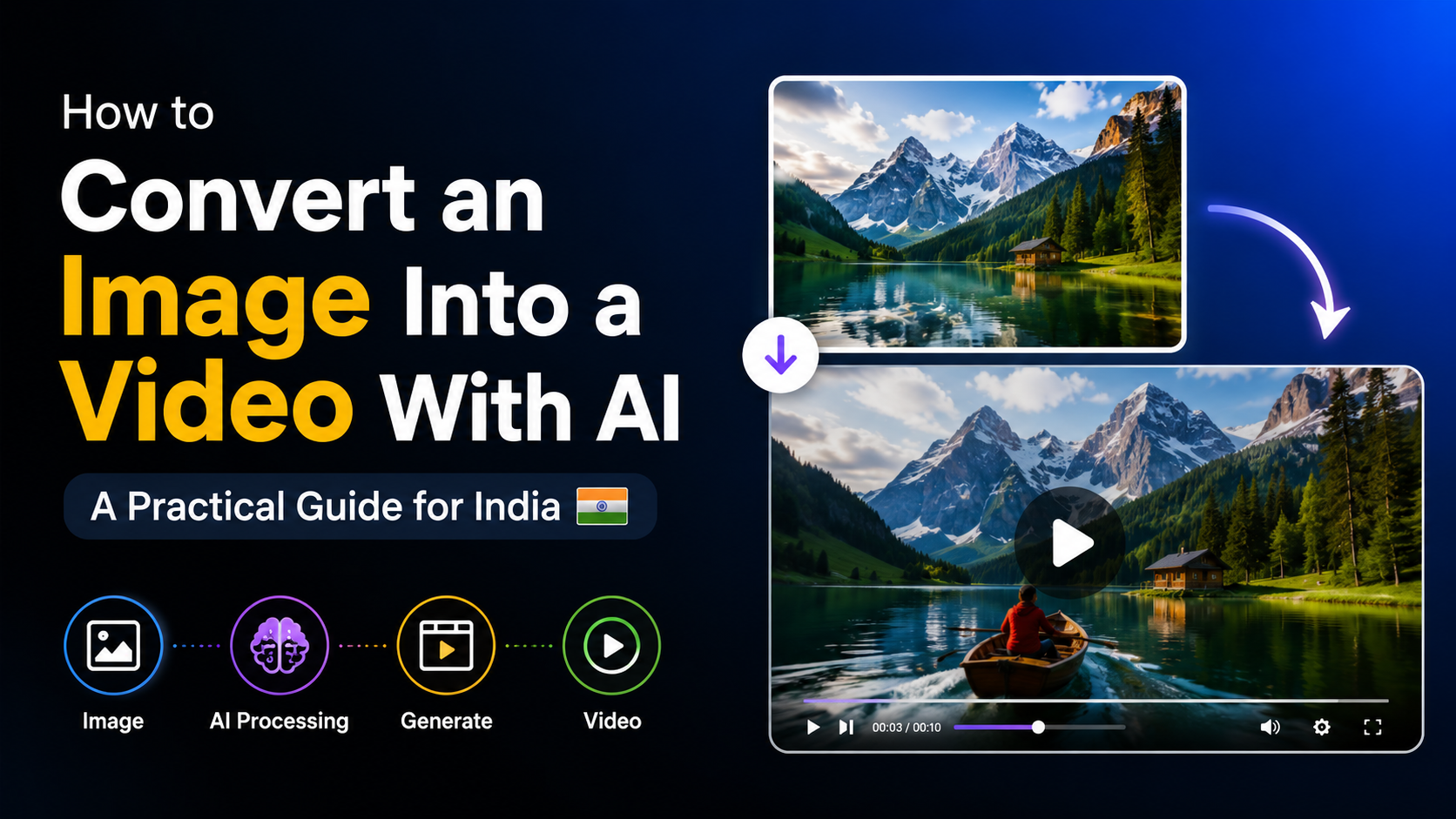
A still photograph can become a product demo, Instagram Reel, YouTube Short or cinematic scene in minutes with an AI image-to-video generator. If you are searching for how to create image to video, the basic method is simple: upload an image, describe the movement and camera action, generate a short clip, then edit and export it for your audience.
This guide explains the complete workflow, compares current tools, provides prompt examples and covers quality, privacy, copyright and India-specific publishing considerations.
Key Takeaways
- Image-to-video AI uses your still image as a visual starting point and a text prompt to control motion.
- A sharp, well-composed image and a specific motion prompt usually produce more stable results.
- Runway Gen-4 creates 5- or 10-second clips from a required input image; Adobe Firefly supports first and last keyframes; Gemini can combine images, video and prompts, subject to plan and regional availability.
- Choose the aspect ratio before generation: 9:16 for Reels and Shorts, 16:9 for YouTube and presentations, and 1:1 for many social feeds.
- Generate several short variations instead of expecting one perfect clip.
- Upload only images you have permission to use, and label or disclose synthetic content when a platform or client requires it.
What Is AI Image-to-Video?
AI image-to-video converts a single still image into a moving video clip. The model analyses elements such as the subject, depth, lighting and composition, then predicts how they could move over time.
You guide the result with a prompt. For example:
"Slow camera push-in toward the steaming cup; gentle morning sunlight shifts across the table; realistic motion; keep the logo unchanged."
The image provides the visual identity, while the prompt usually works best when it focuses on:
- Subject movement
- Camera movement
- Environmental motion
- Timing or speed
- Mood and style
- Details that must remain unchanged
The output is normally a short clip. You can join several clips in an editor to create a longer story, advertisement or tutorial.
How to Create Image to Video: The Core Workflow
1. Prepare the source image
Start with the highest-quality image you are legally allowed to use. Remove unnecessary borders, fix exposure and crop it to the target format before uploading.
Good source images generally have:
- A clear subject separated from the background
- Adequate resolution and sharp edges
- Consistent lighting
- Minimal motion blur
- No important text close to the crop edge
- A composition that leaves room for the intended camera movement
For a vertical Reel, prepare a 9:16 composition where possible. If you upload a landscape image and ask the model to create a portrait clip, it may invent missing areas or crop the subject.
2. Choose a generator
The interface, model names, credit systems and availability can change. Check the provider's current plan and regional terms before paying.
| Tool | Current image-to-video workflow | Useful for |
|---|---|---|
| Runway Gen-4 | Requires an input image and text prompt; offers 5- or 10-second outputs and several aspect ratios. Runway's guide lists 24 fps and formats including 16:9, 9:16 and 1:1. | Cinematic shots, product visuals and controlled camera motion |
| Adobe Firefly | Upload a first keyframe and optionally a last keyframe; choose aspect ratio, resolution and model settings. Adobe's help page documents the workflow. | Brand teams and users already working in Adobe tools |
| Gemini Apps | Google's help documentation describes creating videos by adding images or video references and entering a prompt. Access requires an eligible Google AI plan or Workspace licence and can vary by location. | Quick concept tests and conversational editing |
| Google Vids | Can animate an uploaded JPG or PNG into an eight-second clip in landscape or portrait formats. Google's documentation recommends clear images and motion-focused prompts. | Presentations, explainers and workplace content |
For Indian users, sign in and confirm that the specific video feature is available on your account. A tool may be accessible in India while a particular model, mobile feature or plan benefit is still restricted.
3. Upload the image and set the format
Select the image-to-video or generate-video option, upload your file and choose an aspect ratio:
- 9:16 (vertical): Instagram Reels, YouTube Shorts and many mobile-first ads
- 16:9 (landscape): YouTube videos, websites, online courses and presentations
- 1:1 (square): Social posts and catalogue-style content
If a platform accepts multiple resolutions, export at the highest practical quality and keep a clean master file for future edits.
4. Write a motion-first prompt
Do not simply describe what is already visible. The model can see the image. Tell it what changes.
A reliable structure is:
Camera action + subject motion + environment motion + pace + constraints
Example:
"Locked-off camera. A hand slowly lifts the blue ceramic mug. Steam curls upward naturally. Warm window light flickers softly. Five-second realistic product shot. Keep the printed logo sharp and unchanged."
For a travel image:
"Slow aerial-style push forward over the Kerala backwaters at sunrise. Palm leaves sway in a light breeze and water ripples gently. Calm, documentary look. Preserve the original colours and avoid adding boats."
5. Generate variations
Create three to five versions with small prompt changes. Adjust one variable at a time:
- "Slow pan left" versus "slow push-in"
- "Subtle breeze" versus "strong wind"
- "Documentary realism" versus "stylised 3D"
- "Locked camera" versus "handheld movement"
Save the strongest result before experimenting further. Some services use credits or monthly limits, so short test generations can reduce waste.
6. Edit and export
AI generation is only one stage. In an editor, you can:
- Trim awkward opening or closing frames
- Join multiple clips
- Add captions in English, Hindi or another Indian language
- Add licensed music or a voice-over
- Correct colour and exposure
- Reframe for vertical and horizontal versions
- Add a logo, disclaimer or call to action
Review the final export on a phone, because small text and facial or hand distortions are more noticeable on mobile playback.
Prompt Techniques for Better Motion
Describe one clear action
A crowded prompt can produce conflicting movement. Start with one dominant action, such as a camera move or a person turning their head.
Weak:
"Make this image exciting with lots of movement, dramatic effects, people walking and a rotating camera."
Stronger:
"Slowly track right as the chef places the dosa on a plate. Steam rises gently. Keep the framing stable."
Use camera language precisely
Useful terms include:
- Push-in / pull-out: Camera moves toward or away from the subject
- Pan: Camera rotates horizontally
- Tilt: Camera rotates vertically
- Dolly: Camera travels through the scene
- Orbit: Camera circles the subject
- Locked-off: Camera remains stationary
- Rack focus: Focus shifts from foreground to background
Add temporal progression
Tell the model what happens first and what follows:
"For the first two seconds, the curtain moves slightly. Then sunlight enters through the window as dust particles drift across the frame."
Protect important details
Use constraints when animating products, documents or people:
- "Keep the label legible."
- "Do not change the person's clothing."
- "Preserve the Devanagari text."
- "No additional fingers or objects."
- "Keep the building architecture consistent."
AI can still alter text, faces and hands. Treat these instructions as guidance, not a guarantee.
Practical Use Cases for Indian Creators and Businesses
E-commerce and small businesses
Animate a product photograph into a short showcase: a phone rotating slightly, fabric moving in a breeze or a skincare bottle catching a controlled light sweep. Add prices and claims during editing rather than asking the generator to render text.
Restaurants and food creators
A still image of biryani, dosa or mithai can gain gentle steam, a slow camera push and subtle garnish movement. Avoid exaggerated motion that makes food appear physically impossible or misleading.
Education and coaching
Turn diagrams, maps and historical illustrations into short explainers. Add narration and captions separately so dates, formulas and Hindi or regional-language text remain accurate.
Real-estate marketing
Animate a property exterior with a slow forward camera move, trees swaying and changing sunlight. Clearly identify AI-generated visuals if the clip could be mistaken for a real walkthrough.
Personal memories
Use a family photograph with restrained movement—such as a slow zoom or background breeze. Obtain consent before uploading images of other people, especially children.
Common Problems and How to Fix Them
The subject changes identity
Use a simpler movement, reduce camera travel and provide a cleaner image. For a person, keep the face large enough and avoid extreme profile-to-front transitions.
Text and logos become distorted
Do not rely on AI to create readable writing. Add the logo, price or headline in your video editor. If the product label must remain visible, use a locked camera and minimal motion.
The clip looks "wobbly"
Try a locked-off or slow camera prompt, reduce background complexity and remove contradictory adjectives such as "fast" and "smooth."
The tool rejects the upload
Check file type, size, aspect ratio and content policy. Google states that users must have rights to uploaded images and must not use generated videos to deceive, harass or harm others. Gemini's official help also notes that account and feature eligibility apply.
The result is cropped incorrectly
Pre-crop the image to 9:16 or 16:9. Adobe Firefly can crop mismatched keyframes, while Google Vids may add black bars when an image does not match a supported ratio. Google documents this behaviour.
Copyright, Privacy and Responsible Use
Only upload photographs, artwork, logos and footage that you own or are licensed to use. Permission to view an image online does not automatically grant permission to animate or commercially publish it.
Take extra care with:
- Client product photos
- Celebrities and public figures
- Children's images
- Aadhaar cards, identity documents and other sensitive material
- Private family photographs
- Stock images whose licence excludes generative modification
Keep original files and licence records. Read each provider's terms for ownership, commercial use, retention and training. Avoid creating realistic footage that falsely shows a real person saying or doing something. Add a clear disclosure when an AI-generated clip could reasonably be mistaken for documentary footage or a real endorsement.
Frequently Asked Questions
Can I create an image-to-video clip for free?
Some services offer trials, limited credits or free access, but limits and eligibility change. Check the current pricing and plan page for the tool you intend to use. Avoid entering payment details until you understand credit consumption, watermarking and export restrictions.
What image size is best for AI video?
Use a sharp image with the same orientation as the final video. A high-quality 9:16 image is practical for Reels and Shorts; 16:9 suits YouTube and presentations. Upscaling a very small or blurry image rarely restores missing detail.
How long should an AI image-to-video clip be?
Short clips are easiest to control. Runway Gen-4 documents five- and 10-second durations, while Google Vids documents an eight-second image animation. Build longer videos by joining multiple consistent shots.
Why does the AI change faces or hands?
The model is predicting new frames rather than copying pixels perfectly. Complex motion, occlusion and rapid camera movement make identity errors more likely. Use subtle movement, a clear source image and several iterations.
Can I use an AI-animated image in a business advertisement in India?
Potentially, if you have rights to the source image, comply with the generator's licence and follow advertising, platform and privacy rules that apply to your campaign. Keep documentation and have a legal professional review high-stakes commercial uses.
Conclusion
Learning how to create image to video is mainly a matter of preparing a strong image, describing one believable movement and refining short generations. Choose a tool that fits your workflow, set the correct aspect ratio for Indian audiences, add text and sound in an editor, and inspect every frame for visual errors. Most importantly, obtain permission for uploaded content and disclose synthetic footage when clarity matters. With that process, a single photograph can become an effective Reel, product story, lesson or presentation asset.