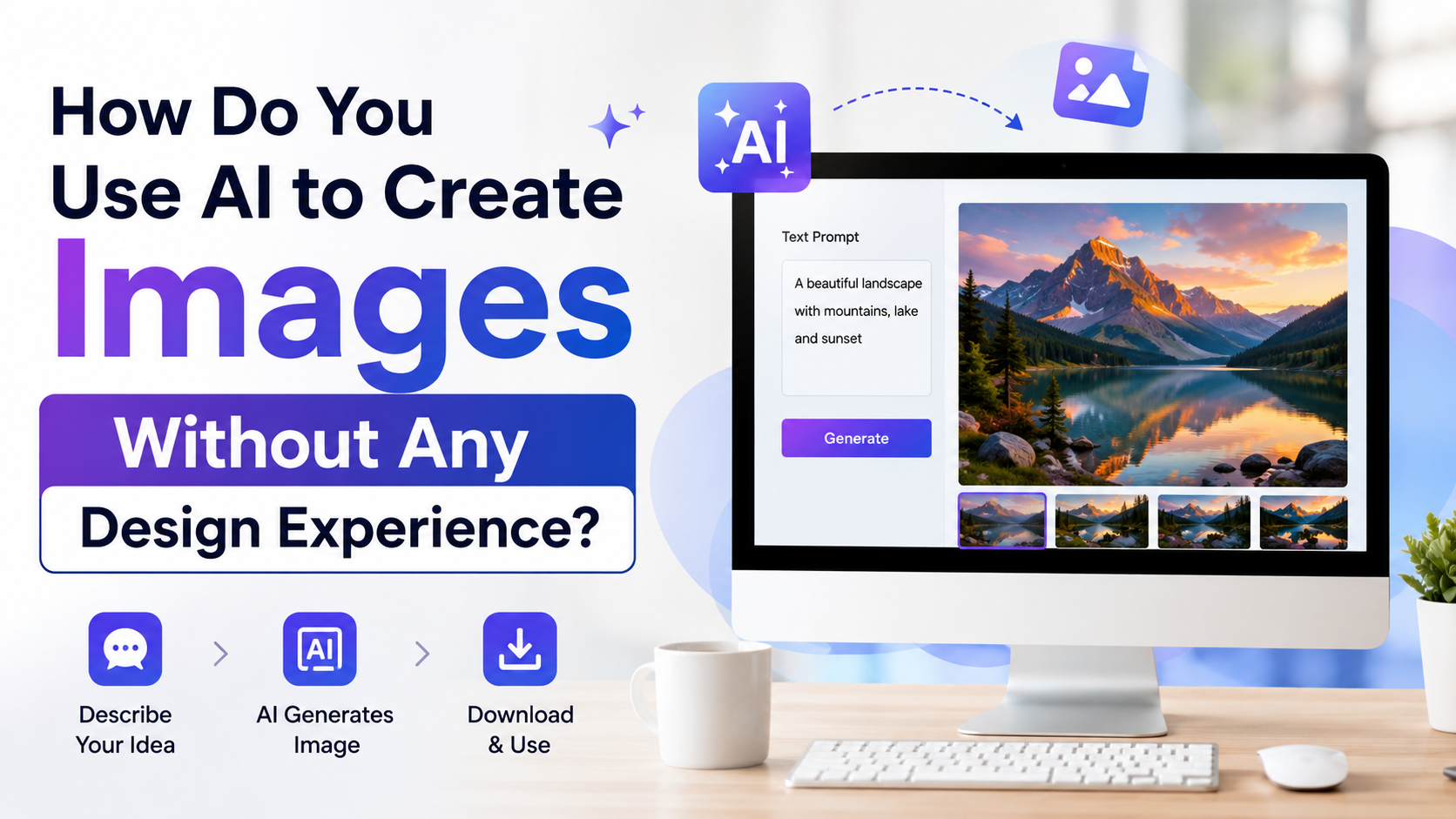
You do not need to learn Photoshop, sketch by hand, or understand colour theory before creating useful visuals. AI image generators can turn a clear written description into a social-media post, product concept, presentation visual, blog illustration, or festive campaign image.
The key to learning how to use AI to create images is not finding a "magic" prompt. It is learning a simple workflow: decide the image's purpose, describe it clearly, review the result, and make focused improvements. This approach helps students, freelancers, local businesses, creators, and marketing teams produce stronger visual drafts without prior design experience.
Key Takeaways
- Start with the image's job—such as a WhatsApp promotion, presentation cover, or product concept—before choosing a style.
- Clear prompts work better when they specify the subject, setting, composition, lighting, style, and exclusions.
- Generate a first draft quickly, then refine one change at a time instead of rewriting everything.
- Use reference images only when you have the right to use them and can explain what should change.
- Do not rely on AI for critical text, pricing, dates, logos, or factual claims without manually checking them.
- For commercial use in India, review each platform's terms and avoid copying protected artwork, brands, or people's likenesses.
What AI Image Generation Can Do for Beginners
An AI image generator creates or edits images from text instructions, often called prompts. You describe what you need in everyday language; the tool interprets the request and produces one or more images.
For a beginner, this is especially useful for tasks where a polished visual matters more than advanced design software skills:
- A bakery's Instagram post for a new dessert
- A classroom presentation about renewable energy
- A blog header for a travel or finance article
- A mood board for a home-interior project
- A concept image for an ecommerce listing before a professional photoshoot
- A festive campaign visual for Diwali, Onam, Pongal, Eid, or regional events
AI is best treated as a creative assistant, not an automatic publishing machine. It can create a strong starting point, but you remain responsible for selecting the right result, checking details, and ensuring the image suits your audience.
Choose an AI Image Tool Based on Your Task
You do not need to use every available platform. Pick one tool, learn its basic workflow, and move to another only if your work requires different capabilities.
| Need | Look for this capability | Why it matters |
|---|---|---|
| Create a new visual from an idea | Text-to-image generation | Turns a written description into an original visual draft |
| Improve a photo you own | Image upload and editing | Lets you change a background, remove an object, or adjust a scene |
| Make several campaign variations | Iterative editing | Helps keep the same concept while changing colours, layout, or mood |
| Create a poster or graphic with text | Text controls and export options | AI-generated text still needs careful proofreading |
| Build a consistent brand look | Reference-image support and reusable prompt templates | Makes repeated output more coherent |
For example, ChatGPT Images can create images from a conversation, edit generated or uploaded images, and supports aspect-ratio choices. Its editor can target selected areas, although OpenAI notes that edits may extend beyond the exact selected region. OpenAI's Images in ChatGPT guide explains the current workflow.
Gemini Apps also supports text-based image generation, image uploads, and iterative edits. Google advises users to describe the subject, action, background, and desired style. Gemini's official image-generation help page also warns users to respect copyright and privacy rights.
Do not choose a tool solely because somebody calls it "best." Test it with the same prompt, review the output quality for your use case, and read the tool's current terms before using output commercially.
Start With a Clear Brief, Not a Vague Idea
Before opening an AI tool, answer five short questions:
- What is the image for?
Example: an Instagram post announcing a new millet breakfast bowl.
- Who will see it?
Example: urban Indian professionals looking for quick, healthy breakfast options.
- What should be the main focus?
Example: the bowl, not the café interior or a person.
- Where will it appear?
Example: a vertical mobile-first social post or a wide website banner.
- What should the viewer feel or do?
Example: feel that the dish is fresh and order it.
This small brief prevents a common beginner problem: asking for a "nice image" and receiving something attractive but unusable.
Match the Image Shape to Its Destination
Specify the layout in your prompt. A useful starting point is:
- Square for many feed posts and catalogue tiles
- Vertical for Stories, Reels covers, and mobile-first promotions
- Wide landscape for presentation slides, website headers, and video thumbnails
Leave generous empty space if you plan to add your own headline, price, or call to action later. Adding critical copy in Canva, PowerPoint, or another editor is usually safer than asking an image model to render a dense block of text.
Write Prompts That Produce Better Images
A prompt is simply a creative brief written as a request. You do not need special syntax. Clear, specific language is more useful than complicated prompt "formulas."
OpenAI recommends describing the purpose, main subject, action, setting, and visual style; framing, lighting, and constraints can improve control. It also advises making small, targeted revisions rather than broad changes. OpenAI's image-generation guidance supports this practical approach.
Use This Simple Prompt Structure
Create a [image type] for [purpose] showing [main subject] doing [action] in [setting]. Use [style], [lighting/colour], and [composition]. Leave [space/location] for text. Avoid [unwanted elements].
Here is a prompt for an Indian small business:
Create a clean, realistic food photograph for a Bengaluru café's Instagram post. Show a masala dosa on a simple ceramic plate with sambar and coconut chutney, photographed from a 45-degree angle in soft morning window light. Use warm natural colours, an uncluttered table, and leave empty space in the upper-left corner for a short headline. Avoid logos, watermarks, extra dishes, and visible text.
The prompt tells the model what matters. It does not assume that the tool understands your business purpose, preferred framing, or space for copy.
Add Constraints That Prevent Common Errors
Include direct instructions when something must not appear:
- "No logos, watermarks, labels, or text"
- "One person only"
- "Keep the background minimal"
- "Do not change the product packaging"
- "Use generic clothing, not a school uniform"
- "No identifiable real brand"
For exact text, write the words in quotation marks, specify placement and keep the text short. Even then, review every character before publishing. OpenAI specifically recommends explicit text instructions and notes that dense infographics may still benefit from finishing in a dedicated design tool. OpenAI's guidance on text and dense layouts.
Create Images in a Repeatable Step-by-Step Workflow
1. Generate a rough first version
Write a prompt that covers the main subject, setting, style, and intended format. Your first image is a draft, not a final answer.
Ask for alternatives if the tool supports them. Different compositions can reveal whether a close-up, overhead shot, illustration, or lifestyle scene communicates your idea better.
2. Check the image against your brief
Use a quick review checklist:
- Is the main subject obvious at first glance?
- Does the composition suit the platform?
- Does the image leave room for your copy or logo?
- Are hands, faces, objects, and background details believable?
- Does the image represent the intended audience respectfully?
- Is there any incorrect text, false claim, or accidental brand reference?
If the answer is no, identify the single most important correction.
3. Refine one element at a time
Instead of saying "make it better," give a precise direction:
- "Keep the composition; make the lighting softer and reduce the saturation."
- "Replace the busy background with a plain cream wall."
- "Keep the product unchanged; remove the spoon on the right."
- "Make the illustration flatter and use a navy, saffron, and off-white palette."
- "Move the subject to the lower-right and add more blank space above."
Focused edits are easier to evaluate and help preserve the parts that already work.
4. Finish Outside the Image Generator
Use a simple editor to add final business information:
- Brand name and verified logo
- Current price and offer conditions
- Phone number, website, or QR code
- Correct Hindi, English, Tamil, Bengali, Marathi, or other language copy
- Accessibility text for web and social-media use
This final stage turns an appealing AI draft into a usable communication asset.
Use Reference Images Carefully
Uploading a photo can be helpful when you need a specific product, room, colour palette, or visual direction. You might upload a photo of your handmade soap and ask for a clean lifestyle setting around it, while instructing the model not to change the product itself.
Use only images that you own, have permission to use, or are licensed for your intended purpose. If a reference includes a customer, employee, child, or other identifiable person, obtain appropriate permission before uploading or publishing. Do not use AI to imitate a living artist's distinctive style, recreate another company's campaign, or create misleading endorsements.
When working with a reference, make the boundary explicit:
Use the uploaded product photo as the exact product reference. Create a neutral bathroom-counter setting around it. Do not alter the label, shape, or colours of the product.
Practical AI Image Ideas for Indian Users
AI works particularly well when it helps you visualise an idea before spending on a shoot or design agency.
For Students and Educators
Create a simple cover illustration for a project, a visual timeline draft, or a science-concept image. Check all labels, maps, formulas, and factual details before including them in coursework.
For Freelancers and Local Businesses
Generate background visuals for proposals, service explainers, menu concepts, social-media templates, and seasonal campaign drafts. Use real photos or professionally designed assets when product accuracy is essential.
For Content Creators
Create blog-feature images, podcast cover concepts, thumbnail backgrounds, and scene ideas. Add your final headline and brand elements manually for consistency.
For Ecommerce Sellers
Use AI for lifestyle concepts, colour explorations, and campaign mock-ups. Do not present an AI-created image as an exact depiction of a product if it changes the item's size, material, features, quantity, or included accessories.
Copyright, Privacy, and Trust: Important Limits
Using an AI tool does not remove your responsibility for what you publish. Review the specific platform's current terms, permitted uses, and rules for commercial output before using an image in advertising, packaging, or client work.
In India, the Copyright Act, 1957 identifies the author of a computer-generated literary, dramatic, musical, or artistic work as the person who causes the work to be created. The Act also provides that copyright subsists in original artistic works, subject to its provisions. The official Act text and Section 13 are the primary references; ownership and infringement questions can depend on the facts and should be discussed with a qualified legal professional when the stakes are high.
Follow these practical safeguards:
- Do not use a public figure's face to imply endorsement.
- Do not upload confidential client documents, sensitive personal photos, or unreleased product information without authorisation.
- Avoid prompts requesting trademarked characters, copied packaging, or replicas of protected artwork.
- Verify any health, financial, education, legal, or government-related claim shown in the visual.
- Clearly label a synthetic or illustrative image where people could reasonably mistake it for documentary evidence.
Frequently Asked Questions
Can I create AI images if I cannot draw?
Yes. Describe what you want in plain language, then improve the draft through short follow-up instructions. Your skill is in defining the purpose and judging the result, not in drawing.
What is the best prompt for beginners?
Use a structured description: purpose, subject, action, setting, style, lighting, composition, and exclusions. A clear prompt for a specific use case will outperform a generic request such as "make a beautiful poster."
Can AI create images from my product photo?
Many tools allow image uploads and edits. Upload only images you are entitled to use, state what must remain unchanged, and inspect the output carefully. For product listings, ensure the final image does not misrepresent the actual item.
Can I use AI-generated images for my business in India?
Possibly, but the answer depends on the tool's current terms and how you use the output. Check commercial-use terms, avoid infringing content or misleading claims, and seek legal advice for high-value campaigns, packaging, or disputes.
Why does AI generate wrong text or strange details?
Image models can still make errors in spelling, labels, hands, backgrounds, and complex scenes. Keep in-image text short, refine the image in steps, and add important copy manually in a design editor.
Conclusion
Learning how to use AI to create images starts with a clear objective, not design experience. Choose a tool that supports your task, write a detailed but practical prompt, refine one element at a time, and complete critical text and brand details outside the generator.
Create one image for a real need today—a presentation cover, a local-business post, or a blog illustration—then compare it against your brief. That review-and-refine habit is what will make your AI visuals consistently useful, credible, and ready to publish.