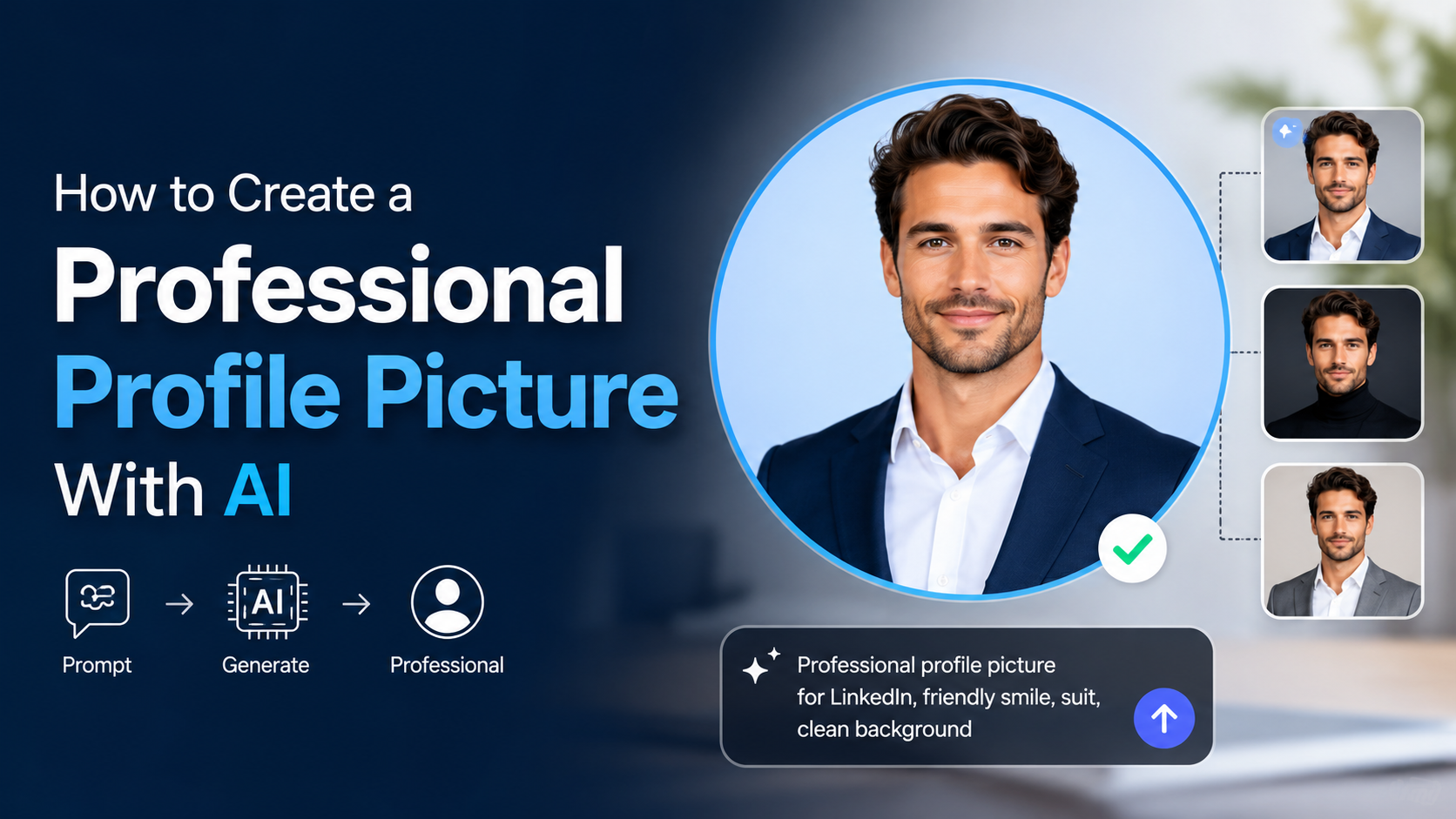
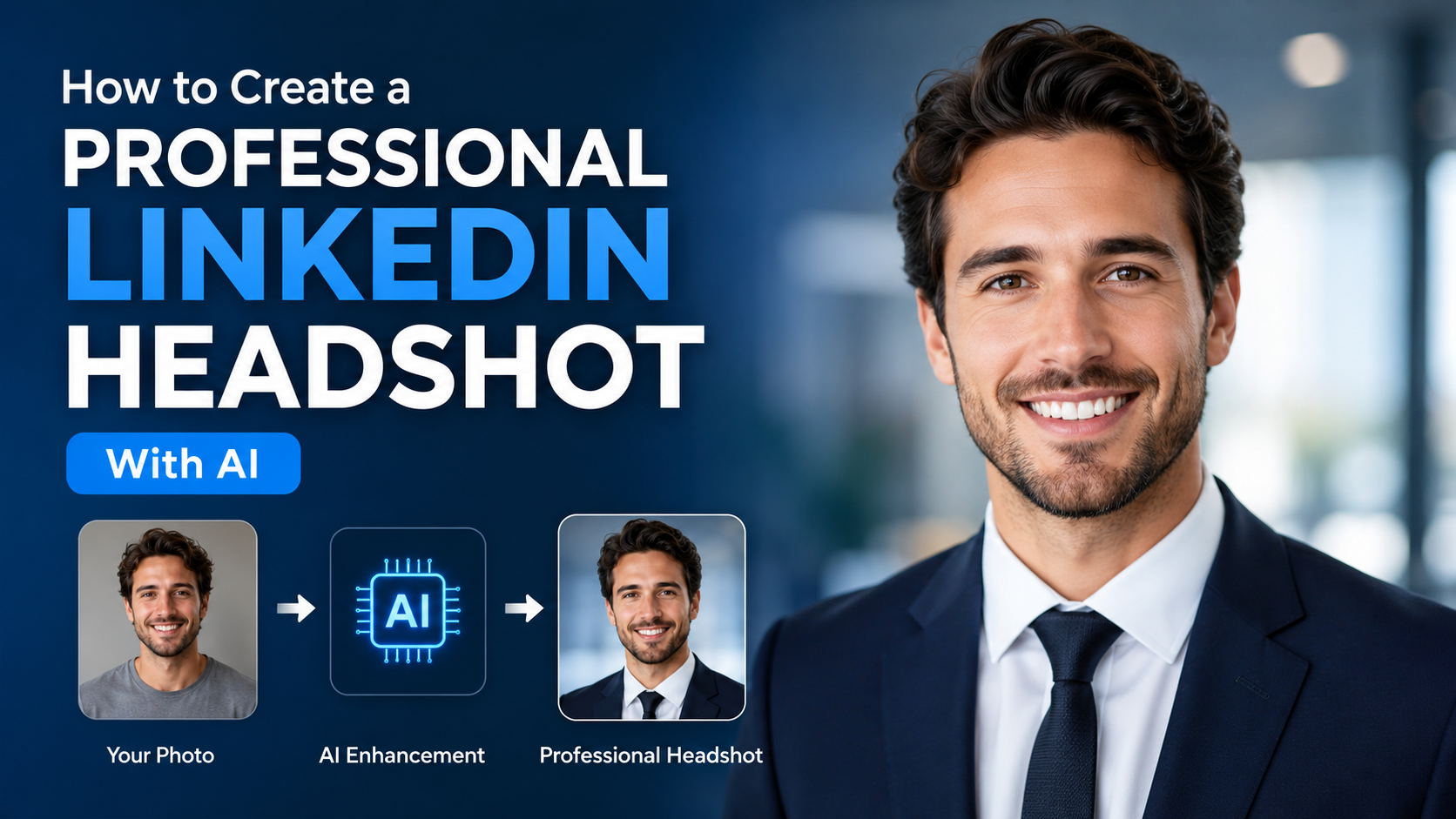
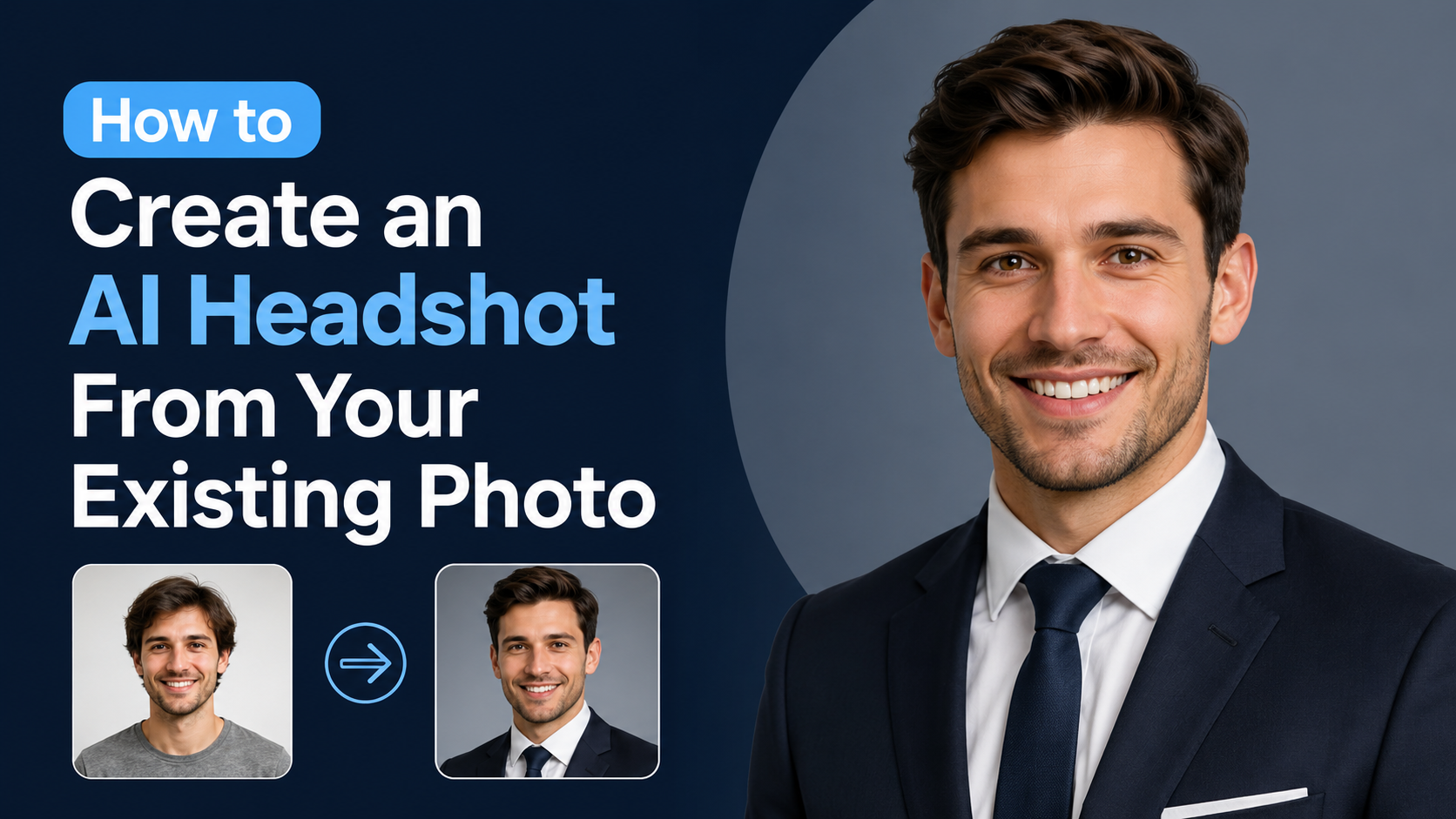
A professional profile photo is often the first visual signal an employer, client, recruiter or collaborator sees. An AI profile picture generator can help you turn a clear selfie into a polished headshot, improve the background, and create platform-ready versions without arranging a studio shoot.
The key is to use AI as an editing and presentation tool—not as a way to create a person who does not look like you. For Indian professionals applying through LinkedIn, company career pages, freelance marketplaces or networking platforms, the best result is recognisable, well-lit and appropriate for the role you want.
Key Takeaways
- Start with a recent, clear photo that accurately represents you; AI cannot reliably fix a poor or heavily blurred source image.
- Use a head-and-shoulders composition, natural expression and distraction-free background for most professional platforms.
- Ask AI to make specific, limited edits such as background replacement, lighting balance, crop refinement or clothing cleanup.
- Review generated images carefully for altered facial features, hands, jewellery, text and clothing details.
- For LinkedIn, use a JPG or PNG under 8 MB; its supported profile-photo range begins at 400 × 400 pixels.
- Avoid uploading identity documents, confidential workplace material or photos of other people without permission.
Why an AI-Enhanced Headshot Can Be Useful
A professional photo does not need to look overly formal or expensive. It needs to help someone identify you quickly and feel confident that your profile is genuine. This matters especially when your online profile accompanies a job application, client proposal, portfolio or business introduction.
AI image tools can be useful for practical refinements:
- Removing a cluttered room background.
- Creating a neutral office-style or plain background.
- Correcting uneven lighting and distracting colour casts.
- Cropping a larger photo into a profile-friendly square.
- Producing a few variations for different contexts, such as a formal LinkedIn photo and a warmer freelance-profile image.
LinkedIn specifically requires a profile image to be a likeness of you or a headshot. It allows artistic renderings, but they must still reflect your likeness; logos, animals, landscapes and text-only images are not suitable as profile photos. LinkedIn's profile guidance
That principle is a good standard for every professional platform: the image should enhance your presentation, not misrepresent your appearance, age, identity or professional role.
Choose the Right Starting Photograph
The quality of the original image has more influence on the final result than the AI tool you choose. Before using an AI profile picture generator, take several new photographs if possible.
Set up a simple photo session
You can capture a strong starting image with a smartphone camera.
- Stand facing a window or other soft, even light. Avoid harsh sunlight that creates deep shadows under the eyes.
- Place the camera at eye level, not below your chin.
- Keep your shoulders slightly angled while turning your face towards the camera.
- Leave space above your head and around your shoulders so the image can be cropped later.
- Use a plain wall or uncluttered setting when possible.
- Ask a friend to take the photograph, or use a timer and stable support rather than an extreme close-up selfie.
Wear clothing appropriate to the purpose of the image. A solid-colour shirt, kurta, blouse, blazer or professional top generally photographs better than busy patterns or large logos. You do not have to imitate a particular corporate style; the goal is to look credible in your own industry.
What to avoid in the source photo
Do not use a photograph that is:
- Out of focus, heavily filtered or extremely low resolution.
- Taken in very dim light.
- Cropped so tightly that hair, shoulders or chin are missing.
- A group image from which you have been cut out.
- Obscured by sunglasses, a mask or dramatic shadow.
- Several years old if your appearance has changed materially.
AI may generate a visually smooth image from an unsuitable photo, but it can also change facial structure, skin tone, hair texture or other identifying details. A realistic starting image reduces this risk.
Select an AI Profile Picture Generator Carefully
Different tools provide different workflows. Some generate a new portrait from uploaded photos; others edit an existing image. For a professional profile, an editor that lets you retain the original likeness and make controlled changes is usually the safer option.
For example, ChatGPT Images supports creating images from instructions, uploading an existing image for edits, selecting an area to edit, and requesting options such as a transparent background or a chosen aspect ratio. OpenAI's current image feature guide
When evaluating any AI headshot tool, look for these practical capabilities:
| Capability | Why it matters |
|---|---|
| Upload-and-edit workflow | Helps preserve your real face and expression. |
| Background controls | Lets you choose a neutral, professional setting. |
| Crop or aspect-ratio control | Makes it easier to prepare a square profile image. |
| Download options | Lets you retain a high-quality copy before platform compression. |
| Clear privacy information | Helps you understand how uploaded images may be handled. |
| Multiple revisions | Allows small corrections instead of accepting a distorted first result. |
Do not select a service solely because it promises a dramatic "corporate makeover." A restrained, authentic result will generally serve you longer than an image that looks artificial or inconsistent with your in-person appearance.
Write an Effective Prompt for Your Headshot
Specific prompts produce more dependable edits. Describe the subject, framing, background, lighting and constraints. Most importantly, tell the tool to preserve your facial identity.
Use a prompt such as:
Edit this photo into a realistic professional headshot. Preserve my facial features, skin tone, hairstyle and identity. Use a head-and-shoulders composition, soft natural lighting, a clean light-grey background, and a confident but natural expression. Keep the result suitable for a LinkedIn profile. Do not add text, logos, altered facial features or artificial-looking skin.
For a more formal role, adapt the setting rather than changing your face:
Keep my appearance accurate. Replace the background with a subtle, uncluttered office-style background with soft blur. Improve lighting and crop the image as a square headshot. Keep my existing clothing and avoid changing jewellery, facial hair or hair texture.
Prompt details that improve control
Include the following where relevant:
- Framing: "head and shoulders", "face centred", "space around shoulders".
- Background: "plain off-white", "light grey", "softly blurred office", or "solid neutral colour".
- Lighting: "soft daylight", "even facial lighting", "no harsh shadows".
- Style: "photorealistic", "professional", "natural skin texture".
- Limits: "preserve identity", "do not change age", "do not add text", "do not change clothing".
Avoid vague requests such as "make me look successful" or "make me more attractive." They invite unnecessary alterations and can result in an image that feels unlike you.
Review the AI Output Before Using It
Never upload the first generated result without checking it at full size. AI image editing can introduce subtle errors that become obvious to a recruiter, colleague or client.
Review the image against this checklist:
- Does it unmistakably look like you?
- Are your eyes, ears, teeth, hairline and facial hair natural?
- Is your skin texture realistic rather than plastic-looking?
- Are spectacles, earrings, badges and clothing edges accurate?
- Is the background free from strange objects, unreadable text or distorted architecture?
- Does the crop include enough shoulder area for circular profile displays?
- Is the expression approachable and appropriate to your field?
If a result has a problem, revise one issue at a time. For instance: "Keep everything unchanged, but restore the original glasses shape and remove the background plant." Small, focused changes are easier to assess than generating an entirely new portrait repeatedly.
It is also sensible to compare the final image beside the original photograph. If a friend or colleague would struggle to recognise you immediately, use a less edited version.
Prepare the Image for LinkedIn and Other Profiles
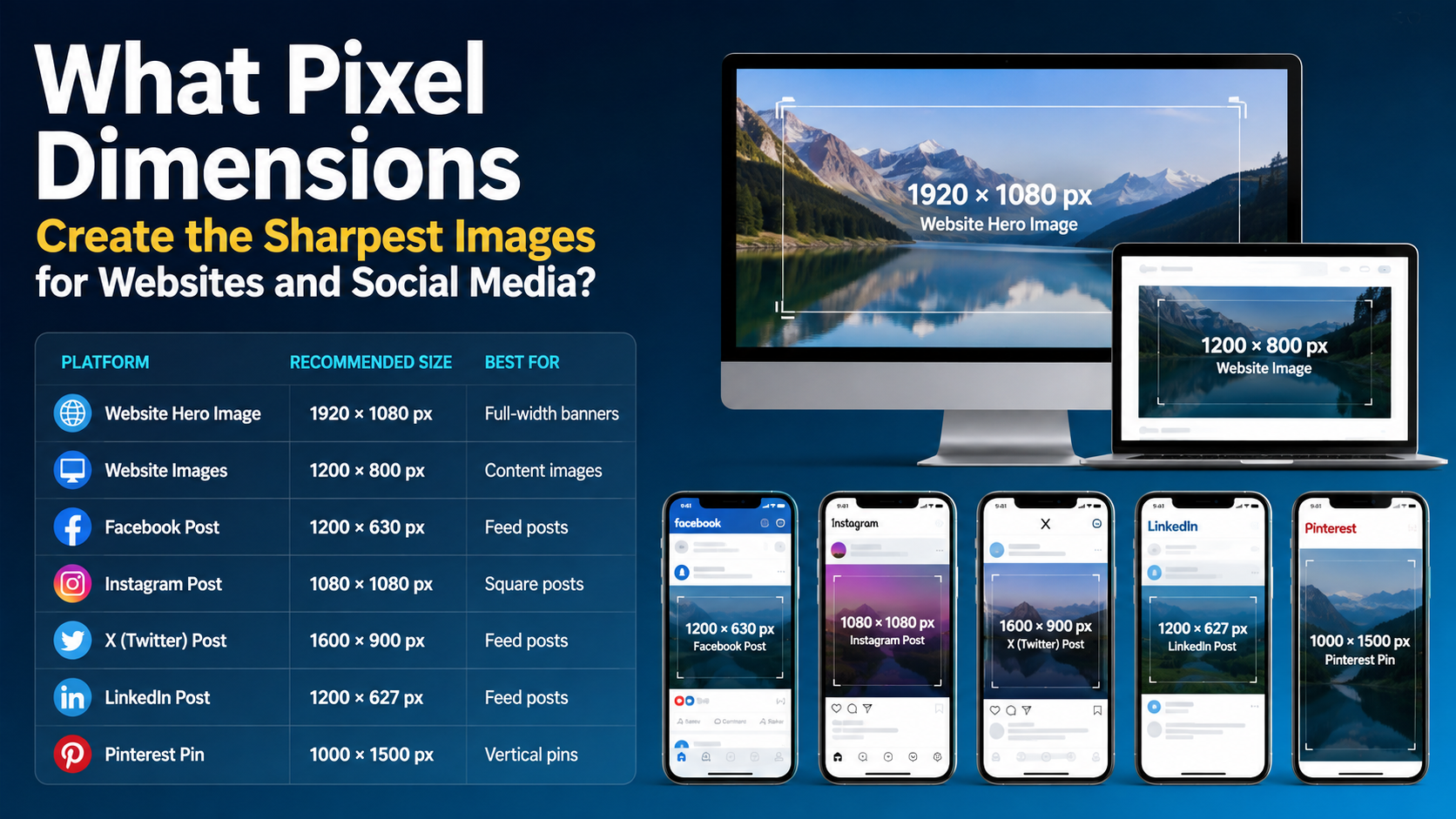
Save a high-quality master file first. Then create platform-specific copies as needed. A square image is a practical default because many services display profile photos in a circle or square.
LinkedIn accepts JPG and PNG profile photos, supports images from 400 × 400 pixels up to 7680 × 4320 pixels, and sets an 8 MB maximum file size. LinkedIn recommends using a photo that does not need much cropping. LinkedIn's profile-photo upload specifications
A useful approach is:
| Use case | Recommended presentation |
|---|---|
| LinkedIn and job portals | Clear, conservative head-and-shoulders photo with a neutral background. |
| Freelance or consulting profile | Professional image with slightly warmer expression and a relevant but uncluttered background. |
| Company directory | Follow employer requirements; use a current, recognisable image. |
| Email or Google account | Use a simple image that remains clear at small sizes. |
Google notes that its account profile photo can appear alongside your name across Google services, and lets users control some visibility settings through their account information. Google Account profile and visibility guidance Review those settings if you use the same image for work-related Google services.
Protect Privacy and Professional Credibility
An AI-generated profile picture involves personal image data, so treat the upload as you would any online service submission. Read the tool's privacy terms before uploading, particularly if you are using an unfamiliar site or a free service.
Use these safeguards:
- Upload only photos you are entitled to use.
- Do not upload Aadhaar, PAN, passport, employee ID or any document containing sensitive information.
- Remove visible workplace screens, client documents, addresses, vehicle registration plates or family members from the source image.
- Avoid using a colleague's photo as a style reference without their permission.
- Keep the original image and final download in a secure personal folder.
- Use a different image for personal social media if you prefer to separate professional and private identities.
Professional honesty matters too. Do not use AI to add qualifications, uniforms, office locations or role-specific symbols that could imply employment or expertise you do not have.
Common Mistakes to Avoid
The most common problem is over-editing. A photograph with extremely smooth skin, exaggerated jawline, changed eye colour or unreal studio lighting can undermine trust instead of building it.
Other avoidable mistakes include:
- Selecting a fashionable background that distracts from your face.
- Using a full-body image where your face appears too small.
- Adding motivational text, company logos or contact details to the photo itself.
- Changing your profile image so frequently that contacts cannot recognise you.
- Using an avatar or AI-created face that does not match your real appearance.
- Ignoring the small circular crop used by many platforms.
A good professional photo should be easy to recognise even as a small thumbnail. Simplicity is usually more effective than visual novelty.
Frequently Asked Questions
Is it acceptable to use an AI profile picture on LinkedIn?
Yes, provided the image accurately represents you. LinkedIn states that illustrations or artistic renderings can be used, but the profile image must reflect your likeness. A realistic AI-enhanced version of your own photograph is generally more appropriate than a completely invented portrait.
What size should an AI-generated LinkedIn profile picture be?
LinkedIn accepts JPG and PNG files up to 8 MB, with supported profile-photo dimensions beginning at 400 × 400 pixels. A square, high-quality image gives you flexibility when LinkedIn applies its circular display crop.
Can I create a professional profile picture from a selfie?
Yes. A clear, well-lit selfie can work, especially if AI is used to improve the background, crop and lighting. However, a photo taken by another person or with a timer often produces more natural camera distance and composition.
Should AI change my clothes in a profile photo?
It is better to wear suitable clothing in the original photo. AI-generated clothing can contain distorted collars, buttons, patterns or unrealistic details. If you do request a clothing adjustment, inspect it closely and ensure it does not misrepresent your role or employer.
How often should I update my professional profile photo?
Update it when it no longer represents your current appearance or when your professional context changes significantly. There is no need to replace a clear, current and recognisable photo simply to follow a trend.
Conclusion
An AI profile picture generator can be a practical way to create a polished professional headshot, particularly when you begin with a recent, well-lit photograph and make restrained edits. Prioritise recognisability, clean composition, correct platform sizing and privacy over dramatic transformation. Create two or three natural variations, choose the one that most closely reflects how you appear in real life, and use it consistently across your key professional profiles.