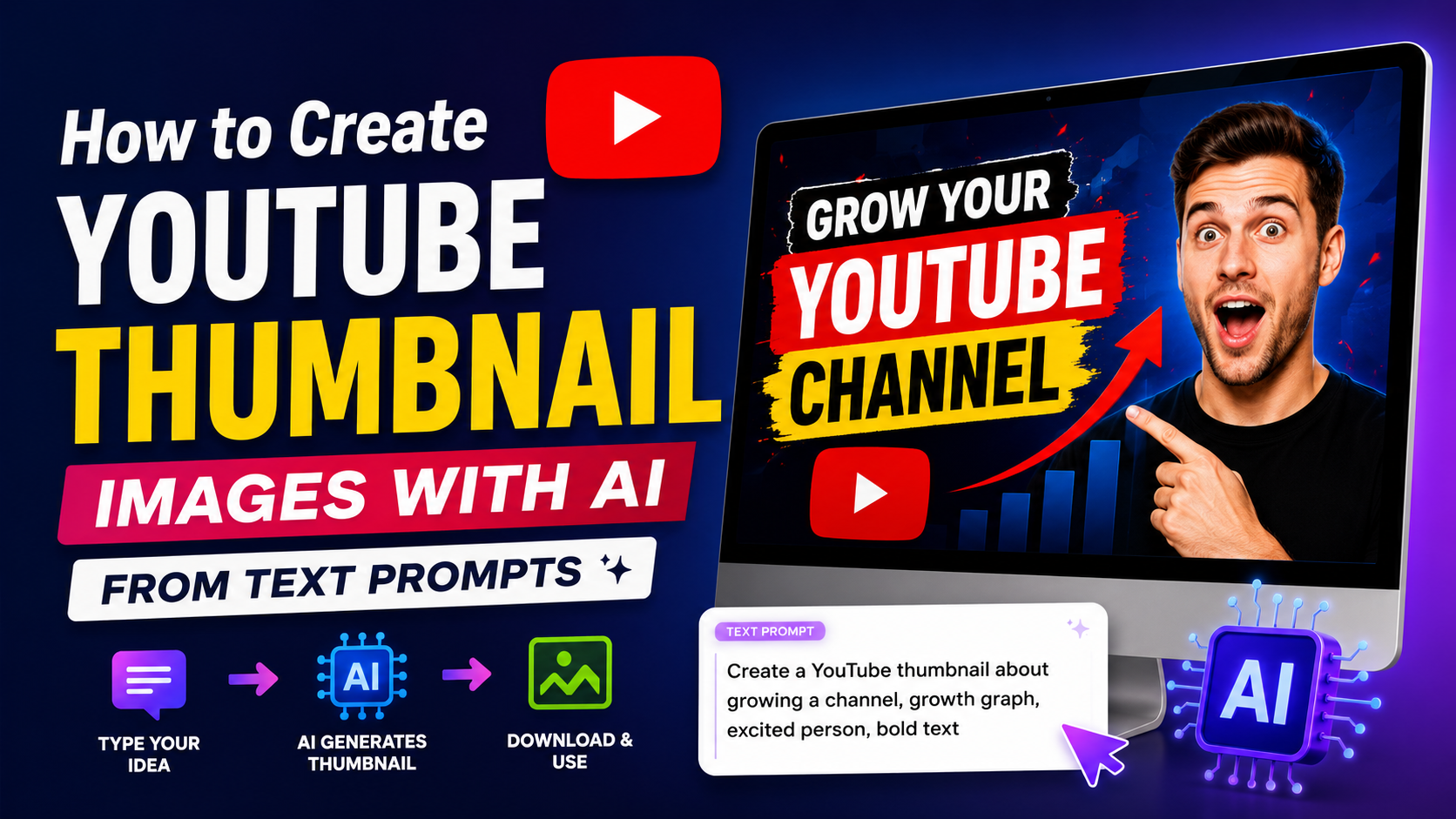
An AI thumbnail generator can turn a clear idea into a YouTube-ready visual in minutes. Instead of starting with stock photos or complex design software, you describe the subject, mood, composition and colours you want, then refine the generated image into a thumbnail that fits your video and your audience.
For Indian creators, this is especially useful when making content in Hindi, English, Tamil, Telugu, Bengali or other regional languages. The key is not simply generating a striking image—it is creating a truthful, readable preview that makes the right viewers want to watch.
Key Takeaways
- Use a detailed prompt that specifies the subject, emotion, composition, background and thumbnail style.
- Generate the visual without important text; add Hindi, English or regional-language copy later in a design editor.
- Design for small mobile screens: one clear subject and high contrast usually beat busy layouts.
- For standard videos, YouTube recommends a 16:9 thumbnail; upload JPG or PNG files within the applicable size limit.
- Avoid misleading visuals, prohibited content and unauthorised use of another person's likeness or copyrighted material.
- Treat AI output as a draft: crop, edit, fact-check and test it against the actual video before publishing.
What an AI Thumbnail Generator Does
An AI thumbnail generator is an image-generation tool that creates visuals from written instructions, often called text prompts. It can produce backgrounds, illustrations, product-style scenes, cinematic lighting, abstract concepts and original character-like visuals.
Its biggest advantage is speed. For example, a finance creator can request an image that conveys "market uncertainty," while a cooking creator can create a colourful dish scene without arranging a photo shoot.
However, the tool does not understand your video strategy automatically. It may produce distorted hands, unreadable text, irrelevant objects or visual details that promise something the video does not deliver. The creator remains responsible for choosing, editing and publishing the final image.
Start With the Video's Promise, Not the Image Tool
Before writing a prompt, define the single reason someone should click the video. A thumbnail should support the title and communicate one strong idea—not attempt to summarise every point in the video.
Ask these questions:
- What problem, result, surprise or transformation does the video offer?
- Who is the intended viewer?
- What emotion should the thumbnail create: curiosity, urgency, relief, aspiration or excitement?
- What must remain visible when the image is reduced to a small phone-screen preview?
- Does the visual accurately represent the video?
For example, a video titled "How I Started a Home Bakery in Pune" could focus on a confident baker holding an attractive cake in a bright home kitchen. It does not need to show every ingredient, every app and a lengthy earnings claim.
Match Thumbnail and Title
The title provides context; the thumbnail supplies immediate visual meaning. Avoid repeating the exact title in the image.
| Video title | Weak thumbnail idea | Stronger thumbnail idea |
|---|---|---|
| How to Save Money on Groceries | A crowded collage of supermarket items | A shopper comparing two bills with a bold visual of a lower total |
| Beginner's Guide to UPI Safety | A generic phone screenshot | A phone, a shield symbol and a concerned expression |
| 7-Day Study Plan for Board Exams | A full timetable in tiny text | A student, a calendar marked "7 Days" and a focused study setting |
The stronger option is easier to understand quickly. It also leaves room for a short text overlay, if one is genuinely needed.
Write Better Text Prompts for AI Thumbnails
A vague prompt such as "make a YouTube thumbnail about travel" gives the model too much freedom. Better prompts define the visual hierarchy and the image's intended use.
A useful prompt framework is:
Subject + action or emotion + setting + composition + lighting/colour + style + exclusions
Prompt Formula
Create a YouTube thumbnail image featuring [main subject], showing [emotion/action], in [setting]. Use [composition], [lighting/colour], and a [visual style]. Leave clean negative space on [left/right] for text. No words, logos, watermark or extra people.
Example Prompts
Education channel
Create a YouTube thumbnail image featuring an Indian college student studying confidently at a desk, open books and a simple weekly planner in the background. Medium close-up composition, student on the right, clean blue and yellow colour palette, bright studio lighting, polished editorial illustration style. Leave negative space on the left for text. No words, logos, watermark or distorted hands.
Food channel
Create a YouTube thumbnail image of a steaming bowl of paneer butter masala with naan, photographed from a close three-quarter angle on a dark restaurant-style table. Rich orange and red colours, dramatic food photography lighting, sharp texture, one dish only. Leave clean space in the upper left for text. No words, labels, logos or watermark.
Tech tutorial
Create a modern YouTube thumbnail image of a creator looking surprised while holding a smartphone with a glowing AI icon on screen. Clean dark background with electric blue highlights, close-up composition, creator on the right, high contrast, realistic but natural lighting. Leave space on the left for short text. No words, brand logos or watermark.
Use Negative Instructions Carefully
Add exclusions when they matter:
- "No text, letters, numbers or watermark"
- "No logos or branded interface"
- "No crowded background"
- "One person only"
- "Natural hands and facial features"
- "Do not imitate a celebrity"
- "No misleading before-and-after result"
Negative instructions reduce common generation errors, but they are not guarantees. Always inspect the output at full size.
Generate the Image, Then Improve It for Clickability
Choose several variations instead of accepting the first result. Compare them based on clarity, not just visual beauty.
A practical workflow is:
- Generate three to six images from the same core prompt.
- Select the image with the clearest main subject and strongest expression or focal point.
- Crop it to the final thumbnail ratio.
- Remove distracting details and correct obvious AI defects.
- Add a short text overlay only if the visual needs it.
- Check the design at a small size before uploading.
Make Text Readable
AI image generators often produce incorrect or gibberish lettering. Generate the picture without text, then add wording manually in a thumbnail editor.
Keep overlay copy short—typically two to four words. Choose one language per thumbnail unless bilingual copy is essential for your audience. For an Indian audience, a Hindi title with a Hindi thumbnail can work well when the video itself is in Hindi; similarly, use regional-language text when that matches the channel's viewers.
Use:
- Large, heavy type
- Strong contrast between text and background
- A solid or blurred area behind text when necessary
- A safe margin away from the edges
Do not place key words over a face, food item, product or other important focal point.
Test at Mobile Size
Most viewers will encounter the thumbnail on a mobile device. Zoom out until the image is small. If you cannot immediately identify the subject and message, simplify it.
A useful rule is one thumbnail, one story:
- One face or primary object
- One visual tension or result
- One short phrase, if needed
- One colour direction
Prepare the File for YouTube
YouTube's current Help guidance recommends custom thumbnails at 3840 × 2160 pixels for videos, with a minimum width of 640 pixels, and a 16:9 aspect ratio for standard videos. It accepts formats such as JPG and PNG. On desktop, video, Shorts and podcast thumbnails can be up to 50 MB; mobile video-thumbnail uploads have a 2 MB limit. YouTube Help
For Shorts, YouTube recommends a 9:16 aspect ratio and a resolution of 2160 × 3840 pixels. Custom Shorts thumbnails can currently be uploaded through YouTube Studio on a computer, and the account must be verified. YouTube Help
Upload Steps
- Open YouTube Studio and select Content.
- Choose the video you want to edit.
- Under Thumbnail, select Upload file.
- Upload the final JPG or PNG.
- Save the changes.
YouTube notes that thumbnail changes can take time to appear. It also applies daily custom-thumbnail upload limits, which can vary by channel history or region. YouTube Help
Use AI Responsibly: Accuracy, Copyright and Likeness
A compelling thumbnail should not deceive viewers. If a video is a basic tutorial, do not use an AI image suggesting a dramatic result that never happens in the video. Misleading presentation may increase short-term clicks but can damage audience trust and watch satisfaction.
YouTube requires thumbnails to follow its Community Guidelines. It says thumbnails may be rejected, and violations can lead to a strike; examples include nudity or sexually provocative content, hate speech, violence, and harmful or dangerous content. Repeated violations can affect thumbnail privileges or the channel. YouTube Help
Be particularly cautious with real people. Do not generate or use a public figure's face to imply endorsement, appearance or involvement without permission. YouTube's likeness-claim guidance states that disclosing AI use does not itself give permission to use someone's likeness. YouTube Help
For videos containing realistic, meaningfully altered or synthetic content, YouTube requires disclosure during upload in specified situations. Its own examples state that using generative AI to create or improve a thumbnail does not by itself require that disclosure. The requirement concerns realistic synthetic or altered video content, such as depicting a real person doing something they did not do or generating a realistic event that did not occur. YouTube Help
Finally, review your AI tool's current terms and commercial-use rules before relying on generated assets for a business channel. Avoid uploading copied logos, copyrighted characters, film stills or brand imagery unless you have the necessary rights.
A Repeatable Thumbnail Creation Checklist
Use this checklist before publishing:
- Does the thumbnail communicate one clear idea?
- Does it accurately match the video's content and title?
- Is the main subject recognisable at small size?
- Is any overlay text short and legible?
- Are there no AI artefacts, gibberish words or incorrect product details?
- Have you avoided unauthorised logos, copyrighted material and third-party likenesses?
- Is the image in the correct ratio and file format for the video type?
- Does it comply with YouTube's thumbnail and Community Guidelines?
Frequently Asked Questions
Can I create YouTube thumbnails with AI for free?
Some AI image tools offer free tiers, trials or limited credits, but their limits, output quality, watermark rules and commercial-use terms differ. Check the tool's current pricing and licence terms before using it for a monetised channel.
What is the best prompt length for an AI thumbnail generator?
There is no fixed ideal length. Include enough detail to control the subject, composition, lighting, style and exclusions, but avoid piling on unrelated concepts. One focused visual idea generally performs better than a prompt requesting many objects and emotions.
Should I put text in an AI-generated thumbnail?
Usually, generate the image without text and add copy afterward in an editor. AI-generated text can be inaccurate or unreadable, while manually added text gives you control over language, spelling, font and contrast.
What thumbnail size should I use for YouTube?
For standard videos, YouTube recommends 3840 × 2160 pixels, 16:9 ratio, and formats such as JPG or PNG. For Shorts, it recommends 2160 × 3840 pixels and a 9:16 ratio. YouTube Help
Do I need to disclose an AI-generated thumbnail on YouTube?
YouTube's disclosure guidance lists AI assistance used to create or improve a thumbnail among examples that do not require creator disclosure. However, realistic, meaningfully altered or synthetic video content can require disclosure, so review the policy when AI is used beyond the thumbnail. YouTube Help
Conclusion
An AI thumbnail generator can make YouTube design faster and more flexible, but the best results come from clear creative direction. Start with the video's real promise, write a focused prompt, generate several options, add text manually and test the design at mobile size.
Use YouTube's recommended dimensions, keep the thumbnail truthful, and avoid content that creates copyright, policy or likeness risks. Build a simple prompt template for your channel, then refine it over time based on which thumbnails attract the right viewers.