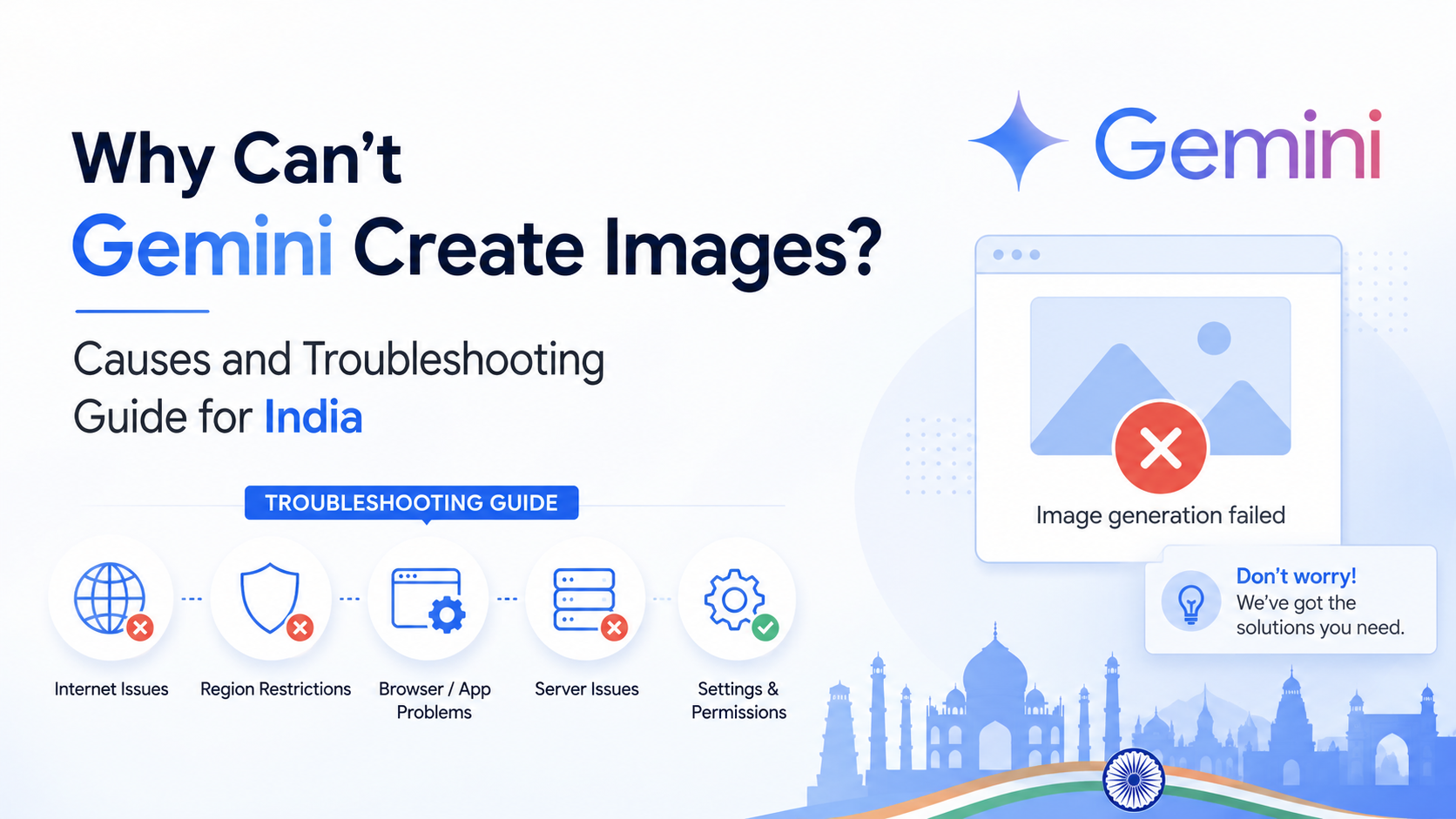
If you are searching "why wont Gemini create images", the cause is usually not the wording of one prompt alone. Gemini image generation can fail because you are signed out, the account does not meet the feature's age requirements, a work or school account has different permissions, a usage limit has been reached, or Google's safety systems have blocked the request.
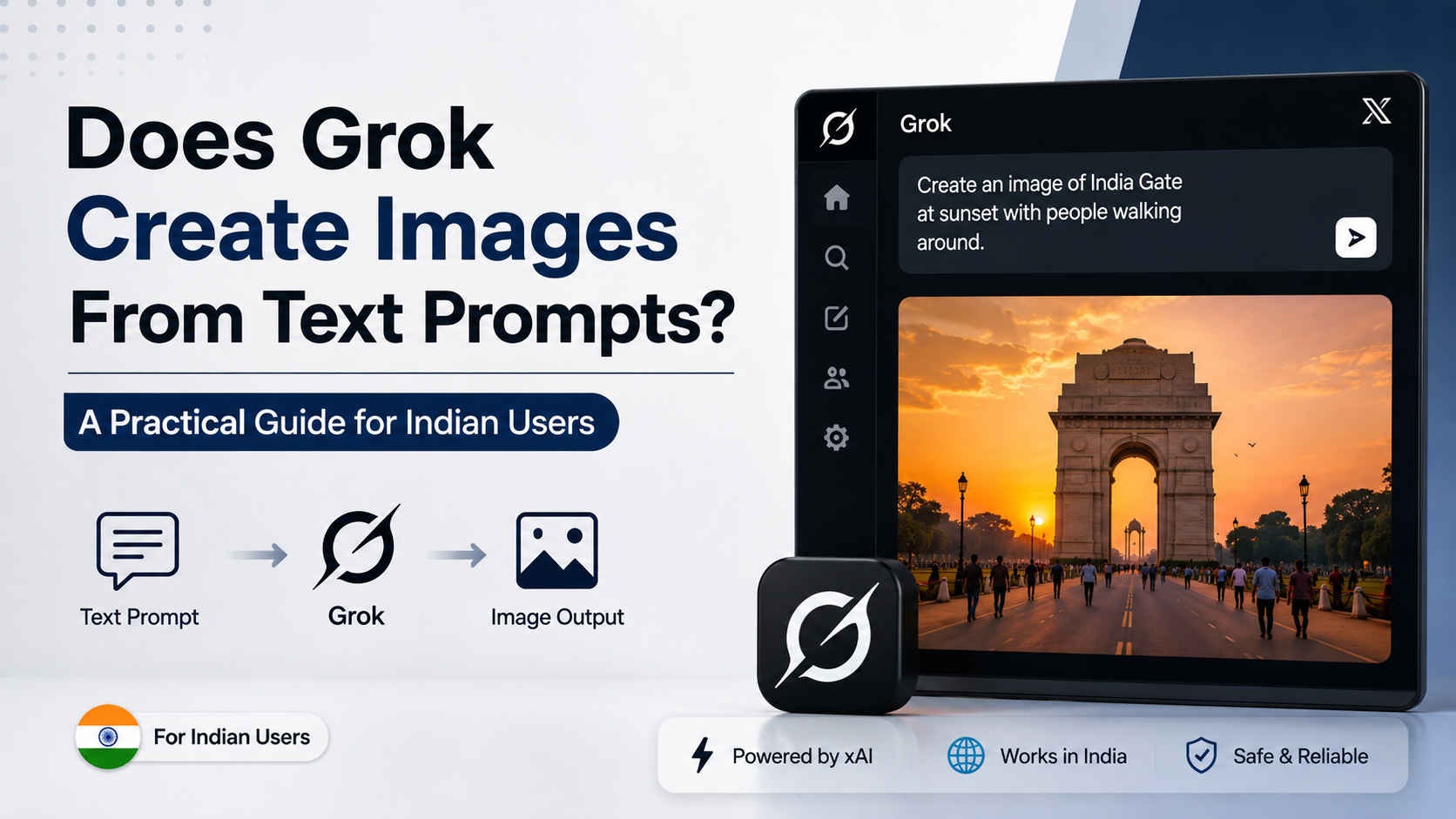
For users in India, the Gemini web app itself is listed as available, and Google lists Indian languages including Hindi, Bengali, Gujarati, Kannada, Malayalam, Marathi, Tamil, Telugu and Urdu among its supported web-app languages. However, Google also states that individual features depend on their supported languages and countries. This guide explains how to isolate the actual issue and fix what you can. Google's Gemini web-app availability page provides the current location and language list.
Key Takeaways
- You must be signed in to Gemini Apps to use image generation.
- Google's image-generation help page says the feature is not available to users under 18.
- India being supported for the Gemini web app does not guarantee every Gemini feature or account type has identical access.
- Work and school Google accounts can have licence- or administrator-controlled limits.
- Reword prompts that could imply harmful, deceptive, privacy-invasive or copyright-infringing content.
- If basic prompts fail across devices after checking eligibility, send feedback with a screenshot and the exact error.
Start With a Simple Image Request
Before changing account settings, test whether the problem is with Gemini generally or only with one prompt.
Open gemini.google.com, make sure you are signed in, start a new chat, and use a neutral request such as:
Create a colourful watercolour illustration of a monsoon street market in Mumbai, with umbrellas, fruit stalls and warm evening lights.
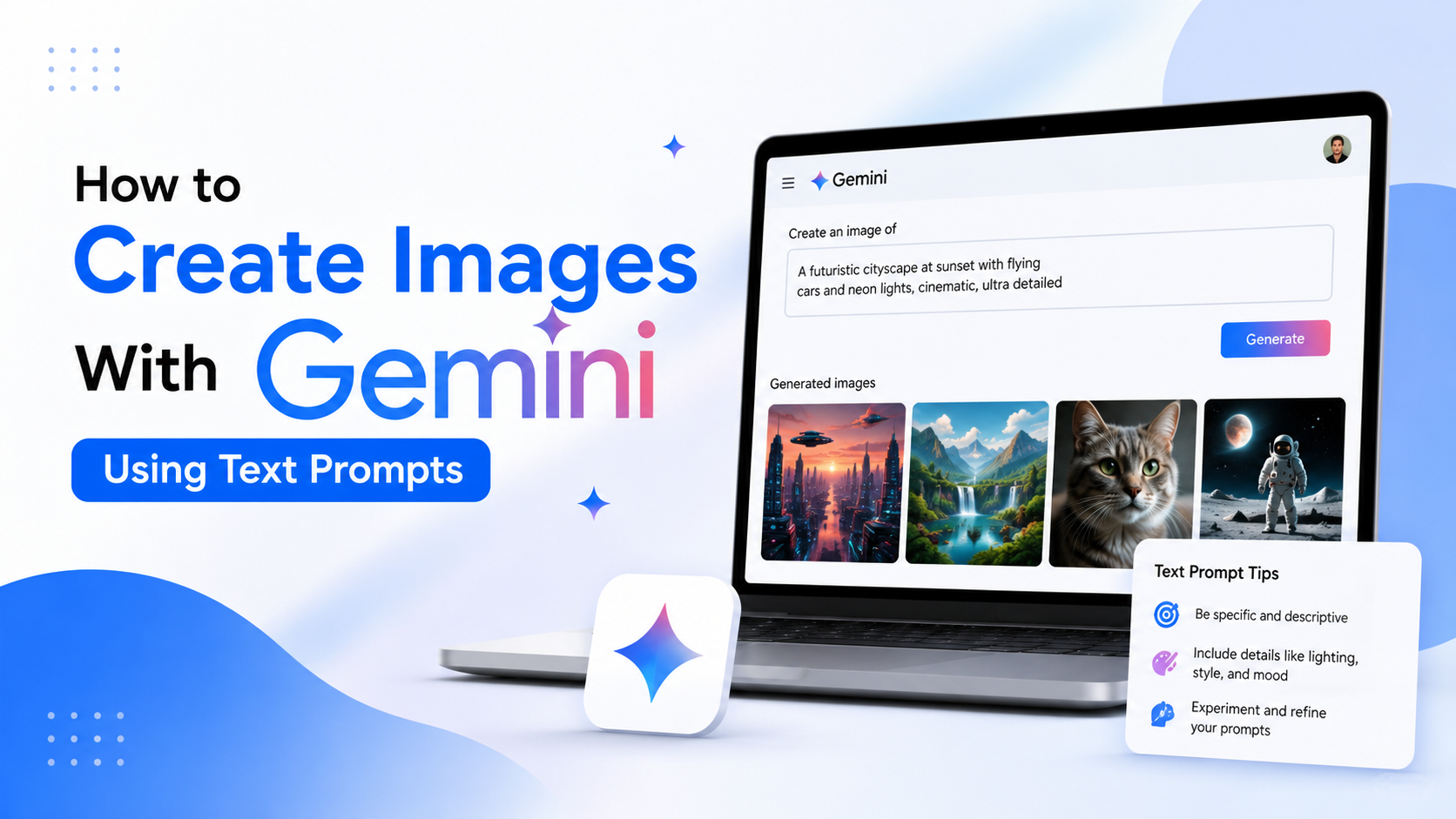
Google recommends beginning prompts with terms such as "draw", "generate" or "create", then specifying the image style, subject, action and setting. Google's image-generation guidance uses the same approach.
If this test works, Gemini is available to your account and the original request likely needs revision. If it does not work, work through the account, limit and technical checks below.
| What happens | Most likely cause | Best next action |
|---|---|---|
| Gemini responds with text but no image | Signed-out session, feature availability or temporary limitation | Confirm you are signed in; retry a new chat |
| Gemini declines or removes the result | Safety or policy detection | Remove risky, deceptive or privacy-sensitive elements |
| It worked earlier but now fails | Usage limit or temporary service issue | Check Usage Limits, then retry later |
| It fails only on office/college account | Workspace licence or admin settings | Test a personal account or contact the administrator |
| It fails on one browser or app only | Browser, app, extension or network issue | Update, disable extensions, or try another supported browser |
Check Your Account Eligibility First
Sign in with a Google Account
Image generation is an authenticated Gemini feature. Google states that signed-out users cannot use features requiring account authentication, including image generation and file uploads. Merely being able to ask Gemini text questions while signed out does not mean image generation is enabled.
Check the profile icon in Gemini. If you see an option to sign in, do that first. Then begin a new chat and repeat the simple test prompt.
Confirm the age on your Google Account
Google's current image-generation help article says that the feature is not available to users under 18. This is separate from the broader age rules for access to Gemini Apps or paid plans.
If you are 18 or older but Gemini treats the account as ineligible, review the date of birth on your Google Account and complete any age-verification steps Google presents. Do not attempt to bypass age requirements by changing inaccurate account information; that can create account and verification problems.
Use the right account type
A personal Google Account and a Google Workspace account may not behave the same way. Google explains that feature availability for work and school users depends on the Workspace licence. An organisation's administrator may control what is available, and educational accounts may have different usage limits and access levels. Google's Workspace and education guidance is the relevant reference for managed accounts.
If you are using an office, university or school email address:
- Try the same harmless prompt with a personal Google Account, if you have one.
- If the personal account works, the issue is likely tied to the managed account's licence, policy or settings.
- Ask your Workspace administrator whether Gemini Apps and image generation are enabled for your organisation.
Understand Availability in India Without Making Assumptions
India appears on Google's current list of countries where the Gemini web app is available. That is useful confirmation that the main web service is supported in the country. But Google's image-generation documentation adds an important qualification: availability of the feature in a particular Gemini app is limited to the supported languages and countries of that app.
In practical terms, do not assume that:
- Every Gemini model has the same image capability.
- Every mobile-app version exposes the feature in the same way as the web app.
- Every personal, work and school account gets the same entitlement.
- A feature visible in a tutorial or social-media video is already enabled for your account.
Use the web app as a clean test point. If it works in the browser but not on your phone, update the Gemini app and test again. If it fails everywhere with the same account, the cause is more likely account eligibility, a limit, policy filtering or a temporary Google-side issue.
Check for Usage Limits and Model Restrictions
Image generation uses significant computing capacity. Google says Gemini Apps have compute-based usage limits and that availability can vary with the model, prompt complexity and feature usage. Limits may change, so avoid relying on old articles that promise a fixed number of free images per day.
If image creation suddenly stops after several attempts:
- In Gemini, open Settings & help.
- Look for Usage Limits or Usage, where available for your account.
- Review any message showing a limit, reset period or plan-related restriction.
- Wait for the displayed reset period instead of repeatedly submitting the same prompt.
- Start a new chat and retry with a straightforward request.
Google's current limits and upgrades page notes that limits can change and that usage across devices can count toward the same account's access. Upgrading a plan may expand access, but it is not a universal fix for a blocked prompt, an underage account, a region limitation or an administrator restriction.
Also check the selected model at the top of a Gemini chat. Google notes that a chat uses one model, and switching models starts a new chat. If an image request fails, a new chat with an available model can help distinguish a chat-specific issue from an account-wide one.
Rewrite Prompts That Trigger Safety Filters
A refusal does not necessarily mean Gemini cannot create images. Google says Gemini may remove images when its systems detect a possible violation of Google's Terms of Service or Generative AI Prohibited Use Policy.
Safety systems can be cautious. Rewrite the request so its legitimate creative purpose is clear.
Problematic prompt patterns
Avoid requests that involve:
- Sexual or exploitative content, especially involving young-looking people.
- Instructions to create violent, graphic or self-harm imagery.
- Impersonation, fake evidence, misleading news images or deceptive political material.
- Private or intimate images of a real person without a clear right to use them.
- Requests intended to infringe copyright, invade privacy or damage someone's reputation.
Safer rewrites
| Instead of | Try |
|---|---|
| "Make a fake photo of my colleague being arrested" | "Create a fictional noir-style detective scene with an invented character." |
| "Put this celebrity in an embarrassing situation" | "Create an original comedy illustration featuring a fictional actor at an awards show." |
| "Copy this brand's campaign exactly" | "Create an original premium skincare poster with a minimalist pastel aesthetic." |
| "Show a realistic injury close-up" | "Create a non-graphic first-aid training illustration." |
Be precise about style and setting, but do not overload a first attempt with dozens of constraints. A clear prompt such as "Create an original flat-vector poster of a Bengaluru cycling event at sunrise, with no text" is easier to interpret than a long, conflicting instruction.
Fix Browser, App and Network Problems
When a basic, allowed prompt fails only on one device, treat it as a technical troubleshooting issue.
On a computer
- Use a supported and updated browser. Google lists Chrome, Safari, Firefox, Opera and Microsoft Edge as supported browsers for the Gemini web app.
- Refresh the page and sign out, then sign back in.
- Try a private/incognito window to rule out cached data and extensions.
- Temporarily disable ad blockers, script blockers and privacy extensions that might interfere with Gemini.
- Try another supported browser before clearing all browser data.
On Android or iPhone
- Update the Gemini app through the Play Store or App Store.
- Ensure the phone has a stable internet connection.
- Force-close and reopen the app.
- Test the same account at gemini.google.com in the mobile browser.
- Check that the correct Google Account is selected, particularly if you use separate personal and work accounts.
Avoid changing your location through a VPN just to access a feature. It can complicate location-based availability checks and does not solve account eligibility, usage limits or policy restrictions.
When to Report the Issue to Google
Escalate the issue when all of the following are true:
- You are signed in.
- You are 18 or older.
- You are using a supported account and a harmless, detailed prompt.
- You have not received a usage-limit message.
- The failure occurs across an updated app and the web app, or across more than one browser.
On the Gemini web app, Google's instructions are: open Settings & help, select Send feedback, describe the problem and optionally attach a screenshot. On Android, feedback is available from the Gemini app's profile/menu area; Google documents the current platform-specific steps in its feedback and problem-reporting guide.
Include the exact error message, device type, browser or app version, whether the account is personal or managed, and a copy of a harmless test prompt. Do not attach confidential customer data, private photographs or sensitive documents unless you understand that submitted feedback can include the associated conversation and uploaded content.
Frequently Asked Questions
Why does Gemini say it is still learning to generate images?
That response can indicate that image generation is unavailable for the current account, session, location or product surface, rather than proving your prompt is bad. Sign in, use the Gemini web app, start a new chat and test a simple image request. If it still fails, check age, account type and usage limits.
Can I generate Gemini images in India?
Google currently lists India among the countries where the Gemini web app is available. However, Google also says individual Gemini features depend on supported languages and countries. Your account type, age and selected Gemini experience can still affect access.
Why can Gemini answer text prompts but not generate an image?
Text chat can be available in situations where advanced authenticated features are not. Google specifically lists image generation among features unavailable when using Gemini Apps signed out. Sign in first, then retry.
Does a Google AI plan guarantee that Gemini will create every image?
No. A paid plan may provide expanded access, but it does not override safety policies, age restrictions, Workspace administrator controls or temporary usage limits. Google also states that limits can change.
Can I use a school or office account for Gemini image generation?
Possibly, but access depends on the organisation's Workspace licence and administrator settings. If image generation fails on a managed account but works on a personal account, contact the organisation's Google Workspace administrator.
Conclusion
When Gemini will not create an image, begin with the basics: sign in, confirm that the account is 18 or older, test a simple original prompt and check whether you are using a personal or managed Google account. For users in India, the Gemini web app is supported, but feature-level availability and account permissions still matter.
If a neutral prompt fails, check Usage Limits, update or switch your app/browser, and try a new chat. If Gemini refuses only specific requests, rewrite them to remove unsafe, deceptive, privacy-sensitive or infringing elements. When the problem persists across supported devices and a harmless prompt, send Google feedback with the exact error and a screenshot.