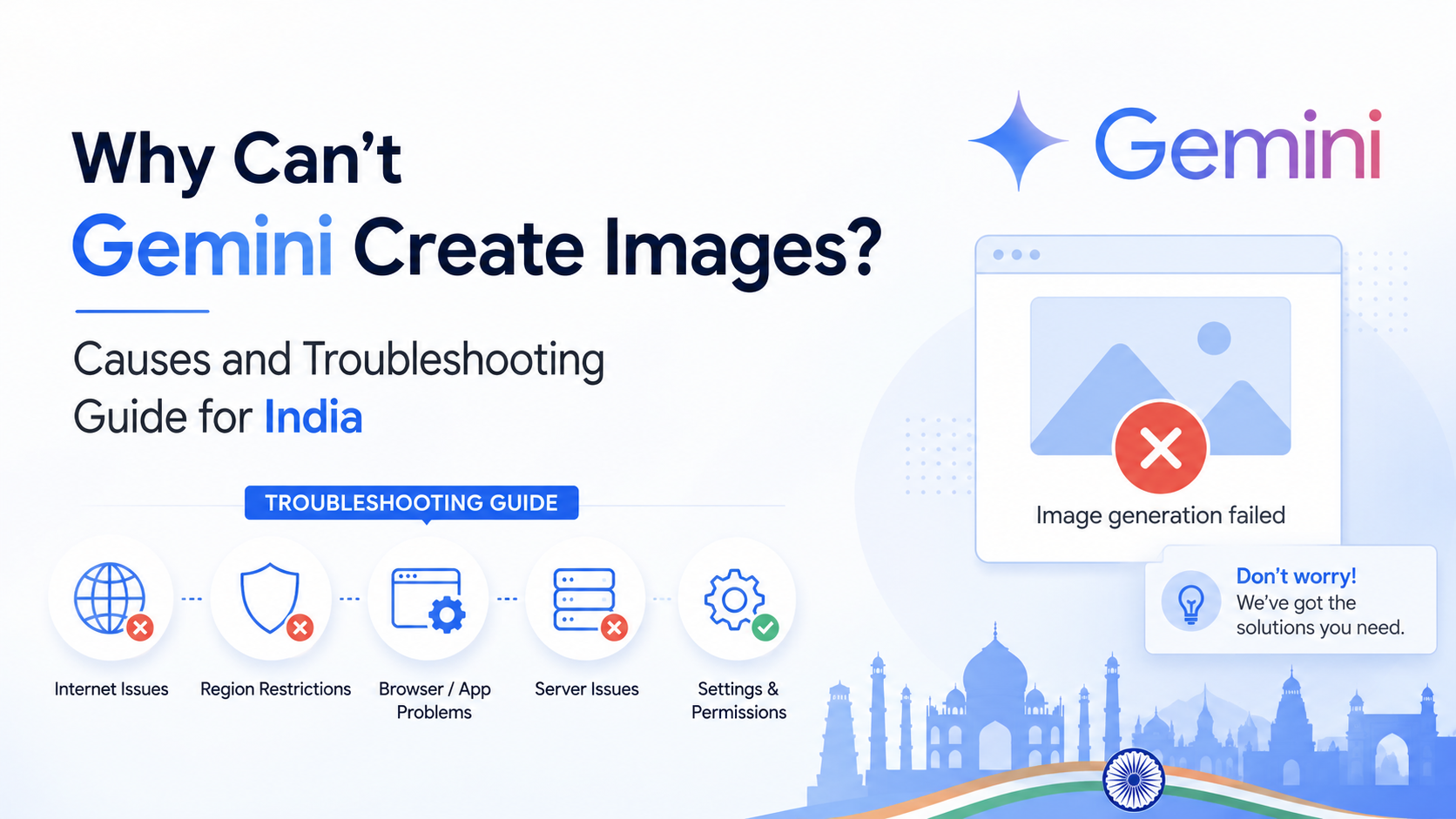
If you are searching for why cant gemini create images, the answer is usually not that Gemini lacks the feature. Google's Gemini Apps support image generation and editing, but access depends on your account, age, location, app availability, usage limits, and whether the request meets Google's safety policies.
For users in India, the Gemini web app is listed as available, and India is included among its supported countries. However, image generation can still be unavailable in a particular session or account. This guide explains the likely reason, how to identify it, and what to do next.
Key Takeaways
- Gemini image generation requires you to be signed in; it is not available in signed-out Gemini sessions.
- Google states that image generation is currently unavailable to users under 18.
- India is supported for the Gemini web app, but individual features can still depend on account and product availability.
- Work and school accounts may have different access, limits, licensing, or administrator controls.
- Image requests may be removed or refused when Google's systems detect a possible policy violation.
- Usage limits and capacity restrictions can temporarily prevent further image generation.
Does Gemini Actually Create Images?
Yes. Google's official Gemini Apps help documentation says users can generate images from text prompts and edit generated or uploaded images. For example, a prompt such as "Create a watercolour illustration of the Gateway of India at sunrise" should clearly request an image.
Google also provides image-generation capabilities through its developer products, but that is a separate route from using the consumer Gemini web or mobile app. If you are simply chatting at gemini.google.com, you do not need to use an API to try image generation.
The practical distinction matters:
| Situation | What it usually means |
|---|---|
| Gemini answers with text instead of an image | The request may be unclear, the current experience may not have the feature available, or a limit may apply. |
| The image option is missing | Check sign-in status, account type, age eligibility, app updates, and availability. |
| Gemini refuses or removes an image | The prompt may have triggered safety, privacy, copyright, or other policy protections. |
| It worked earlier but stopped | You may have reached a usage limit or encountered a temporary capacity issue. |
Google's image-generation help page remains the best starting point because it covers the requirements, prompt guidance, image editing, and policy-related removals.
Check the Basic Eligibility Requirements First
Before changing settings or reinstalling an app, rule out the access conditions that most often explain why Gemini cannot create images.
You must be signed in
Google states that image generation requires sign-in to Gemini Apps. Some Gemini functions can work while signed out, but authenticated capabilities such as image generation and file uploads are unavailable.
Open Gemini, confirm that you are logged in to the intended Google Account, then start a new chat and try a simple prompt:
Create a flat illustration of a yellow auto-rickshaw on a clean white background.
If Gemini is open in an incognito/private browser window, make sure you have actually signed in rather than assuming the browser is using your usual account.
You must be 18 or older for image generation
Google's image-generation documentation says the feature is currently unavailable to users under 18. This is separate from the broader minimum age required to use Gemini Apps.
If your Google Account is a supervised account or reflects an age below 18, there is no legitimate troubleshooting step that can bypass this restriction. Use age-appropriate Google services instead, and do not attempt to alter account details inaccurately.
India is supported for the Gemini web app
Google lists India among the supported countries and territories for the Gemini web app. It also lists several Indian languages, including Hindi, Bengali, Gujarati, Kannada, Malayalam, Marathi, Odia, Punjabi, Tamil, Telugu, and Urdu, among its supported web-app languages.
That does not mean every Gemini feature is identical across every device, plan, account type, and release stage. Google notes that feature availability in a particular Gemini app is limited by the supported languages and countries for that app. If the mobile app behaves differently from the web app, test the same signed-in account at gemini.google.com in a supported desktop browser.
The Most Common Reasons Gemini Cannot Generate an Image
You have reached a usage or capacity limit
Image generation uses substantial computing resources. Google explains that Gemini Apps have usage limits and that access can be limited because of testing, experimentation, availability, or demand. Limits may also change.
A limit does not necessarily mean anything is wrong with your account. Look for a notice in Gemini that explains when access will refresh. For personal accounts, Google says you can review usage information from Settings and then Usage Limits in the Gemini web app.
Do not rely on old social-media posts that claim a fixed daily image allowance. Google can change limits, and the applicable limit may vary by account, plan, model, and current demand.
You are using a work or school Google Account
A college, company, or school account can behave differently from a personal Gmail account. Google says feature availability and data handling for Workspace users depend on the organisation's licence. An administrator can also restrict Gemini access or particular features.
To isolate the issue:
- Open Gemini in a new browser tab.
- Check the profile icon and confirm which Google Account is active.
- If permitted, try the same safe prompt with a personal Google Account.
- If image generation works on the personal account but not the organisation account, contact your Workspace administrator.
Do not use a personal account for confidential employer, client, student, health, financial, or internal business material unless your organisation explicitly permits it.
The browser or mobile app is outdated
For the web app, Google lists Chrome, Safari, Firefox, Opera, and Microsoft Edge as supported browsers. Update the browser, then reload Gemini and try again.
On a mobile device, update the Gemini app from the official app store. Google's work-and-school-account troubleshooting guidance specifically advises checking the app store for an available Gemini app update.
If the issue persists, test another supported browser or another device. This helps distinguish an account-level problem from a local app, browser-extension, cookie, or network issue.
The prompt is unclear
A vague request such as "make something nice" may produce text, ask follow-up questions, or result in an unhelpful output. Start with a direct instruction using words such as create, draw, or generate.
A stronger prompt includes:
- Subject: what should appear
- Setting: where it appears
- Style: photo, illustration, watercolour, poster, etc.
- Composition: close-up, aerial view, square, landscape
- Lighting or colour direction: soft morning light, warm tones, high contrast
For example:
Generate a detailed editorial illustration of a small business owner in Bengaluru packing handmade products, warm natural window light, modern flat-vector style, landscape composition.
This is clearer than "create an image for my business."
Make Sure the Request Does Not Trigger Safety Restrictions
Google says Gemini Apps may remove images when systems detect a possible violation of Google's Terms of Service or Generative AI Prohibited Use Policy. A refusal is therefore not always a technical failure.
Avoid prompts that ask for content involving:
- Child sexual exploitation or abuse
- Non-consensual intimate imagery
- Illegal or dangerous activities
- Violent extremism or terrorism
- Privacy violations, including misuse of personal data or biometrics
- Copyright or other rights violations
Be especially careful with requests involving real people. Do not ask Gemini to create deceptive, intimate, or harmful images of another person. If you upload someone else's photograph, ensure you have an appropriate basis and permission to use it.
If a harmless prompt was blocked, rewrite it with neutral, specific wording. For example, replace a request that names a real person with an original fictional character, or remove unnecessary references to injury, weapons, private information, or sexual content.
A Step-by-Step Troubleshooting Checklist
Follow these steps in order. Stop once image generation works.
- Sign in to Gemini. Image generation requires a signed-in account.
- Confirm eligibility. The feature is currently unavailable to users under 18.
- Use Gemini on the web. Visit gemini.google.com using an updated supported browser.
- Start a new chat. This avoids confusion caused by an older conversation or a model change.
- Try a simple, safe prompt. For example: "Create a cartoon illustration of a mango tree in a village."
- Check the active account. Make sure you are not unintentionally using a work, school, or supervised account.
- Check Usage Limits. If Gemini shows a limit notice, wait for the displayed refresh time or consider the available plan options.
- Update the mobile app or browser. Then close and reopen it.
- Test another supported browser or device. This can reveal a local technical problem.
- Review the prompt. Remove material that could violate safety, privacy, or intellectual-property rules.
A useful diagnostic approach is to test one basic prompt before retrying your original request. If Gemini can create a generic landscape but not your original image, the issue is likely with the prompt rather than your device or account.
What to Do If the Problem Continues
If image generation still fails after the checklist, report the issue through Gemini rather than relying on unofficial fixes.
In the Gemini web app:
- Open gemini.google.com.
- Select Settings & help.
- Select Send feedback.
- Describe the problem and add a screenshot if helpful.
- Send the report.
Google notes that feedback can include the related conversation, prompts, responses, uploaded files, images, and personal content obtained from connected apps. Remove sensitive information before submitting feedback, or avoid attaching screenshots that expose confidential material.
Include useful troubleshooting details: the device type, browser or app version, whether you used a personal or Workspace account, the exact error message, and whether a simple safe prompt also failed.
Frequently Asked Questions
Why does Gemini give me text instead of creating an image?
Your prompt may not clearly ask for an image, the feature may not be available in that session, or a usage limit may apply. Use a direct request such as "Generate an image of…" and test it in a new signed-in Gemini chat.
Can I create images in Gemini without signing in?
No. Google says image generation is among the Gemini features unavailable when you are signed out.
Is Gemini image generation available in India?
India is listed as a supported country for the Gemini web app. However, Google also notes that feature availability can depend on the supported language and country of the specific Gemini app, as well as your account and eligibility.
Why can't my school or office account generate images?
Workspace access depends on the organisation's licence and administrator settings. Your administrator may need to enable Gemini access or provide the relevant licence. Check with them rather than changing organisational account settings yourself.
Why did Gemini remove an image it had generated?
Google may remove images when its systems identify a possible Terms of Service or prohibited-use-policy issue. Review the prompt, remove risky or rights-sensitive elements, and retry with a lawful, non-deceptive request.
Conclusion
When Gemini cannot create images, start with the essentials: sign in, confirm that you are 18 or older, use a supported browser or updated app, and test a simple safe prompt. For users in India, the Gemini web app is supported, but account type, organisation controls, feature availability, safety systems, and usage limits can still affect access.
If the problem remains after testing a personal signed-in account and a simple prompt, submit feedback through Gemini with a clear description and a non-sensitive screenshot.