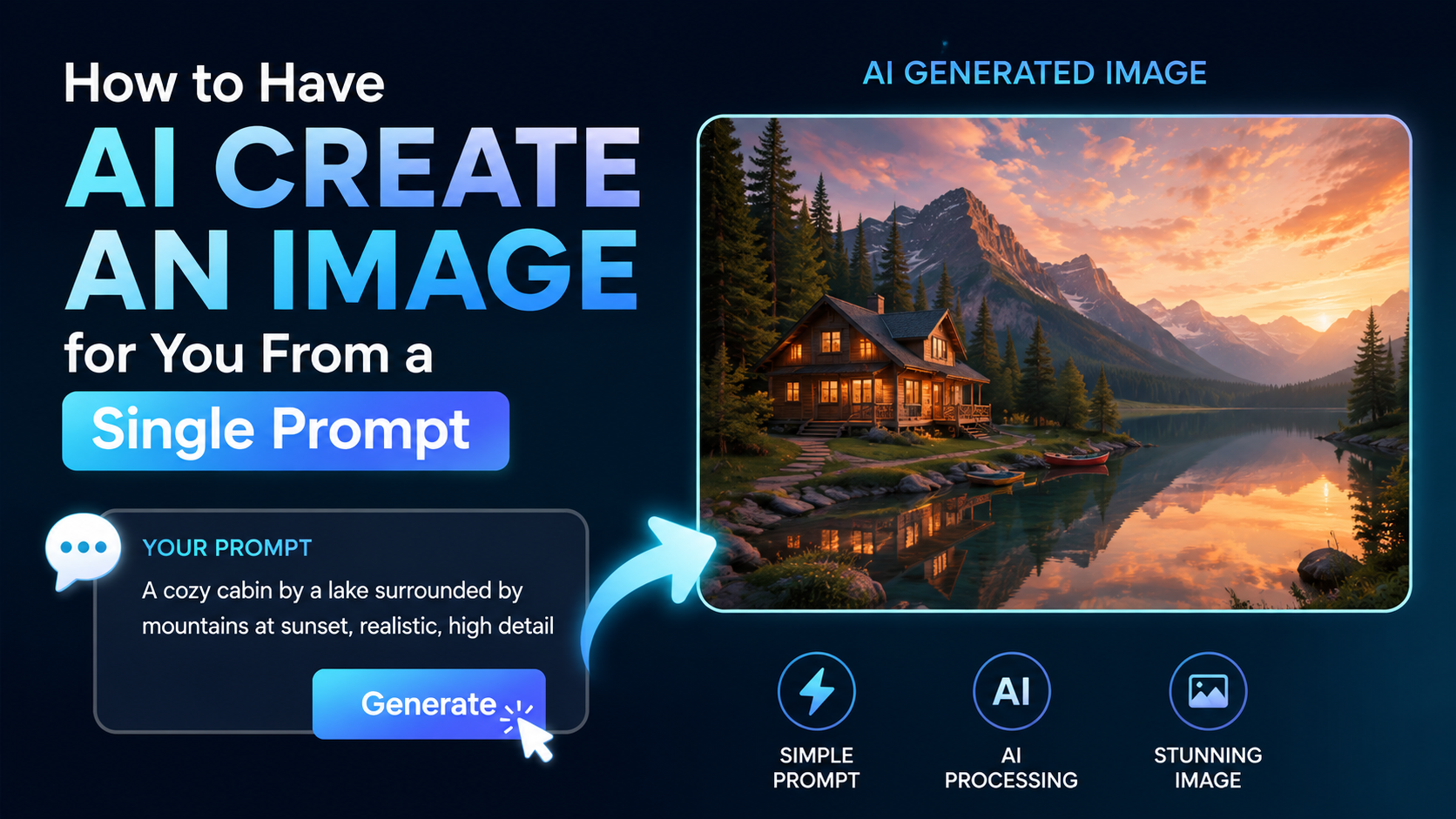
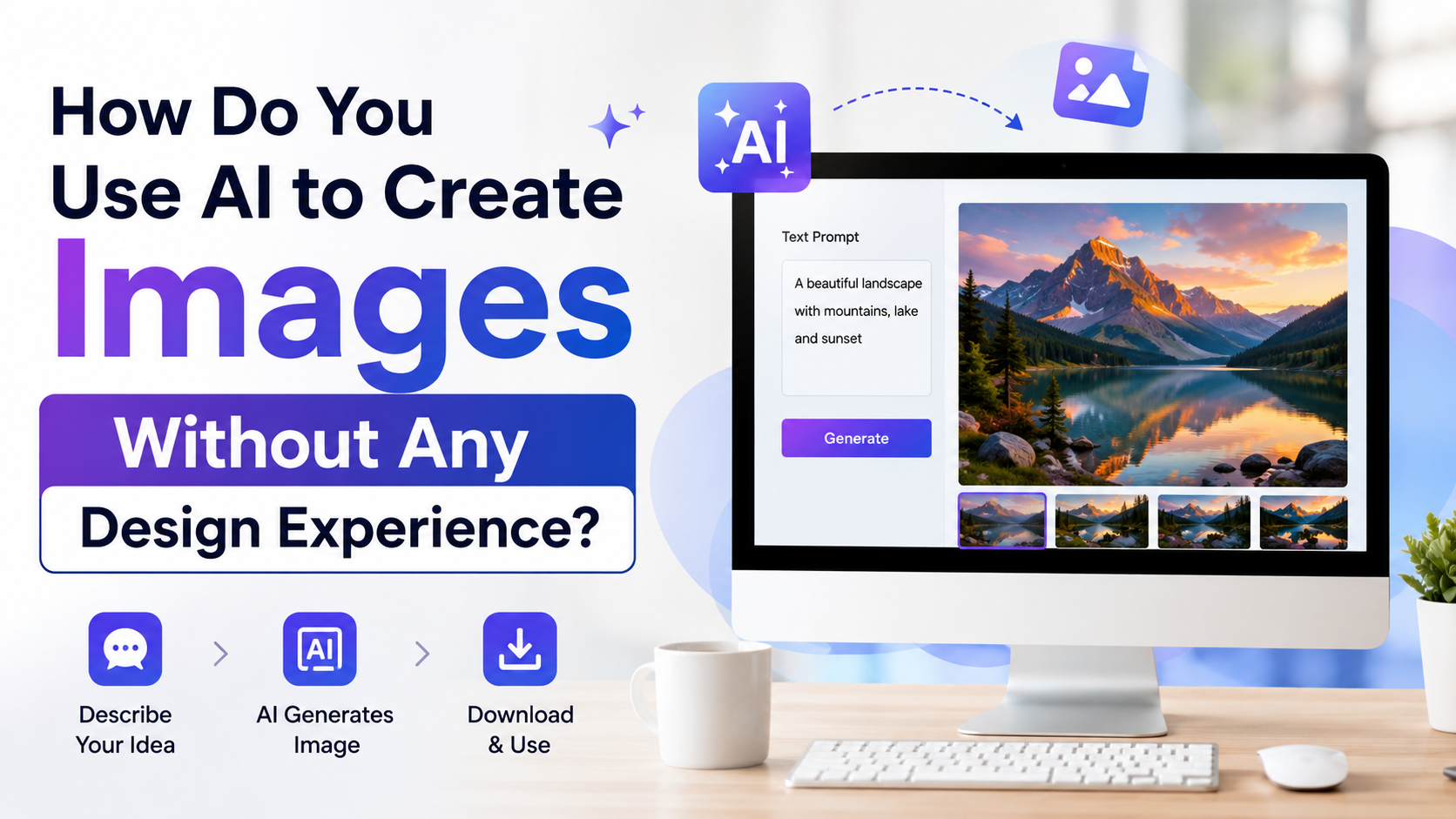
Getting AI to produce the image in your mind is less about finding a "magic prompt" and more about giving clear creative direction. If you are wondering how to get AI to create an image that matches a product idea, a social-media campaign, a wedding concept, or a local business visual, treat the prompt like a design brief.
AI image tools can generate and edit images from text, and many now support reference images, composition controls, and iterative edits. However, "exactly" should mean as close as possible through a controlled workflow—not expecting a single sentence to deliver a flawless final image every time.
Key Takeaways
- Describe the subject, setting, composition, lighting, style, and exclusions in a clear order.
- Give the AI one primary idea per image instead of combining unrelated requests.
- Set the image format before generating: portrait, landscape, square, or a custom ratio where available.
- Use reference images when facial features, product shape, layout, or visual style matters.
- Improve one issue at a time through edits instead of rewriting the whole prompt.
- Review generated images carefully before publishing, especially text, hands, logos, and culturally specific details.
Why AI Image Prompts Often Miss the Mark
An AI image generator interprets language; it does not see the private mental picture you have in mind. A prompt such as "make a nice image of a café" leaves major decisions open: the city, time of day, camera angle, colours, people, furniture, and overall mood.
When details are missing, the tool fills them in. That is useful for exploration, but it is the main reason a result can feel attractive while still being wrong for your purpose.
The solution is not necessarily a longer prompt. It is a more structured one. Give the model the decisions that matter most and leave only non-essential details open. Adobe's current guidance similarly recommends a detailed description, with controls for composition, style, lighting, colour, and camera angle where supported. Adobe Firefly documentation
Start With a Clear Visual Brief
Before writing your prompt, answer these questions in plain language:
| Element | What to specify | Example |
|---|---|---|
| Purpose | Where the image will appear | Instagram post for a Bengaluru bakery |
| Main subject | The most important object or person | A mango cheesecake on a ceramic plate |
| Setting | Place, background, and atmosphere | Sunlit café table near a window |
| Composition | Framing and placement | Close-up, cake centred, empty space at top |
| Style | Photo, illustration, 3D, sketch, etc. | Editorial food photography |
| Lighting and colour | Mood and palette | Warm morning light, cream and saffron tones |
| Constraints | What must not appear | No visible people, no text, no watermark |
This brief prevents contradictions. For example, "minimal product photograph" conflicts with "busy market background with many colourful elements." Choose the priority first.
For business work, write the brief before opening the AI tool. It makes approvals easier because you can show stakeholders exactly what was requested and what needs changing.
Use a Prompt Structure That Reduces Ambiguity
A reliable prompt usually follows this sequence:
Subject + action or state + setting + composition + visual style + lighting/colour + technical constraints
Here is a broad template:
`text
Create a [style] image of [main subject], [action or detail], in [setting].
Composition: [camera angle, framing, subject position, negative space].
Visual direction: [lighting, colour palette, mood, materials].
Include: [important details].
Avoid: [unwanted elements].
`
Example: Weak Versus Specific Prompt
Weak prompt
`text
Create an image of an Indian entrepreneur.
`
Specific prompt
`text
Create a realistic editorial photograph of a young Indian woman entrepreneur
working at a clean desk in a modern Bengaluru co-working space. Medium-wide shot,
eye-level camera, subject placed on the right third of the frame with clear empty
space on the left for headline text. Natural window light, warm neutral palette,
laptop, notebook and small indoor plant visible. Professional, optimistic mood.
Avoid visible brand logos, distorted hands, unreadable screens and extra people.
`
The second version tells the AI what matters: person, location, framing, usable space, visual mood, and exclusions. It does not rely on vague words such as "beautiful" or "premium" without explaining what those mean visually.
Control Composition Before You Generate
Composition is often more important than artistic style. A compelling image can still fail if the main subject is cropped, the product is too small, or there is no room for your text overlay.
State these decisions directly:
- Orientation: vertical for Stories or Reels covers; horizontal for website banners; square for many social posts.
- Shot type: close-up, medium shot, wide shot, aerial view, flat lay, or macro.
- Camera angle: eye level, overhead, low angle, side view, or three-quarter view.
- Subject placement: centred, on the left third, on the right third, or foreground.
- Negative space: say where you need empty, uncluttered background space.
- Focus: specify whether the background should be softly blurred or sharply detailed.
For example:
`text
Vertical 4:5 composition. Place the handcrafted silver jhumkas in the lower
centre on pale fabric, with uncluttered negative space in the upper half for
a promotional message. Soft diffused daylight, close-up product photography.
`
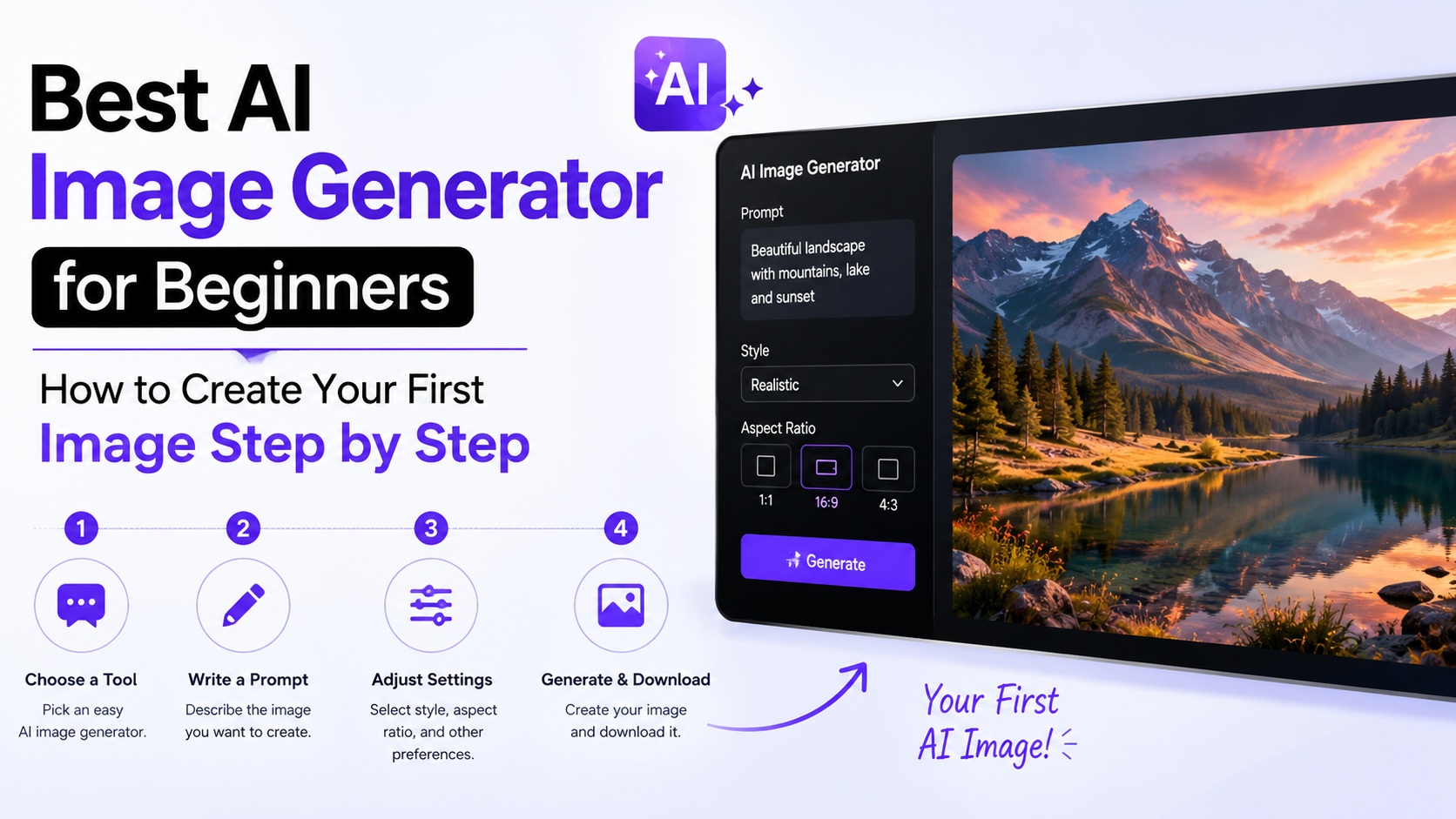
Many tools let you select an aspect ratio in the interface. Firefly, for example, provides an aspect-ratio option for generated variations, though available settings can vary by the model selected. Adobe Firefly documentation
Describe Style Through Visible Details, Not Labels Alone
Words such as "luxury," "cinematic," and "modern" can mean different things to different people. Pair the label with observable qualities.
Instead of this:
`text
A premium jewellery ad.
`
Use this:
`text
A premium jewellery campaign photograph: deep charcoal background, soft spotlight,
high contrast, subtle reflections on polished gold, restrained composition,
editorial magazine aesthetic.
`
Useful style dimensions include:
- Medium: studio photograph, watercolour illustration, ink drawing, 3D render, paper-cut art, or flat vector-style illustration.
- Lighting: overcast daylight, golden-hour sunlight, softbox studio light, neon night light, or dramatic side light.
- Texture: matte paper, brushed metal, woven cotton, terracotta, fog, grain, or glossy glass.
- Colour: earthy neutrals, jewel tones, pastel palette, monochrome, or high-contrast black and white.
- Mood: calm, energetic, festive, intimate, clinical, aspirational, or playful.
Be careful with living artists' names. It is more dependable to describe characteristics—such as "fine pen hatching, muted botanical colours, vintage print texture"—than to rely on a name as shorthand.
Use Reference Images for Precision
Text is excellent for ideas, but a reference image is better when you need a specific visual anchor. Use one when the request involves:
- The layout of a poster or product scene
- A particular garment silhouette or interior arrangement
- A product's actual packaging and proportions
- A consistent colour palette
- The look of an existing campaign, without copying protected branding or artwork
- A person's likeness, only with appropriate permission
Some image-generation systems support image inputs and iterative image edits. OpenAI's current image-generation documentation describes generating from text as well as modifying existing images, including multi-turn image editing workflows. OpenAI Image Generation guide
When uploading a reference, state what should be preserved:
`text
Use this reference only for the product's shape, label placement and bottle colour.
Create a new studio scene with a pale beige background, soft shadow to the right,
and no additional products.
`
Do not simply write "make it like this." Explain whether the reference controls composition, style, colour, subject identity, or all of them. Adobe Firefly also distinguishes composition references from style references and provides strength controls for adherence. Adobe Firefly documentation
Refine the Image in Small, Controlled Steps
The best workflow is iterative. Generate a strong base image first, then edit only the element that is wrong.
A practical sequence is:
- Generate the overall scene and choose the best variation.
- Preserve the chosen image as your base.
- Ask for one targeted change.
- Check whether the changed element still matches the rest of the image.
- Repeat until the image meets the brief.
Examples of Focused Edit Instructions
`text
Keep everything else unchanged. Replace the background with a softly blurred
bookshop interior.
`
`text
Keep the woman's pose, outfit and facial expression unchanged. Move the laptop
slightly left and create more empty wall space on the right.
`
`text
Remove the extra cup from the table. Preserve the original lighting, shadows,
camera angle and all other objects.
`
Avoid requesting ten fixes in one edit. A long list makes it harder to know which instruction caused an unwanted change. If you need to replace only one part of an image, use a selection or mask feature when your tool offers it. OpenAI notes that masks guide the editable area but may not be followed with perfect geometric precision, so review the result rather than assuming pixel-perfect isolation. OpenAI Image Generation guide
Handle Text, Branding and Product Details Carefully
AI-generated text inside images may be inaccurate, misspelled, or unevenly formatted. For posters, menus, sale banners, packaging mock-ups, or infographics, a safer workflow is:
- Generate the visual background with blank space reserved for text.
- Add the final copy, logo, price, and contact details in a design tool.
- Proofread at full size before publishing.
This is especially important for Indian businesses that use English, Hindi, Hinglish, or regional-language copy. Check every character manually; do not assume the generated lettering is correct.
For product images, verify:
- Product colour and proportions
- Label wording and claims
- Ingredient, medical, financial, or legal statements
- Logos and trademarks
- Small details such as fingers, jewellery, utensils, and background signage
AI imagery is a creative asset, not proof of a real event, person, result, testimonial, or product feature.
Common Prompting Mistakes to Avoid
Giving Conflicting Instructions
"Minimal background," "crowded festival market," and "no people" may not be compatible. Rank your needs and remove lower-priority ideas.
Leaving Cultural Context Too Vague
If context matters, name it respectfully and specifically. For example, write "Onam floral pookalam at the entrance of a Kerala home" instead of "Indian festival decoration." Specificity produces more relevant visual details and reduces stereotypes.
Using Only Negative Instructions
"Do not make it ugly, blurry, or wrong" does not define the desired result. First describe what you want, then add a short avoid-list for obvious failures.
Expecting Exact Reproduction From Text Alone
When identity, product geometry, or layout is non-negotiable, use a permitted reference image and make targeted edits. Text alone is rarely the most controlled method.
Publishing Without Review
Inspect the image at the size your audience will see. A flaw that is invisible in a thumbnail may become obvious in a print flyer, presentation, or website hero banner.
Frequently Asked Questions
Can AI create an image exactly as I describe it?
AI can often get close, particularly when you provide a structured prompt, clear composition instructions, and reference images. It cannot guarantee a perfect first result because image generation involves interpretation. Iteration and targeted edits are the practical route to precision.
How long should an AI image prompt be?
Use as many words as needed to make important visual decisions unambiguous. A concise, organised prompt is better than a long paragraph full of decorative adjectives. Include only details that influence the final image.
What should I include in every image prompt?
At minimum, include the subject, setting, composition, style, lighting, and key constraints. Add aspect ratio and empty-space requirements when the image will be used for advertising, social media, or a website.
Should I use a reference image?
Yes, when you need consistency in layout, style, product appearance, or colour. State exactly what the AI should take from the reference, and use only images you have the right to upload and adapt.
How can I make AI images suitable for marketing?
Start with the platform's required dimensions, reserve space for copy, generate the visual without critical text, then add approved brand elements separately. Review all claims, prices, labels, and logos before use.
Conclusion
To get AI to create an image close to exactly what you describe, replace vague requests with a visual brief: define the subject, setting, composition, style, lighting, and constraints. Use reference images when precision matters, and refine the selected result through small, specific edits rather than restarting from scratch.
Create a reusable prompt template for your business or personal projects, then test it on one real campaign. Each revision will show you which instructions make the biggest difference—and help you produce more consistent AI images faster.