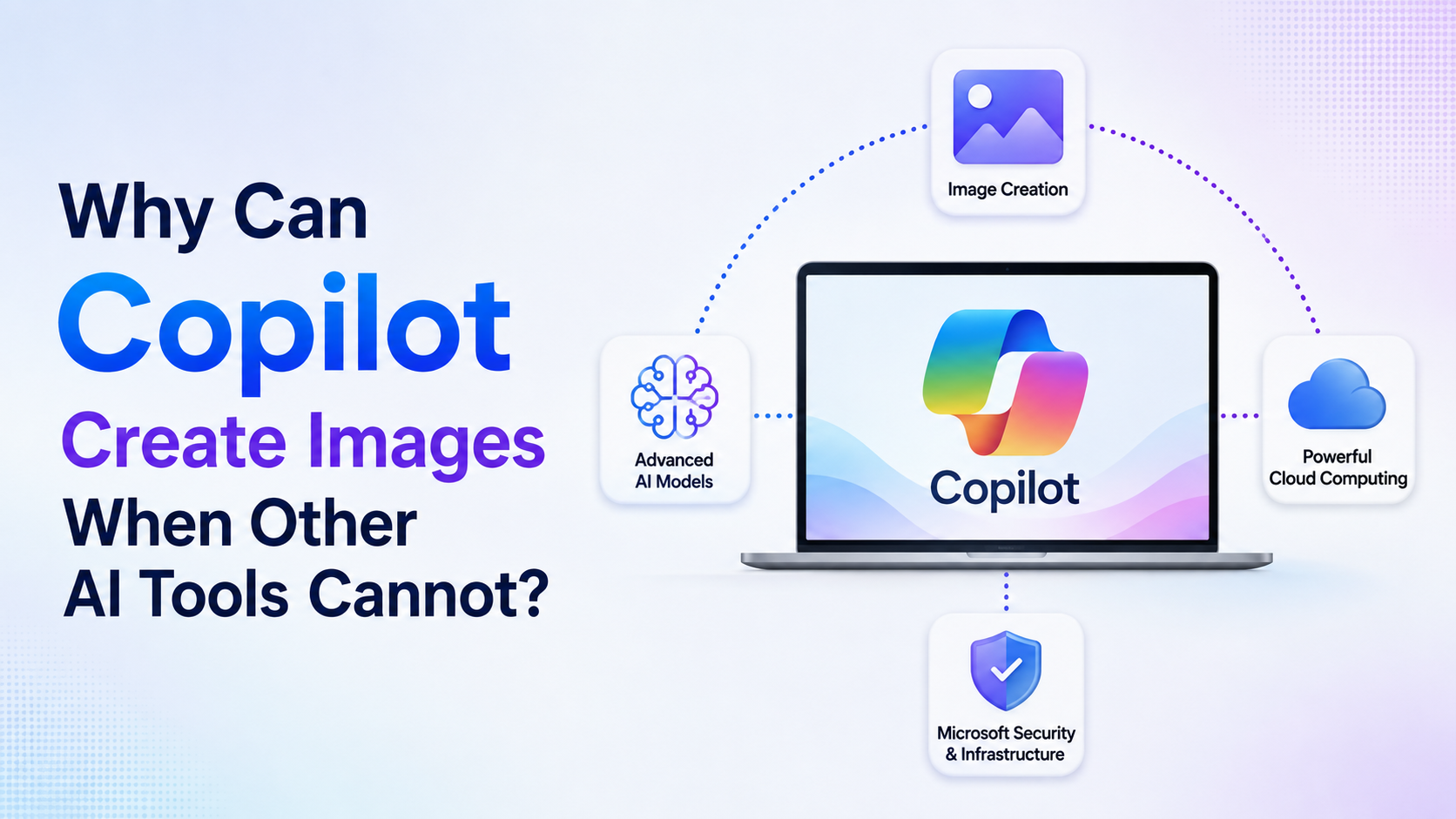
If you are asking why can Copilot create images while another AI chatbot only writes text, the short answer is that Copilot has been connected to an image-generation capability. A chatbot's ability to understand a prompt does not automatically mean it can produce a picture. Image creation requires a separate visual model, product integration, computing capacity, safety controls, and user access permissions.
Microsoft Copilot can generate images from written prompts and can also accept an uploaded image for transformation in supported experiences. However, this does not mean every version of Copilot—or every AI tool—has identical image features, limits, or commercial-use terms. Understanding that difference helps Indian students, marketers, small businesses, and professionals choose the right tool and write better prompts.
Key Takeaways
- Copilot can create images because Microsoft has integrated image-generation technology into supported Copilot experiences.
- A text chatbot and an image generator are different capabilities, even when they appear in one chat window.
- Microsoft documentation states that certain Copilot and Designer experiences use DALL·E 3 for generated images.
- Other AI tools may lack image generation because of their product design, subscription plan, region, safety policy, or technical rollout.
- Detailed prompts usually produce more relevant results than one- or two-word requests.
- AI-generated images should be reviewed carefully before publication, especially when they include text, people, logos, or factual scenes.
Copilot Is More Than a Text Chatbot
"Copilot" is a product name used across several Microsoft experiences, including Microsoft Copilot, Microsoft 365 Copilot, Copilot Chat, and features connected with Microsoft Designer. Their available capabilities can differ depending on the app, account type, organisation settings, and subscription.
The important point is that Copilot is not merely a single language model answering questions. It can act as a front end that connects a user's prompt to different services. For an image request, Copilot can send a descriptive prompt to an image-generation system, then return visual options within the same workflow.
Microsoft's support documentation describes Microsoft Copilot as having built-in text-to-image generation and the ability to transform uploaded images. Its Microsoft 365 Copilot app also provides a Create area for generating images, selecting styles, choosing square, portrait, or wide layouts, and optionally using a reference image.
That connected workflow is why a user can type a request such as:
Create a clean poster for an Independence Day sale, using saffron, white and green accents, with space for a headline.
Copilot can interpret the request as language and then invoke visual-generation features to produce an image.
How Text-to-Image Generation Actually Works
Image generation is not the same as finding an existing image through a search engine. Instead, an AI image model creates a new visual output based on patterns learned during training and the instructions in the prompt.
Step 1: Copilot interprets your instruction
The language component identifies useful details, such as:
- The subject: a farmer, classroom, product package, skyline, or event
- The setting: Mumbai monsoon street, home office, café, festival stage
- The style: photorealistic, watercolour, poster, anime, minimalist illustration
- The composition: close-up, aerial view, wide banner, portrait
- The mood and colours: calm, premium, festive, bold, warm lighting
Step 2: An image model generates visual options
Microsoft's PowerPoint documentation explains that asking Copilot to generate an image can use Designer's Image Creator, which it identifies as using DALL·E 3. This image model is designed to turn a text prompt into a newly generated visual rather than simply retrieving a stock image.
There is an important distinction:
| Request to Copilot | Likely result |
|---|---|
| "Add a stock image of a team meeting" | An image selected from a licensed stock library in supported Microsoft 365 experiences |
| "Generate an image of a team meeting in a futuristic office" | An AI-generated image based on the written prompt |
| "Edit this image and remove the background" | A transformation of an uploaded or generated image, where supported |
This distinction matters for originality, accuracy, licensing decisions, and brand use.
Step 3: Safety systems screen the request and output
Generative-image tools have policies and technical controls intended to prevent harmful or disallowed requests. Microsoft states that Designer includes controls to prevent harmful image uploads or generation. A refusal or altered result does not necessarily mean Copilot is broken; it may mean the request falls within a restricted category.
Why Other AI Tools May Not Create Images
The phrase "other AI tools cannot" can be misleading. Many modern AI products do support image generation, while others intentionally focus on writing, search, coding, analytics, customer support, or enterprise workflows.
An AI tool may not generate images for several valid reasons.
It only includes a language model
A tool can be excellent at answering questions, summarising PDFs, translating text, or writing code without having an image model connected to it. Adding image generation is a product decision, not an automatic feature of conversational AI.
The feature is unavailable on that plan
Some services reserve image generation, faster output, higher limits, editing tools, or high-resolution downloads for paid plans. Microsoft notes that some Copilot capabilities have usage limits and may change over time, including for Microsoft 365 Personal, Family, and Premium subscribers.
Therefore, two people using "the same" product may see different options based on their plan or account.
The organisation has restricted access
In a workplace, an administrator may control access to Copilot features, connected services, brand kits, uploads, or data handling. A feature available to a personal Microsoft account may not be enabled in a corporate tenant.
This is particularly relevant for Indian businesses working with confidential client material, regulated industries, or internal brand assets.
The tool is unavailable in a particular app or rollout
A company may release an image feature first on the web, then in mobile apps, then in desktop software—or the other way round. Features can also change as the provider updates safety controls, licensing arrangements, and service capacity.
For this reason, it is better to check the documentation for the exact product and interface you use instead of relying on an old tutorial or social-media screenshot.
The provider prioritises safety, cost, or reliability
Generating images requires substantial computing resources. Providers may limit requests to manage demand and abuse risks. They may also restrict prompts involving public figures, harmful content, misleading imagery, intellectual-property concerns, or sensitive personal information.
What Copilot Can Do With Images
In supported Microsoft Copilot experiences, image-related tasks can include creating a new visual from text, refining generated results, and editing uploaded images.
Microsoft's guidance for the Copilot app says users can choose a visual style and shape before creating an image. Its image-editing guidance describes tools such as cropping, background changes or removal, enhancement, filters, and adding elements.
Microsoft also explains that when a user uploads a reference image for generation, Copilot analyses the image's objects, background, and style. That can be useful when you want a new visual that follows an existing creative direction without manually describing every element.
Practical use cases in India
A few useful, low-risk examples include:
- A tuition centre creating a concept illustration for a social-media post
- A local retailer generating a festive-sale banner draft
- A startup preparing an early presentation visual before commissioning final creative work
- A student making an original cover illustration for a project
- A small business testing colour and layout ideas for a product campaign
For final commercial campaigns, treat the generated result as a creative starting point. Check brand standards, facts, spelling, cultural suitability, and any permissions required for the intended use.
How to Create Better Images in Copilot
A good image prompt reduces guesswork. Microsoft specifically recommends being descriptive and including details such as locations and artistic styles.
Use this practical structure:
Subject + action + setting + style + composition + colours + exclusions
For example:
Generate a wide, modern illustration of an Indian small-business owner reviewing online orders on a laptop in a bright Bengaluru workspace, clean editorial style, blue and white colour palette, leave clear space on the left for a headline, no logos, no text in the image.
This prompt tells Copilot what to show, where to place it, what style to use, and what to avoid.
Improve a weak prompt
| Weak prompt | Stronger prompt |
|---|---|
| "Indian festival poster" | "Create a square festive social-media background inspired by Diwali lights, elegant gold and deep blue palette, premium minimal style, leave blank space at the top for text, no words or logos." |
| "Office image" | "Create a photorealistic wide image of a diverse Indian product team discussing a dashboard in a modern office, natural daylight, professional and optimistic mood." |
| "Tea product" | "Create a studio product photograph of a plain tea box beside a steaming clay cup, warm morning light, earthy background, no labels, vertical composition." |
Avoid asking the model to place essential spelling, prices, phone numbers, or legal claims inside the image. Generate the visual first, then add verified text in a design tool.
Important Limitations and Responsible Use
AI image generation is powerful, but it is not a fact-checking tool or a substitute for professional judgement.
Text inside images may be wrong
Microsoft warns that text in generated images may not appear in the requested language and may contain spelling errors. This is especially important for Hindi, English, regional languages, product packaging, event dates, and advertising copy.
Use a separate editor for final text overlays.
Generated scenes may be inaccurate
If you ask for a medical procedure, historical event, map, landmark, legal document, data chart, or technical diagram, the output can contain visual inaccuracies. Do not use an AI-generated image as evidence or as an authoritative representation of a real event.
Rights and usage need review
Microsoft's Designer FAQ states that Designer is licensed for personal, non-commercial use with a Microsoft account. It also separately discusses use within Microsoft 365 or Office under the applicable licence. These terms can differ by product and account, so businesses should review the terms that apply to their specific Copilot or Microsoft 365 service before using generated visuals in advertising, packaging, or client deliverables.
Provenance metadata helps, but does not replace disclosure judgement
Microsoft says Designer attaches Content Credentials provenance metadata to AI-generated images. This can help identify AI editing or generation where metadata is retained. However, metadata can be removed by some platforms or file-processing workflows. Use clear internal processes and, where appropriate, disclose AI-generated visuals to clients or audiences.
Frequently Asked Questions
Is Copilot's image generation free?
Access depends on the Copilot experience, account, subscription, and current usage limits. Microsoft states that some Microsoft 365 subscription capabilities have limits that may change over time. Check the image option within your version of Copilot and the applicable Microsoft support page instead of assuming unlimited free access.
Does Copilot search the internet for pictures when I ask it to create one?
Not necessarily. Asking Copilot to "generate an image" can produce a new AI-generated visual. Asking for a "stock image" can instead return an image from a licensed stock library in supported Microsoft 365 workflows. Use clear wording so Copilot understands which result you need.
Can Copilot edit my existing image?
Microsoft documents image-upload and editing capabilities in supported Copilot experiences. You can upload an image and request changes such as removing background elements or changing the setting. Always avoid uploading confidential, private, or client-owned images unless your organisation permits it and you understand the relevant data-handling terms.
Why did Copilot refuse to generate my image?
The request may have triggered safety controls, involved restricted content, or exceeded the service's current limits. Try rewriting the request to focus on a fictional, non-harmful, non-deceptive visual purpose. Do not attempt to bypass safety restrictions.
Are Copilot-generated images suitable for business use?
They can be useful for concepts, drafts, internal presentations, and some approved production uses, but suitability depends on the applicable licence and the final context. Review the output for factual errors, unintended resemblance, text mistakes, brand conflicts, and cultural appropriateness before publishing.
Conclusion
Copilot can create images because Microsoft has integrated image-generation and editing capabilities into supported Copilot and Designer workflows. The ability is not a basic feature that every chatbot automatically has; it depends on the models, product integrations, subscriptions, safety policies, and account access behind the interface.
For the best result, use detailed prompts, generate visuals without critical text, and review every image before publishing. If you are using Copilot for commercial work, confirm the terms for your exact Microsoft product and subscription before making the image part of a public campaign.