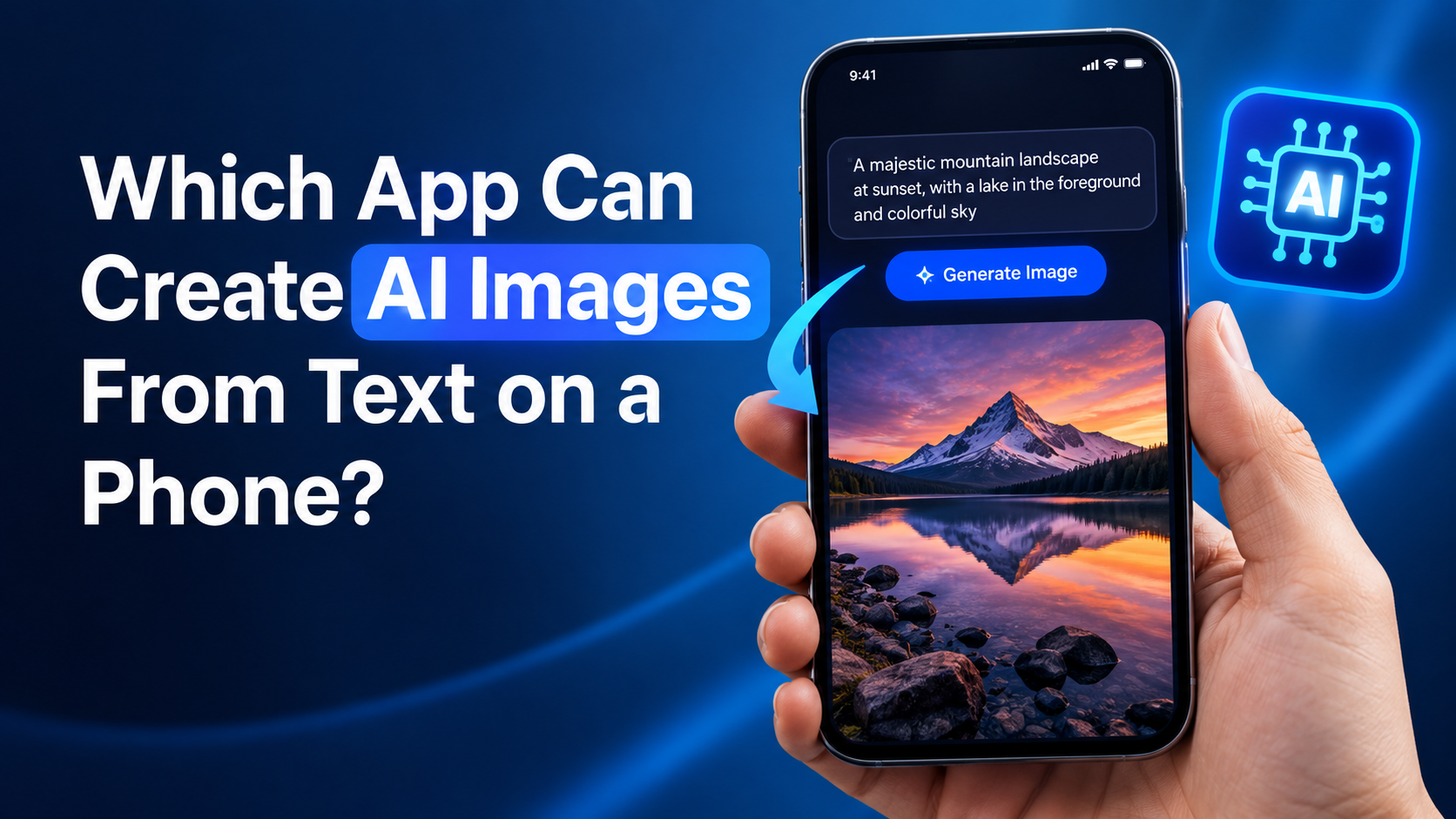
Yes—several phone apps can turn a written description into an AI-generated image. For most people in India, the practical choices are ChatGPT, Google Gemini, Adobe Firefly, and Canva. The right option depends on whether you want to create a single detailed image, edit an existing photo, make social-media designs, or develop business-ready visuals.
If you are searching for which app can create AI images, start with the app you already use comfortably. ChatGPT and Gemini are simple prompt-based options; Firefly offers more creative controls; Canva is especially useful when the image needs to become a post, presentation, poster, or thumbnail immediately.
Key Takeaways
- ChatGPT, Gemini, Adobe Firefly, and Canva support text-to-image creation on mobile devices.
- ChatGPT is useful for conversational creation and follow-up edits to generated or uploaded images.
- Gemini is available through its mobile app in India and can generate and edit images from prompts.
- Adobe Firefly provides a dedicated mobile text-to-image workflow on Android and iOS.
- Canva's Magic Media is ideal when you need an AI image placed directly into a design.
- AI images require human review—particularly for text, faces, brands, news, health, finance, and commercial work.
The Short Answer: Which App Should You Use?
There is no single best app for every task. Use this quick guide to narrow your choice.
| Your goal | Recommended app | Why it fits |
|---|---|---|
| Create an image through a natural chat | ChatGPT | You can describe, refine, and edit in the same conversation |
| Generate and revise images with Google tools | Gemini | Mobile app access in India, image creation, and image editing |
| Explore styles and creative controls | Adobe Firefly | Dedicated text-to-image workflow and model choices |
| Make Instagram posts, flyers, thumbnails, or presentations | Canva | Generates an image and lets you place it into a finished layout |
| Edit a generated image with a specific change | ChatGPT or Gemini | Both support prompt-led image edits on mobile |
For a beginner, Gemini or ChatGPT is usually the easiest place to start. For a creator who needs a polished social post or marketing layout, Canva is often more efficient. For design exploration, consider Adobe Firefly.
ChatGPT: Best for Conversational Image Creation and Edits
The ChatGPT mobile app supports image creation on both iOS and Android. You can ask it to create an image in a chat, or use the Images area in the app. Its main advantage is iteration: instead of rewriting a long prompt from scratch, you can reply with instructions such as "make the background lighter," "change the shirt to blue," or "use a square composition."
ChatGPT also lets you upload an existing image and describe changes. On mobile, you can open a generated image, choose Edit, and describe the update. You may also select a specific area before requesting an edit, although the result can extend beyond the selected area.
Example ChatGPT prompt
Create a clean, colourful illustration of a small Indian coffee shop on a rainy Bengaluru evening, warm indoor lighting, people visible only as distant silhouettes, vertical 4:5 composition, no text.
Use clear follow-ups:
- "Keep the shop composition, but make it a morning scene."
- "Remove the people and add more plants."
- "Create a wider 16:9 version for a YouTube thumbnail."
- "Replace the sign with a blank sign; do not add words."
ChatGPT Images is available across its tiers, though feature access and usage limits can vary by account. OpenAI also states that images generated through ChatGPT include provenance signals such as C2PA metadata and SynthID watermarking. Those signals can help identify origin, but they do not prove that an image is accurate, legal to use, or unedited.
Google Gemini: A Convenient Choice for Android and iPhone Users
Google's Gemini mobile app can generate and edit images from text on Android and iPhone. Google lists India among the countries where the Gemini mobile app is available. In the app, open the image area, choose a template or enter a prompt, and generate your result.
Gemini can also work with uploaded images. For example, you can upload a photo of a room and ask for a different colour palette, a new furniture style, or a cleaner background. Availability can depend on your account type, age, language, location, and plan. Google notes that image-generation and editing access has age-related restrictions.
How to create an image in Gemini
- Open the Gemini mobile app and sign in.
- Go to the Images section.
- Type a specific prompt.
- Review the generated result.
- Ask for a revision or upload an image to request an edit.
- Touch and hold the image to save or share it.
Google's own prompt guidance recommends starting with terms such as "draw," "generate," or "create," then adding the desired style, subject, action, and setting.
Example Gemini prompt
Generate a realistic product photograph of a reusable steel water bottle on a light wooden desk, soft window light, simple cream background, premium ecommerce style, portrait orientation, no logo and no words.
For results that need visible writing, inspect every letter carefully. AI image tools have improved at rendering text, but spelling, punctuation, spacing, and local-language typography can still be unreliable.
Adobe Firefly: Best for Creative Controls on Mobile
Adobe Firefly has a mobile app for Android and iOS with a dedicated Text to image feature. You write a prompt, select an image model, and generate variations. Adobe's mobile documentation also describes options to work with Adobe and non-Adobe models, so the available model list may change over time.
Firefly is a strong option for users who want to test visual directions before building a final asset. Rather than settling for a generic prompt, use its controls to explore image style, composition, colour, lighting, and aspect ratio.
How to create an image in Adobe Firefly
- Open the Firefly mobile app and sign in.
- Tap Text to image.
- Enter a concise but visual prompt.
- Choose an available image model.
- Adjust style or format options if needed.
- Generate variations and save the preferred result.
Example Firefly prompt
Editorial food photograph of masala dosa served on a banana leaf, crisp texture, coconut chutney and sambar in small bowls, natural daylight, high detail, magazine food styling, landscape composition.
Adobe says its current Firefly models are trained on licensed content, including Adobe Stock, along with public-domain content. That can make Firefly worth considering for commercial creative workflows, but it is still important to read the applicable terms and review every output before publication.
Canva: Best for Turning an AI Image Into a Finished Design
Canva's Magic Media can generate images, graphics, and videos from text within the Canva mobile editor. This is particularly useful for small businesses, students, freelancers, and social-media teams because the generated image can be inserted straight into a poster, Reel cover, presentation, menu, or product post.
In the Canva editor, open Magic Media—or search for it under Apps—then choose the Images tab. You can enter a description, choose a style, upload a reference image, select a square, landscape, or portrait layout, and generate images.
When Canva is the better option
Choose Canva when your real task is not just "make an image," but "publish a design." For example:
- A tuition centre's admission poster
- An Instagram post for a local bakery
- A YouTube thumbnail draft
- A college presentation cover
- A sale banner for an ecommerce product
Canva states that users own what they create with Magic Media when they follow its Terms of Use. However, copyright law can vary by country, and an AI output may not carry exclusive rights. If an image includes a recognisable person, character, logo, or brand, you need the appropriate permission from the rights holder.
How to Write Better Text-to-Image Prompts on a Phone
A good prompt does not need complicated technical language. It needs enough visual information for the app to understand the intended outcome.
Use this simple framework:
Subject + action + setting + visual style + lighting + composition + exclusions
For example:
A young Indian entrepreneur working on a laptop in a bright home office, tropical plants, modern editorial photography, soft morning light, realistic, horizontal 16:9 composition, no visible logos, no text.
Add details in a useful order
Start with the main subject, then add only details that change the result:
- Subject: "handmade ceramic mug"
- Setting: "on a sunlit kitchen counter"
- Style: "minimal product photography"
- Lighting: "soft natural light"
- Format: "square 1:1"
- Restrictions: "no logo, no words, no people"
Avoid vague prompts such as "make a nice business image." Instead, state the audience, setting, mood, and intended format.
Use iteration instead of one huge prompt
Create a first draft, then improve it with short changes:
- "Make it less glossy and more natural."
- "Use a wider composition with empty space on the left."
- "Keep the same product but use a pastel background."
- "Make the illustration flatter and more suitable for a children's poster."
This is faster on a phone and usually produces more controlled results.
Important Limitations and Safe Use in India
AI image apps are creative tools, not fact-checking tools. Do not use an AI-generated visual as proof that an event happened, that a product exists, or that a real person said or did something.
Be especially careful with:
- Real people: Do not create misleading or harmful images of people without consent.
- Brands and logos: Avoid implying endorsement or copying protected branding.
- Medical, financial, legal, and news content: Use authentic, reviewed visuals where accuracy matters.
- Children and sensitive subjects: Follow the app's policies and avoid exploitative or inappropriate content.
- Text within images: Check spelling in English, Hindi, and other Indian languages before publishing.
- Commercial campaigns: Read the app's current terms, account limits, and licence conditions before using images at scale.
Also, do not upload confidential client material, private documents, identification details, or someone else's personal photos unless you have the right to use them.
Frequently Asked Questions
Which free app can create AI images from text on a phone?
ChatGPT, Gemini, Adobe Firefly, and Canva all offer mobile text-to-image capabilities, but free access, usage limits, available models, and premium features can change. Check the relevant app's current plan screen before relying on it for regular work.
Can I create AI images on Android and iPhone?
Yes. ChatGPT Images is available on iOS and Android. Gemini has mobile apps for Android and iPhone, and Google lists India as a supported country for the Gemini mobile app. Adobe Firefly's mobile text-to-image workflow supports Android and iOS, while Canva Magic Media is available in its mobile editor.
Which app is best for Instagram posts?
Canva is usually the most convenient option because it combines AI image generation with post templates, text, resizing, and export tools. Generate the visual with Magic Media, then add your verified headline, logo, call to action, and brand colours manually.
Can AI image apps create images with Hindi text?
They may attempt to create Hindi text, but you should not rely on an AI-generated image for perfect spelling or typography. Generate the image without text where possible, then add Hindi copy manually in Canva, Adobe Express, or another design editor.
Are AI-generated images safe to use commercially?
It depends on the app's current terms, the input you provide, the content of the output, and the intended use. Avoid using protected logos, celebrity likenesses, copyrighted characters, or misleading claims. For important commercial work, keep records of prompts, review outputs, and seek legal guidance when necessary.
Conclusion
If you want a straightforward answer to which app can create AI images on a phone, start with ChatGPT or Gemini for fast prompt-based creation and edits. Choose Adobe Firefly when you want more visual experimentation, and use Canva when the final goal is a ready-to-publish design.
Install one app, try a specific prompt for your own use case, and refine the result in small steps. The best AI image is not simply the first one generated—it is the one you have reviewed, edited, and used responsibly.