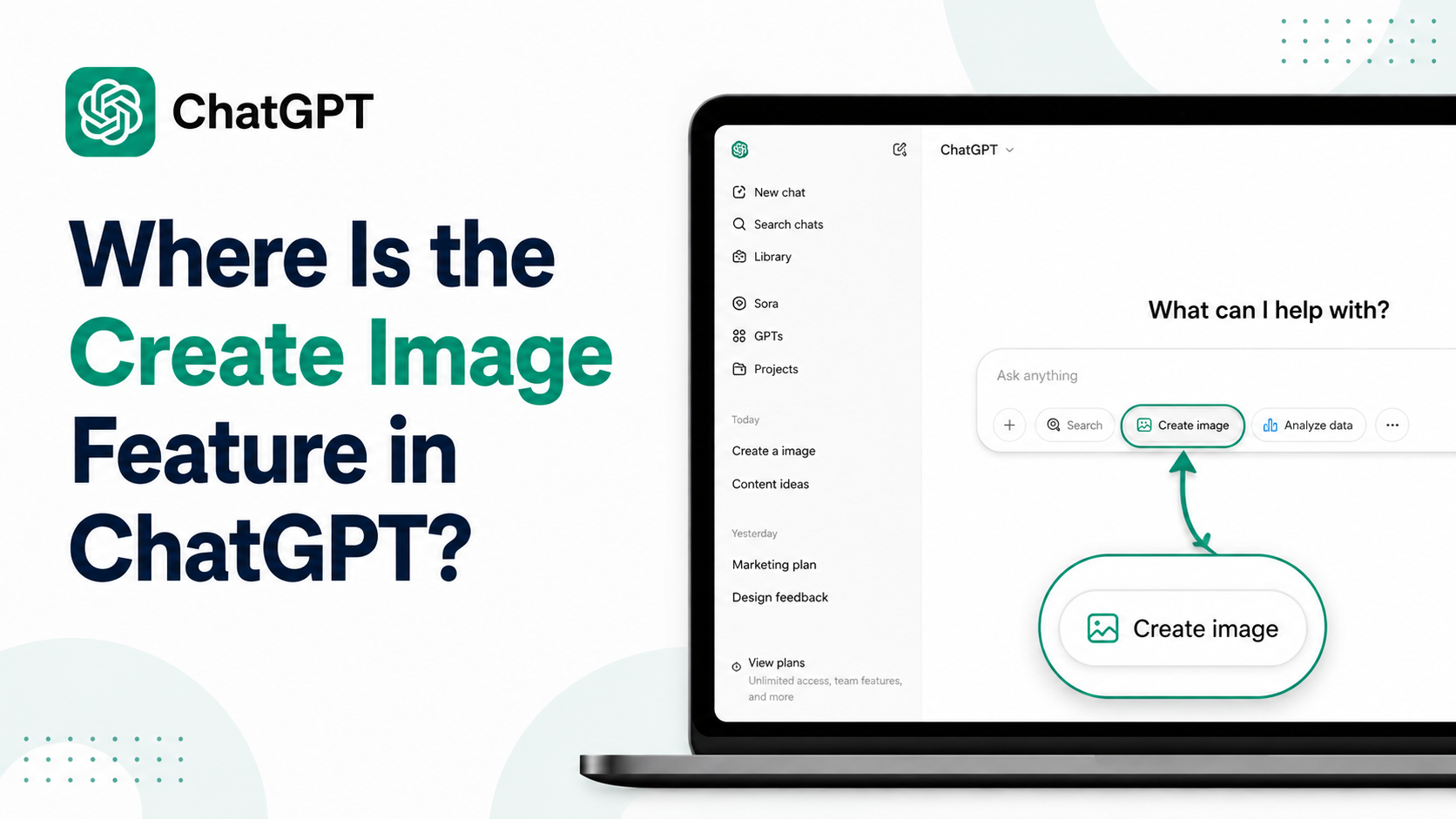
If you are searching for where is create image in ChatGPT, the quickest answer is: open a chat, select More, then choose Images. You can also simply type a request such as "Create an image of…" into the message box and send it.
The feature is available in ChatGPT on the web, iOS, and Android. It can create new visuals from text, edit images you upload, change an image's aspect ratio, add text, and make backgrounds transparent. The exact button placement can differ slightly between the web interface and mobile app, so knowing both routes saves time.
Key Takeaways
- In a new or existing chat, select More and then Images to start image creation.
- You do not always need a button—typing "Create an image…" in the chat box also works.
- Generated images are saved in the Images area, where you can open them and choose Create Image again.
- ChatGPT Images is available on web, iOS, and Android.
- Image creation can have separate usage limits, including on the Free tier.
- You can upload an existing image and ask ChatGPT to edit a selected part or describe a broader change.
The Direct Answer: Where to Find Create Image in ChatGPT
The Create Image option can appear in two useful places:
| Where you are in ChatGPT | What to select |
|---|---|
| In a chat | More → Images |
| In the Images gallery | Create Image |
| Anywhere you can type a prompt | Type a direct request, such as "Create an image of…" |
OpenAI's current guidance states that you can ask ChatGPT to create an image directly in a conversation or select More and then Images. This means there is no need to find a separate "image generator" page before you begin.
For most users, the easiest route is to start a new chat and write a clear instruction. For example:
Create a clean, modern poster for an Independence Day sale in India, using saffron, white and green accents, with space for a shop logo.
ChatGPT will interpret the request as an image-generation task and begin creating it.
How to Create an Image on ChatGPT Web
On a laptop or desktop browser, use the following workflow:
- Go to ChatGPT and sign in.
- Open a new chat or continue an existing one.
- Locate the More option near the message composer.
- Select Images.
- Enter a detailed description of the visual you want.
- Send the prompt and wait for the image to generate.
You can also skip steps 3 and 4. Type a direct instruction in the message box, such as:
Create a realistic product photograph of masala chai in a clay cup on a rainy Mumbai morning, vertical format.
The more specific the prompt, the more usable the first result is likely to be. Include the subject, visual style, setting, lighting, composition, text requirements and preferred aspect ratio where relevant.
What to Include in an Effective Prompt
A practical image prompt usually answers these questions:
- What is the main subject? A product, person, landscape, illustration or social-media design.
- What should it look like? Photorealistic, minimalist, watercolour, 3D, editorial or hand-drawn.
- Where is it set? A Bengaluru office, Jaipur market, classroom, beach or studio.
- What format is needed? Square, portrait or landscape.
- What should be avoided? Unwanted text, cluttered background, dark lighting or extra objects.
For instance:
Create a square Instagram post for a vegetarian café in Pune. Show a colourful thali on a wooden table, natural daylight, premium food photography style, no readable text, warm and inviting mood.
How to Create an Image on the ChatGPT Mobile App
The process on the ChatGPT iOS and Android apps is similar:
- Open the ChatGPT app.
- Start a new chat.
- Tap the More option near the prompt field.
- Choose Images.
- Describe the image you want and send the request.
If you cannot see Images immediately, try typing "Create an image of…" directly in the prompt field. The interface may show features differently depending on the app version and account experience, but direct text requests remain a straightforward way to start.
For mobile users creating content for WhatsApp, Instagram or local business listings, specify the intended format. For example:
Create a vertical promotional image for a home bakery in Hyderabad, pastel colours, elegant cake on a table, blank space at the top for Hindi and English offer text.
Find Your Previous Images and Start Another One
ChatGPT automatically saves images you create under Images. This gallery is useful when you want to revisit, download, reuse or edit an earlier result instead of searching through old conversations.
To create another visual from the gallery:
- Open Images on web or mobile.
- Select Create Image.
- Enter your new prompt.
When you open an image, ChatGPT provides controls to copy it, save it to your device or share it. Download the final file before using it in a presentation, online listing or campaign.
A useful habit for business owners and creators is to keep the original conversation. Deleting the conversation where an image was created also removes that image from My images.
How to Edit an Image Instead of Creating a New One
The same ChatGPT Images experience can modify an image you already have. You can either select a generated image or upload your own image, then describe the change you need.
Examples of practical edits include:
- "Change the background to a clean white studio background."
- "Make the product packaging blue and gold."
- "Remove the people in the background."
- "Add a festive Diwali lighting effect."
- "Make the background transparent."
- "Turn this horizontal design into a vertical story format."
For targeted changes, open the image editor and use Select to highlight the area you want changed. Then describe the edit in the conversation panel. You can also skip selection and explain the desired change in text.
Be precise about location when editing. Instead of saying "change the text," write:
Replace only the headline at the top centre with "Grand Opening"; keep the logo, colours and layout unchanged.
OpenAI notes that selection highlights are not always exact and edits can extend beyond the selected area. Review the result carefully, especially when editing product labels, logos, faces or important text.
Aspect Ratios, Text and Transparent Backgrounds
ChatGPT Images can create different aspect ratios. Use the aspect-ratio picker where available, or state your requirement in the prompt.
| Intended use | Helpful prompt instruction |
|---|---|
| Instagram feed | "Square 1:1 composition" |
| Instagram Story or Reel cover | "Vertical 9:16 composition" |
| YouTube thumbnail | "Landscape 16:9 composition" |
| Website banner | "Wide horizontal banner" |
| Marketplace product listing | "Clean square product image on a white background" |
It can also follow instructions to add text, add details and create transparent backgrounds. However, always inspect text inside the generated visual before publishing. If a design includes prices, contact numbers, product specifications, legal wording or Hindi-language copy, check every character manually. Generate or revise the artwork as needed, then add critical commercial text in a dedicated design tool if exact typography is essential.
Is Create Image Available on the Free Plan?
According to OpenAI's current Free Tier FAQ, Free users can create images in ChatGPT. However, image generation has its own usage limits, separate from ordinary text chats, file uploads and other tools.
This has two important implications:
- Reaching an image-generation limit does not necessarily mean ChatGPT text chat is unavailable.
- If you hit the limit, ChatGPT will show the applicable notice and you must wait until the in-product reset time.
Paid plans can have higher rate limits, but limits and availability can change. Rather than relying on old social-media posts or third-party pricing pages, check the notice shown in your ChatGPT account before planning a high-volume campaign.
OpenAI currently describes ChatGPT Images as available across all tiers, while "Images with thinking" is listed for Plus, Pro and Business, with Enterprise and Edu availability described as forthcoming.
Why the Images Option May Be Missing
If you cannot find the button, work through these checks.
Try a Direct Text Request
Type a plain-language instruction:
Create an image of a modern Indian co-working space with natural light.
This can start the image workflow even if you are unsure where the menu control is located.
Update and Restart the App
On mobile, install the latest available ChatGPT app update from the official app store, then close and reopen the app. An outdated app interface may not match current instructions.
Check Whether You Reached a Limit
Free-tier image creation has separate rate limits. If you have reached one, ChatGPT should display a message rather than silently create an image.
Check Workspace or Family Controls
In managed accounts, access can depend on workspace settings and permissions. OpenAI also states that parental controls for linked teen accounts may let a parent or guardian control whether image creation or editing is available.
Use the Official ChatGPT Service
Use the official ChatGPT website or official mobile apps. Avoid unofficial "ChatGPT image generator" websites that may copy the name, request unnecessary payment details or handle uploaded images insecurely.
DALL·E, ChatGPT Images and What to Use Now
The current image feature inside ChatGPT is called ChatGPT Images. OpenAI's help documentation says the official DALL·E GPT is scheduled to retire from ChatGPT on August 30, 2026. For creating and editing images in ChatGPT, use ChatGPT Images rather than depending on the DALL·E GPT.
This distinction matters because tutorials written for older interfaces may tell you to search for "DALL·E" first. That is no longer the most direct workflow. Start in a normal ChatGPT chat, use More → Images, or write an image request directly.
Frequently Asked Questions
Do I need ChatGPT Plus to create images?
No. OpenAI's current documentation says ChatGPT Images is available on all tiers, including the Free tier. Free accounts can still have separate image-generation limits.
Where is the Create Image button on ChatGPT mobile?
Open a chat, tap More near the message composer, and select Images. If the menu is not visible, type a direct instruction such as "Create an image of a coffee shop in Delhi at sunset."
Can I edit a photo I upload to ChatGPT?
Yes. Upload an image and describe the edit you want. You can also use the selection tool to highlight a specific area before describing the change.
Can ChatGPT make an image background transparent?
Yes. ChatGPT Images can follow instructions to make a background transparent. State the requirement clearly, such as "remove the background and deliver the product on a transparent background."
Why did ChatGPT refuse or fail to create my image?
The most common practical causes are reaching a usage limit, an unclear request, a temporary service issue or a request that conflicts with OpenAI's usage policies. Simplify the prompt, review any notice shown in the app and try again later if a limit is displayed.
Conclusion
For anyone asking where is create image in ChatGPT, the main route is More → Images inside a chat. You can also create visuals simply by typing a clear image request, while the Images gallery lets you find earlier work and select Create Image for a new project.
Use specific prompts, choose the right aspect ratio for the platform, review generated text carefully and keep an eye on in-product usage notices. Start with one practical prompt for your business, study, content or personal project, then refine the result through targeted edits.