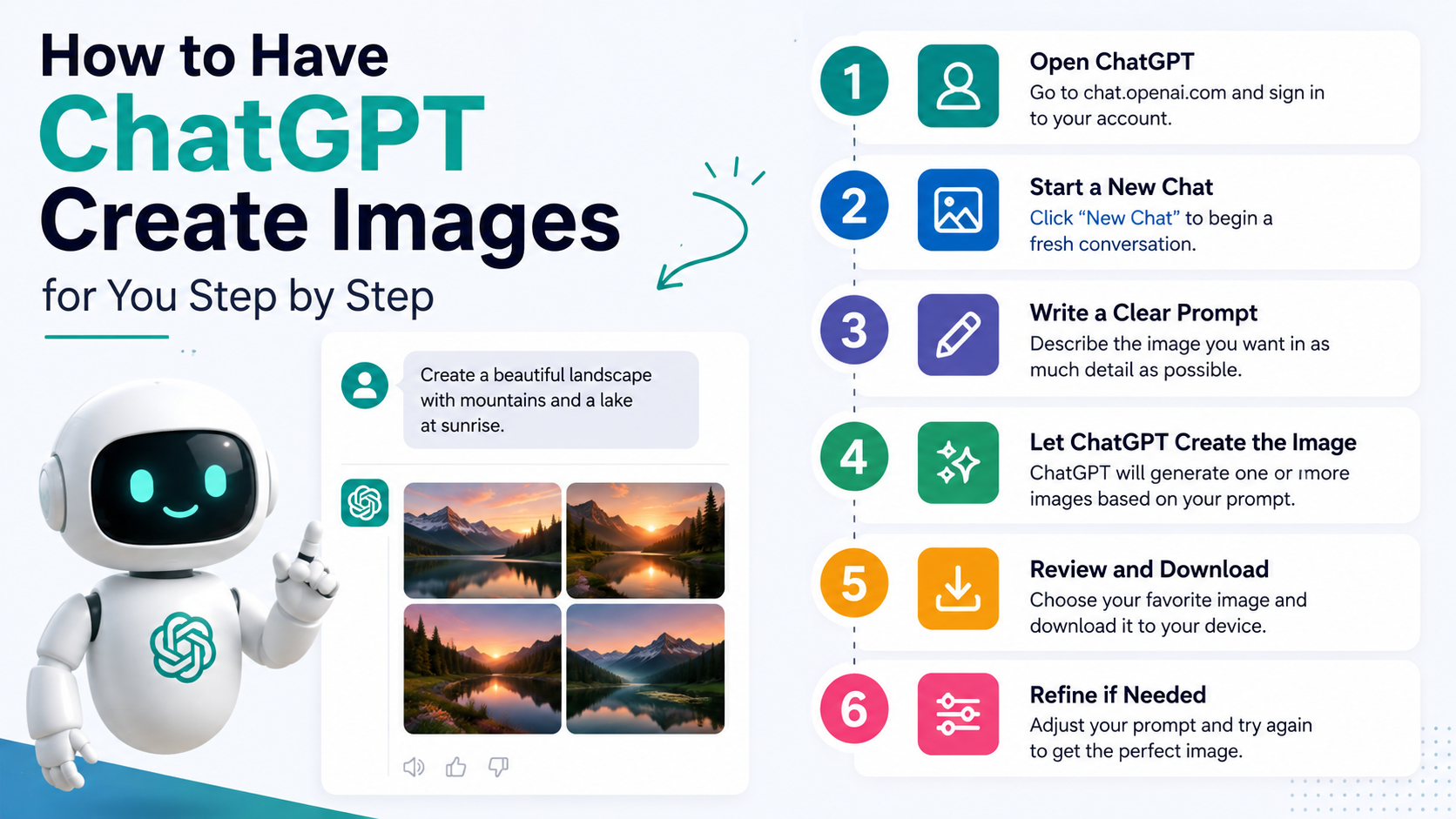
Learning how to have ChatGPT create images is useful for students, small businesses, marketers, creators, and professionals who need original visuals without starting from a blank canvas. You can describe the image in plain language, ask for revisions, upload a reference image for editing, and download the final result for use in presentations, social posts, product concepts, or personal projects.
ChatGPT Images is available on the web, iOS, and Android. OpenAI states that image creation is available across ChatGPT tiers, although usage limits can apply and may differ by plan. OpenAI's Images in ChatGPT guide is the best place to confirm the current interface and availability.
Key Takeaways
- Describe the subject, setting, style, format, and important constraints in your prompt.
- You can create an image in a normal chat or choose More and then Images.
- Use follow-up prompts to improve one specific element at a time.
- Upload an existing image when you want ChatGPT to edit, restyle, or expand it.
- Specify an aspect ratio for Instagram posts, YouTube thumbnails, presentations, or print layouts.
- Use reference images and real people's likenesses only when you have the necessary permission and rights.
What You Need Before Creating an Image
You need a ChatGPT account and access to ChatGPT on the web or mobile app. If image generation is available in your account, you can begin in a regular conversation or use the Images option in the interface.
Before you write a prompt, decide what the image must accomplish. A vague request such as "make a poster" can produce a usable starting point, but a goal-led request is more likely to create something relevant.
For example, identify:
- Purpose: Instagram post, school presentation, YouTube thumbnail, website banner, menu card, or product mock-up
- Audience: parents, college students, customers in India, tourists, or corporate clients
- Main subject: a person, product, place, scene, diagram, or illustration
- Style: photorealistic, minimalist, watercolour, editorial, 3D, flat illustration, or hand-drawn
- Format: square, portrait, landscape, or wide banner
- Essential details: colours, text, mood, clothing, objects, lighting, and composition
This preparation prevents the most common problem: receiving an attractive image that does not serve the intended purpose.
Step-by-Step: How to Have ChatGPT Create Images
1. Open ChatGPT and Choose an Image-Creation Route
Open a new chat in ChatGPT. You can simply type a request such as "Create an image of…" in the message box. Alternatively, select More and choose Images, then enter your request.
Use the direct chat approach when you want ChatGPT to help refine the idea before generating. Use the Images option when you already know what you need and want to begin quickly.
2. Write a Clear First Prompt
Your first prompt should state the image's purpose and the most important visual decisions. You do not need complicated technical language. Clear, specific instructions are more effective than decorative wording.
A practical prompt structure is:
Create a [type of image] for [purpose] showing [main subject] in [setting]. Use a [visual style] style, [lighting/mood], and a [composition]. Include [key details]. Use a [aspect ratio] format. Avoid [unwanted elements].
Here is a useful example for an Indian small business:
Create a clean square Instagram image for a Bengaluru home bakery. Show a premium eggless chocolate cake on a simple pastel table setting, soft natural light, warm and modern food-photography style. Leave clear empty space at the top for a headline. Use a 1:1 format. Do not include logos, price tags, or readable text.
The prompt tells ChatGPT what to make, where the image will be used, what should be visible, and what should be avoided.
3. Choose the Right Aspect Ratio
The image format should match where you will publish it. ChatGPT lets you use an aspect-ratio picker or specify the ratio in your prompt.
| Intended use | Helpful format instruction |
|---|---|
| Instagram feed post | "Use a 1:1 square format." |
| Instagram Story or WhatsApp Status | "Use a 9:16 vertical format." |
| YouTube thumbnail | "Use a 16:9 landscape format with space for a title." |
| Presentation slide | "Use a 16:9 widescreen format." |
| Blog header | "Use a wide landscape banner format." |
| Product listing | "Use a clean portrait product image on a plain background." |
If the first result feels cropped or unbalanced, ask ChatGPT to regenerate it in a different ratio instead of trying to force the same image into an unsuitable layout.
4. Review the First Result Against Your Brief
Do not judge the output only on whether it looks impressive. Check whether it matches the job you gave it.
Ask yourself:
- Is the main subject clear at a glance?
- Does the scene reflect the intended audience and context?
- Is there enough empty space for a heading or logo?
- Are the colours consistent with your brand or campaign?
- Is the image suitable for the platform's dimensions?
- Are there distracting objects, incorrect details, or unwanted text?
For a tourism visual, for example, it may not be enough that the image looks like India. Check the location, clothing, architecture, weather, and cultural details before using it in a public campaign.
5. Refine It with Specific Follow-Up Instructions
The fastest way to improve an image is to change one or two things at a time. Avoid replacing the entire brief unless the concept itself is wrong.
Useful follow-up prompts include:
- "Keep the composition, but make the background less busy."
- "Move the product slightly to the right and leave more blank space on the left."
- "Make the lighting brighter and more suitable for an ecommerce listing."
- "Change the illustration style to a clean editorial vector style."
- "Remove the people in the background."
- "Make the saree colour deep teal and keep all other elements unchanged."
- "Create three variations with different colour palettes."
ChatGPT can follow instructions to add text, alter details, or make the background transparent, but important wording should always be checked carefully. Even when a generated image looks correct, proofread every visible word before publishing.
How to Edit an Existing Image with ChatGPT
Image creation is not limited to new artwork. You can upload an image you already own or select an image created in ChatGPT, then describe the changes you want.
OpenAI's editor supports two approaches:
- Select an area with the selection tool and describe the edit.
- Describe the desired edit directly in the conversation without selecting an area.
For precise changes, identify the location clearly. For example:
In the lower-right corner, replace the plastic cup with a ceramic coffee mug. Keep the lighting, table, and person unchanged.
You can also request broader changes:
Turn this product photo into a festive Diwali campaign visual with warm golden lighting, subtle diyas in the background, and a premium look. Keep the product shape and label unchanged.
The selection highlight is not always exact, so an edit can affect nearby areas. Review the result closely, especially around faces, hands, product labels, and borders.
How to Write Better Prompts for Indian Audiences
A strong prompt reflects the intended audience without relying on stereotypes. Add relevant local context where it genuinely matters: city setting, climate, language placement, festival, clothing, food, or usage scenario.
Include Cultural Context Carefully
Instead of writing "Indian festival poster," provide details that make the request usable:
Create a premium festive social-media background for Diwali, featuring subtle marigold flowers, warm diya light, a dark navy and gold palette, and generous empty space in the centre for Hindi and English text. No religious figures, logos, or words.
For regional relevance, be concrete:
Create an editorial illustration of a student commuting by Kochi Metro during monsoon season, with umbrellas, rain reflections, and a modern, optimistic style.
Be Exact About Text
If you need text inside an image, put the wording in quotation marks and specify its appearance:
Add the headline "FRESHLY BAKED TODAY" in bold white sans-serif type at the top centre. Include no other text.
For names, uncommon spellings, or brand words, provide the exact spelling. Still, use a design tool for final proofreading and layout when text accuracy is business-critical.
Use Reference Images with a Clear Instruction
When uploading one or more references, explain each image's role:
Image 1 is my product photograph. Image 2 is a colour-and-style reference. Create a new campaign image that keeps the product from Image 1 accurate and uses the soft pastel styling of Image 2.
This is clearer than uploading files without context.
Practical Prompt Examples You Can Adapt
For a College Presentation
Create a clean 16:9 educational illustration explaining rainwater harvesting in an Indian urban home. Show rooftop collection, pipes, a filter, and an underground storage tank. Use labelled visual sections but no written labels, modern flat-vector style, blue and green colour palette.
For a Local Restaurant
Create a vertical food photograph for a restaurant's Instagram Story. Show a steaming bowl of paneer butter masala with naan on a dark wooden table, warm restaurant lighting, premium but natural food styling, 9:16 format, leave space at the top for an offer headline.
For a LinkedIn Post
Create a professional wide illustration for a LinkedIn post about remote teamwork in India. Show a diverse team in a video meeting, subtle home-office details, clean corporate style, soft blue and white palette, 16:9 format, no logos or text.
For an Ecommerce Background
Create a minimalist product-photography background with a soft beige gradient, gentle shadow, and a clear central platform. Portrait format. Do not include any product, text, brand, or decorative clutter.
Download, Save, and Organise Your Images
After generating an image, open it and use the available controls to copy, save, or share it. Images created in ChatGPT are also saved under Images, where you can revisit and reuse them. According to OpenAI, deleting the conversation in which an image was created removes it from your image collection.
Before publishing, keep an organised local folder containing:
- The downloaded final image
- The original prompt
- Any approved variations
- Source or reference images you are authorised to use
- Notes about where the image was published
This record is particularly useful for client work, campaigns, and teams that may need future edits.
Important Limitations and Responsible Use
Generated images can be useful, but they still need human review. They may contain inaccurate objects, distorted hands, unclear text, inconsistent product details, or culturally inappropriate elements. Do not use an image in a commercial campaign, educational resource, or public communication without checking it carefully.
When creating or editing images:
- Use only photos, logos, artwork, and product assets you have permission to upload or adapt.
- Get consent before using someone's likeness, especially for realistic promotional material.
- Do not use generated visuals to mislead people, impersonate others, or present fabricated events as real.
- Review all labels, prices, claims, and medical, legal, or financial messaging before publication.
- Follow the applicable platform rules and OpenAI's Usage Policies.
OpenAI's policies prohibit, among other things, deceptive use of a person's likeness without consent in ways that could confuse authenticity. Treat AI images as creative drafts that require responsible editorial judgment.
Frequently Asked Questions
Can I ask ChatGPT to create an image for free?
OpenAI currently states that image creation is available across ChatGPT tiers, including the free tier. However, image generation has separate usage limits, and ChatGPT will notify you if you reach an applicable limit. Availability and limits can change, so check the current in-product notice or official Help Center guidance.
Can ChatGPT edit a photo I upload?
Yes. You can upload an existing image and describe the changes you want, or use the selection tool to mark a specific area before requesting an edit. Only upload images you are entitled to use, particularly when they show identifiable people or protected brand assets.
What is the best prompt length for image creation?
A concise but complete prompt is usually best. Include the purpose, subject, setting, style, composition, and constraints. One to three clear sentences often provide enough direction; add details only when they affect the result.
Can I create images with Hindi or other Indian-language text?
You can request text in Hindi or another language, but generated text should be checked carefully for spelling, punctuation, and layout. For posters, menus, advertisements, or legal information, finalise the text in a dedicated design tool after generating the visual.
Why does ChatGPT refuse an image request?
ChatGPT may refuse or block requests that conflict with OpenAI's policies, such as harmful, deceptive, privacy-violating, or otherwise disallowed content. Reframe the request toward a lawful, respectful, and non-deceptive creative goal.
Conclusion
Knowing how to have ChatGPT create images begins with a clear brief: state the goal, describe the subject and setting, choose an aspect ratio, and identify the visual style. Then refine the first output with focused follow-up instructions rather than starting again each time.
Use the tool to develop concepts, create social-media visuals, improve presentations, explore product imagery, and edit authorised images. Before you publish, review every detail, confirm that visible text is correct, and ensure you have the necessary rights for any references or likenesses involved.