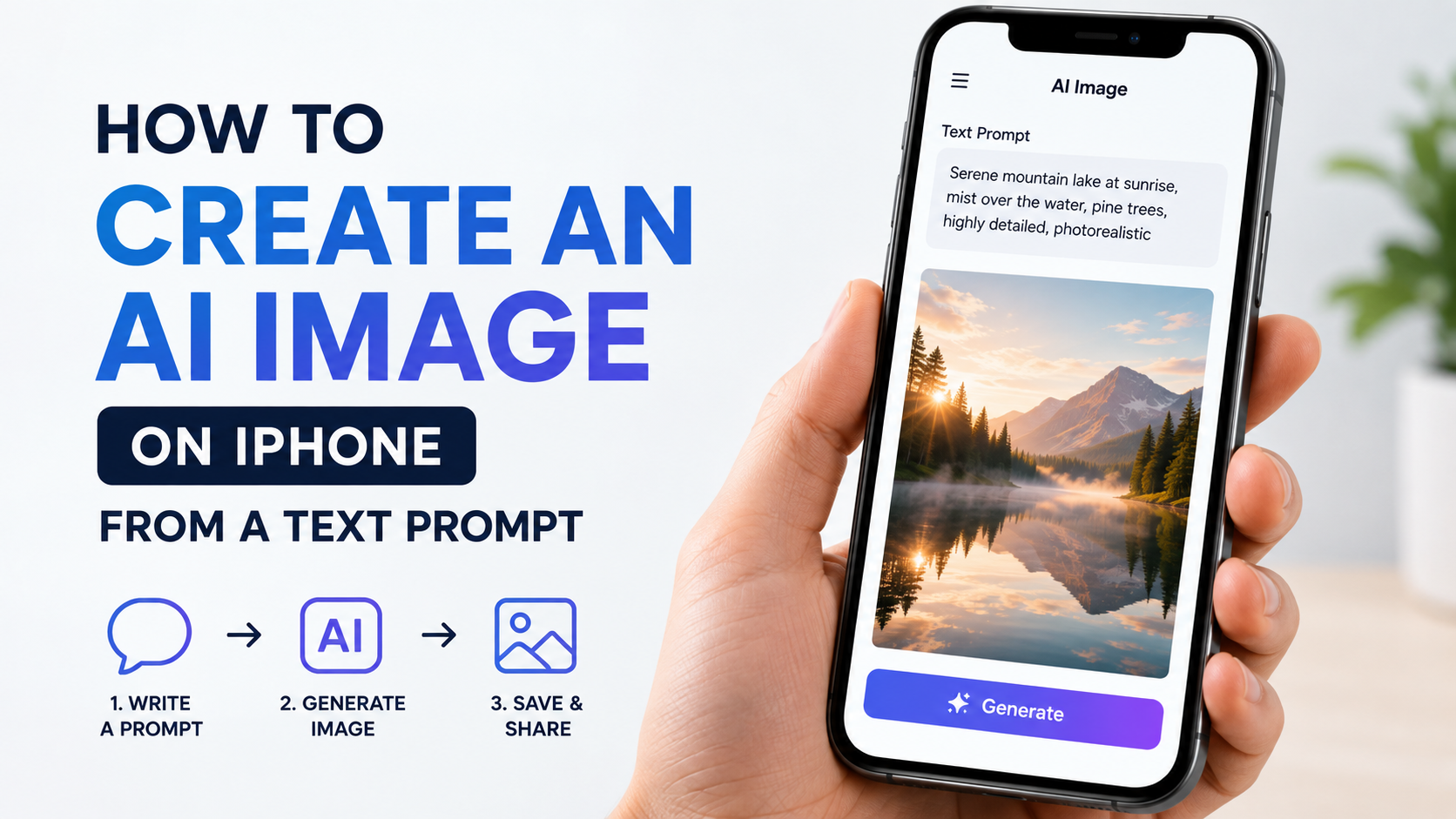
An ai image generator iphone tool lets you turn a written idea into an original visual without needing design software or drawing skills. On compatible iPhones, Apple's Image Playground can generate images from text descriptions, concepts, selected photos and people from your photo library. It is also available inside apps such as Messages and Freeform. Apple's iPhone guide
For users in India, Image Playground supports English (India), according to Apple's current feature-availability page. This guide explains how to check compatibility, create your first image, write stronger prompts, improve results and use generated visuals responsibly. Apple feature availability
Key Takeaways
- Apple's built-in Image Playground is available on Apple Intelligence-compatible iPhones, including iPhone 15 Pro models and newer supported models.
- Start with a clear text prompt that identifies the subject, setting, visual style, lighting and intended use.
- You can combine text with concepts, photos and people from your library to guide the image.
- Apple lets you browse variations, edit the image and save or share the final result.
- AI-generated images can contain mistakes, especially in text, faces and factual details—review them before publishing.
- Avoid using another person's likeness or copyrighted material in a misleading, harmful or unauthorised way.
What Is the Built-In AI Image Generator on iPhone?
Apple's native image-generation feature is called Image Playground. It is part of Apple Intelligence and can create images from a description, such as "a festive illustration of a family sharing sweets during Diwali." You can also add suggested concepts, a person from your Photos library or a photo of an object, pet, food or landscape.
Image Playground is available as a dedicated app and can be used within Messages, Freeform, Keynote, Pages, Apple Invites and supported third-party apps. Apple's Image Playground instructions
Apple's current documentation lists these native style choices:
| Style option | Best for |
|---|---|
| Animation | Expressive, polished character-style visuals |
| Illustration | Posters, simple social graphics and colourful concepts |
| Sketch | Detailed, hand-drawn or technical-looking artwork |
| ChatGPT styles | Additional styles or an open-ended "Any Style" description, where available |
The exact controls shown on your iPhone can depend on your iOS version, enabled services and region.
Check Whether Your iPhone Can Use Image Playground
Before looking for the app, update your iPhone to the latest available iOS version and ensure Apple Intelligence is enabled. Apple states that Apple Intelligence is not available on every iPhone model, language or region. Apple Support
Apple currently lists Apple Intelligence support for these iPhone families and models:
- iPhone 15 Pro and iPhone 15 Pro Max
- iPhone 16e, iPhone 16, iPhone 16 Plus, iPhone 16 Pro and iPhone 16 Pro Max
- iPhone 17e, iPhone 17, iPhone Air, iPhone 17 Pro and iPhone 17 Pro Max
See Apple's current compatibility list before relying on a particular feature, as software availability can change. Apple Intelligence compatibility
Set up Apple Intelligence
- Open Settings on your iPhone.
- Look for Apple Intelligence & Siri.
- Turn on Apple Intelligence if it is available on your device.
- Keep the iPhone connected to Wi-Fi and power during any required download.
- Open Image Playground from the Home Screen or App Library.
If you cannot find the setting or the app, first check the iPhone model, iOS version and language settings. Apple's feature list specifically includes English (India) for Image Playground. Apple feature availability
How to Create an AI Image From a Text Prompt
Creating an image is straightforward, but a well-written prompt gives you more control over the outcome.
- Open the Image Playground app.
- Tap New Image.
- Tap Describe an image.
- Enter a clear description of the visual you want.
- Tap the send button to generate previews.
- Tap Style and choose a style that fits the purpose.
- Swipe through the preview variations.
- Add, remove or change concepts and details if needed.
- Tap Save when you are satisfied.
Apple says you can combine up to seven elements when making an original image. These may include concepts, a description, a person or a photo. Apple Support
Example prompt for an Indian business
Instead of writing:
Make a bakery poster
Write:
A warm illustration of a neighbourhood bakery in Pune at sunrise, fresh sourdough loaves and pastries in the window, orange and cream colour palette, clean space at the top for a headline, vertical social-media poster
The second prompt makes the subject, location, mood, colour direction, composition and use case clearer. It does not guarantee exact typography or branding, but it gives the generator useful creative boundaries.
Write Better Prompts for Better Images
A text prompt does not need to be long. It needs to be specific enough to communicate the visual goal.
Use this practical formula:
Subject + action or scene + location/background + style + lighting/colour + composition or format
For example:
A young Indian architect reviewing a sustainable house model in a bright studio, editorial illustration, soft daylight, green and sandstone palette, horizontal website banner
Prompt examples to try
| Goal | Prompt |
|---|---|
| Festival social post | "Elegant rangoli pattern with marigold flowers and diyas, deep blue background, illustration, square social-media post" |
| Travel concept | "Watercolour view of the tea gardens in Munnar after rain, misty hills, peaceful mood, landscape format" |
| Study presentation | "Clean sketch of a rainwater-harvesting system for a school project, labelled spaces left blank, white background" |
| Food idea | "Top-down food photograph style of masala dosa with chutneys on a banana leaf, natural window light" |
| Children's story | "Friendly elephant librarian in a magical library, colourful animation style, portrait orientation" |
Be precise about the result you need, but do not overload a prompt with conflicting requirements. If the first output is close, refine one element at a time—for example, change "daylight" to "golden-hour lighting" or "illustration" to "sketch."
Add Photos, People and Concepts to Guide the Result
Text is only one input. In Image Playground, you can strengthen the result by adding a relevant photo or a selected person.
To add a person, tap the person-selection option, choose someone identified in your Photos library and select a starting point. Apple notes that the person should be named in Photos to use this feature. You can then adjust elements such as hairstyle, facial hair and eyewear. Apple's guidance on personalising people
You can also add a photo of an object, pet, nature scene or food. This is useful when you want a visual inspired by an actual subject rather than a fully imagined one.
Important privacy consideration
Ask for permission before using a family member, customer, colleague or child's photo in an AI image workflow. Do not create deceptive images that imply someone said, did or endorsed something when they did not. For business use, ensure that your internal approval process covers images involving people, products, logos and confidential material.
Refine, Save and Share Your Creation
Generation is usually an iterative process. If a preview is not right, use the available controls rather than starting from scratch every time.
You can:
- Swipe through variations of the current image.
- Remove a concept that is pulling the image in the wrong direction.
- Edit a saved image and generate a new version.
- Change the style, which creates a new set of previews.
- Add a caption, copy or duplicate an image.
- Share the image or save it to your photo library.
Apple notes that deleting an image from Image Playground deletes it on devices signed in to the same Apple Account. Keep a separate saved copy if you need to preserve a version for a campaign or project. Apple Support
Create images directly in Messages
For a quick conversation visual:
- Open a new or existing conversation in Messages.
- Tap the Apps button.
- Choose Image Playground.
- Select an existing image or tap Create to make a new one.
- Tap Done, then send it when ready.
This is convenient for informal use, but proofread any visible text and review the image before sending.
Use Firefly on iPhone When You Need More Controls
If your iPhone is not compatible with Apple Intelligence—or you need controls such as aspect ratio, composition references or different image models—Adobe Firefly offers an iOS workflow for text-to-image generation.
In the Firefly mobile app, Adobe's documented process is:
- Open Firefly.
- Tap Text to image.
- Describe the image in the prompt field.
- Choose a model and aspect ratio.
- Set options such as content type, visual intensity, composition, style, effects, colour, lighting or camera angle.
- Tap Generate.
- Download the chosen variation or continue editing it.
Adobe recommends clear, straightforward prompts of at least three words and says quotation marks can be used when requesting text within an image. Adobe Firefly mobile guide
Do not assume that any third-party generator is free, suitable for commercial use or available under the same terms in every country. Read the app's current plan, content and licensing terms before using outputs in paid advertising, client work or product packaging.
Common Limitations to Watch For
AI image tools are creative aids, not proof engines. Apple explicitly warns that generative-model output can vary and that important information should be checked for accuracy. Apple Support
Pay particular attention to:
- Text in images: Spellings, prices, addresses and small print can be incorrect.
- People and hands: Faces, fingers, jewellery and clothing details may look unnatural.
- Branding: Do not rely on generated logos or packaging as final brand assets.
- Cultural accuracy: Review clothing, religious symbols, festivals and regional details carefully.
- Factual visuals: Do not present a generated medical, legal, news or product image as documentary evidence.
- Copyright and consent: Avoid prompts designed to imitate protected characters, copyrighted artwork or identifiable people without permission.
For polished work, generate the concept on iPhone, then add verified copy, approved logos and final layout in a proper design editor.
Frequently Asked Questions
Is there a free AI image generator on iPhone?
Image Playground is part of Apple Intelligence on compatible iPhones; Apple describes Apple Intelligence as integrated into supported devices. However, compatibility, software version, language and regional availability still apply. Third-party apps may have separate plans or usage limits, so check their current terms before use. Apple Intelligence
Which iPhones support Apple's AI image generator?
Apple currently lists support for iPhone 15 Pro and iPhone 15 Pro Max, along with supported iPhone 16 and iPhone 17 family models. Confirm your exact model on Apple's live compatibility page because the supported-device list may be updated. Apple compatibility list
Can I use Image Playground in India?
Apple's current India feature-availability page lists English (India) for Image Playground. Your iPhone must still be compatible, updated and configured with a supported language. Apple feature availability
Can I make an AI image of a real person?
Image Playground can use people from your photo library as an input. Use this respectfully: get permission, avoid misleading portrayals and do not use private or sensitive images without a lawful reason and clear consent. Apple Support
Why does my AI image not match my prompt?
The prompt may be too broad, contain conflicting instructions or omit visual details. Improve it by specifying the subject, setting, style, lighting and orientation. Then change only one or two details per attempt so you can see what improves the result.
Conclusion
An ai image generator iphone workflow can turn an idea into a useful visual in minutes. On a compatible iPhone, begin with Image Playground, describe the subject clearly, choose a fitting style, review variations and save the best version. For more production control, consider a mobile tool such as Adobe Firefly.
Start with one practical use case—a festival post, presentation visual, menu concept or story illustration—and refine your prompt until the result communicates the idea accurately and responsibly.